Skip to content

DV 360 & CM 360

This guide helps you to connect fraud0 with your DV360 & Campaign Manager account:

Follow these steps:

  1. Implement Floodlight Counter Tag (Step 1/4)
  2. Create new Floodlight Activity (Step 2/4)
  3. Create an Audience (Step 3/4)
  4. Exclude fraud0 Audience (Step 4/4)

  1. Implement Floodlight Counter Tag in Google Tag Manager (Step 1/4)

    This step shows you, how to implement the Floodlight Counter Tag via Google Tag Manager.

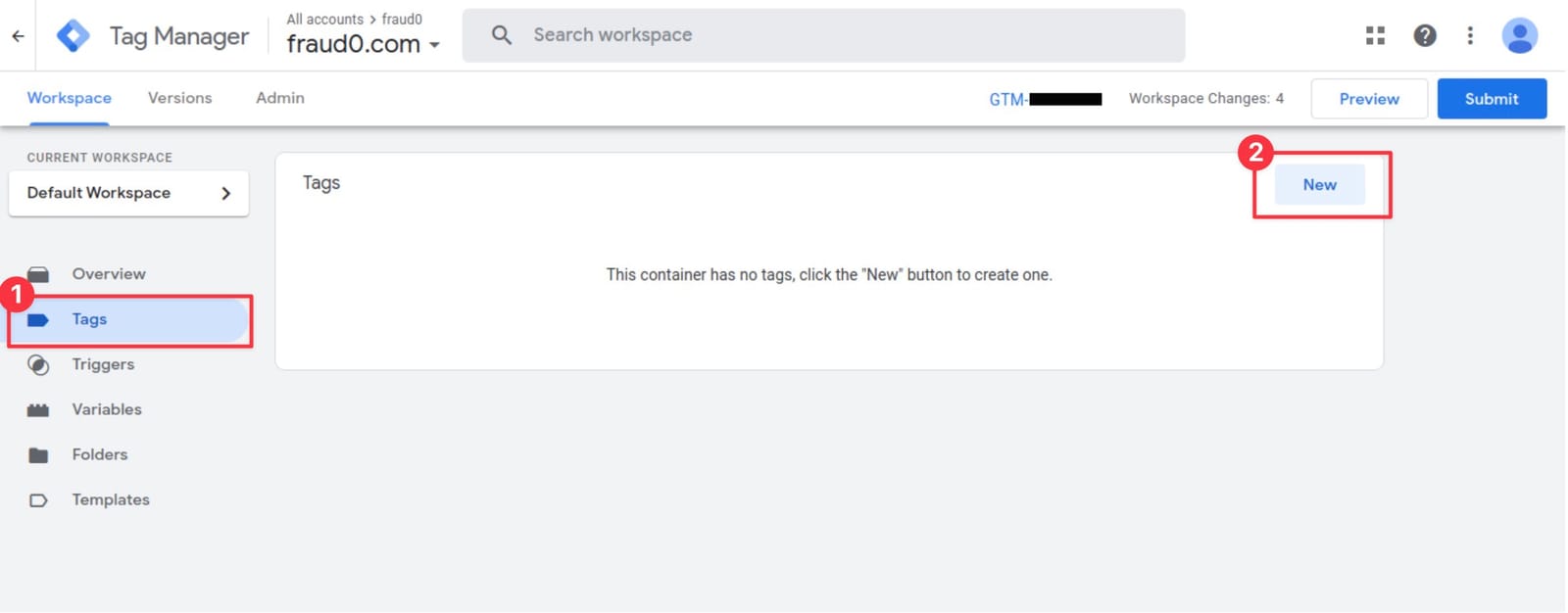
    GTM workspace Tags section with New button highlighted

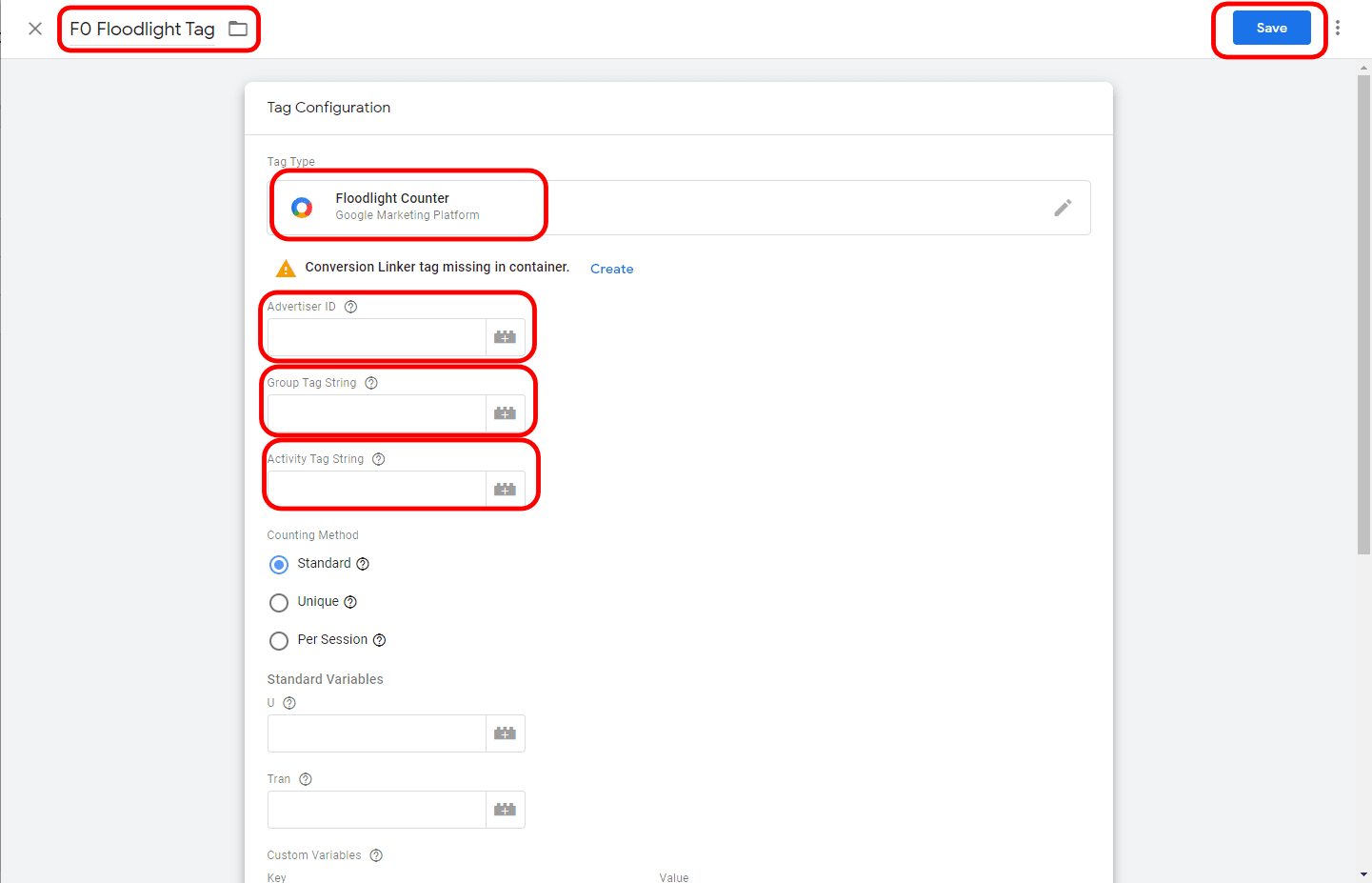
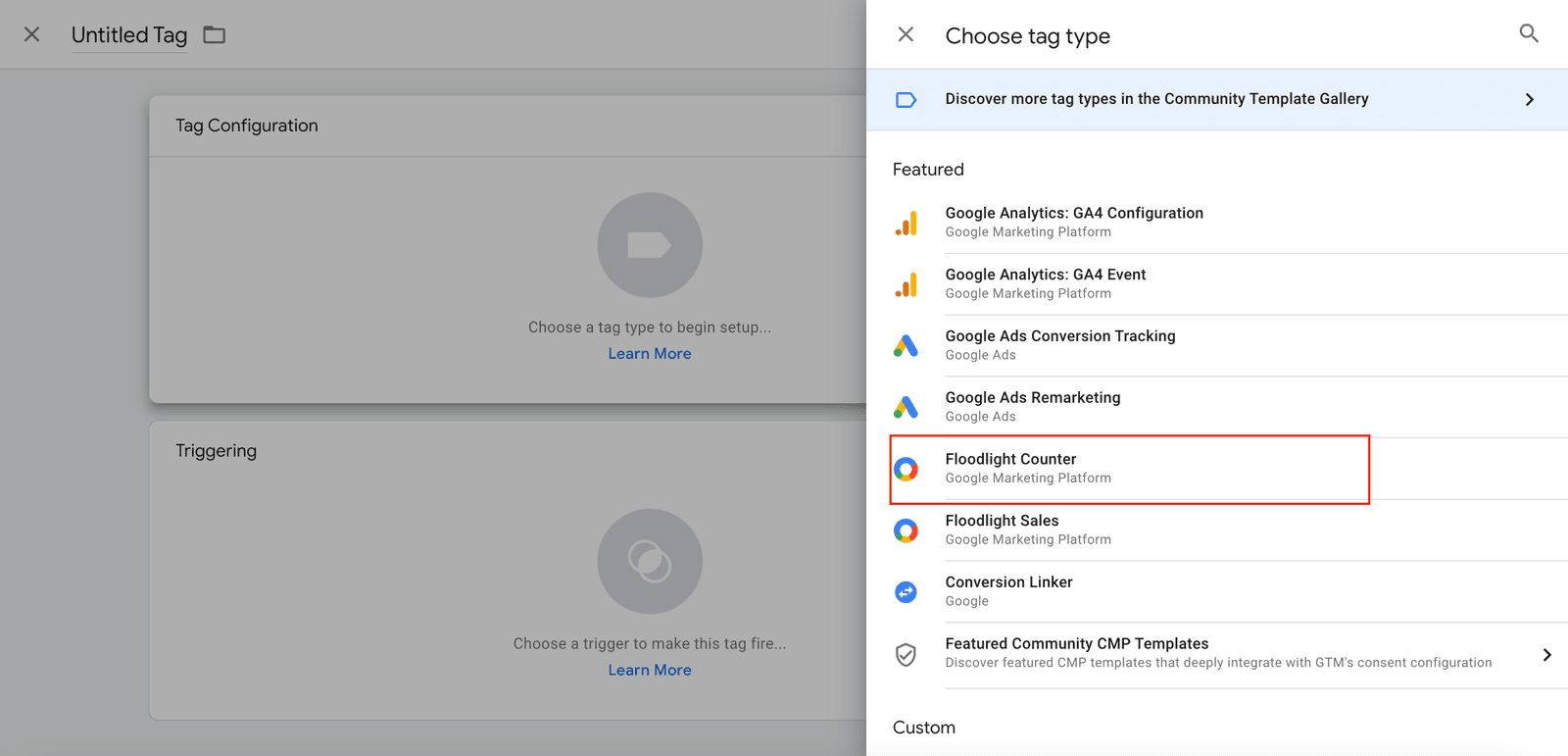
    • Within the Tag Configuration section select Floodlight Counter. The Floodlight Counter Template will open next.

    GTM Tag Configuration with Floodlight Counter selected

    • Give your tag a name (F0 Floodlight Tag) and enter the information from your Campaign Manager 360 account: https://support.google.com/tagmanager/answer/6107168
    • Choose Counting Method Standard
    • In the Triggering section you need to assign the F0 Trigger you have created before.
    • Click “Save”

    GTM Floodlight Counter tag configured with CM360 settings and F0 Trigger assigned

  2. Create new Floodlight Activity (Step 2/4)
    • Login to your Campaign Manager 360 account
    • Navigate to an advertiser
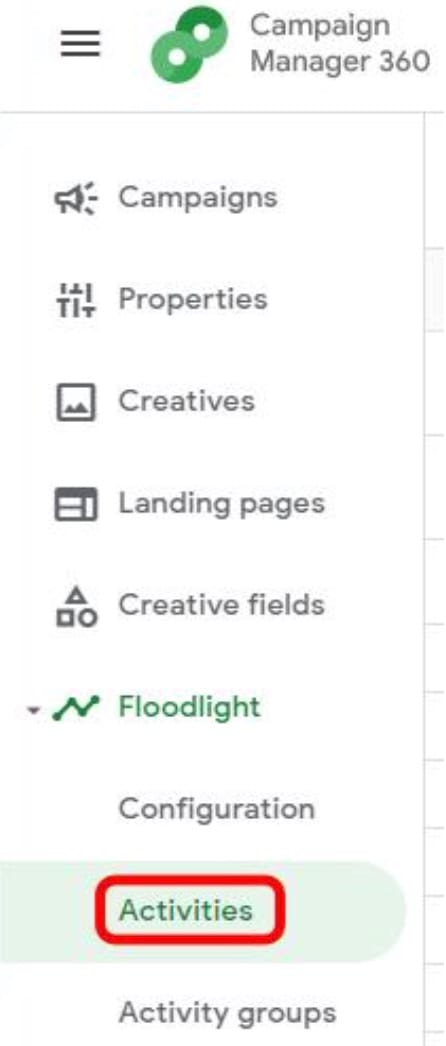
    • Click the Floodlight tab in the left navigation panel and select Activities

    Campaign Manager 360 Floodlight tab with Activities section in advertiser navigation

    • Click the + Floodlight activity button
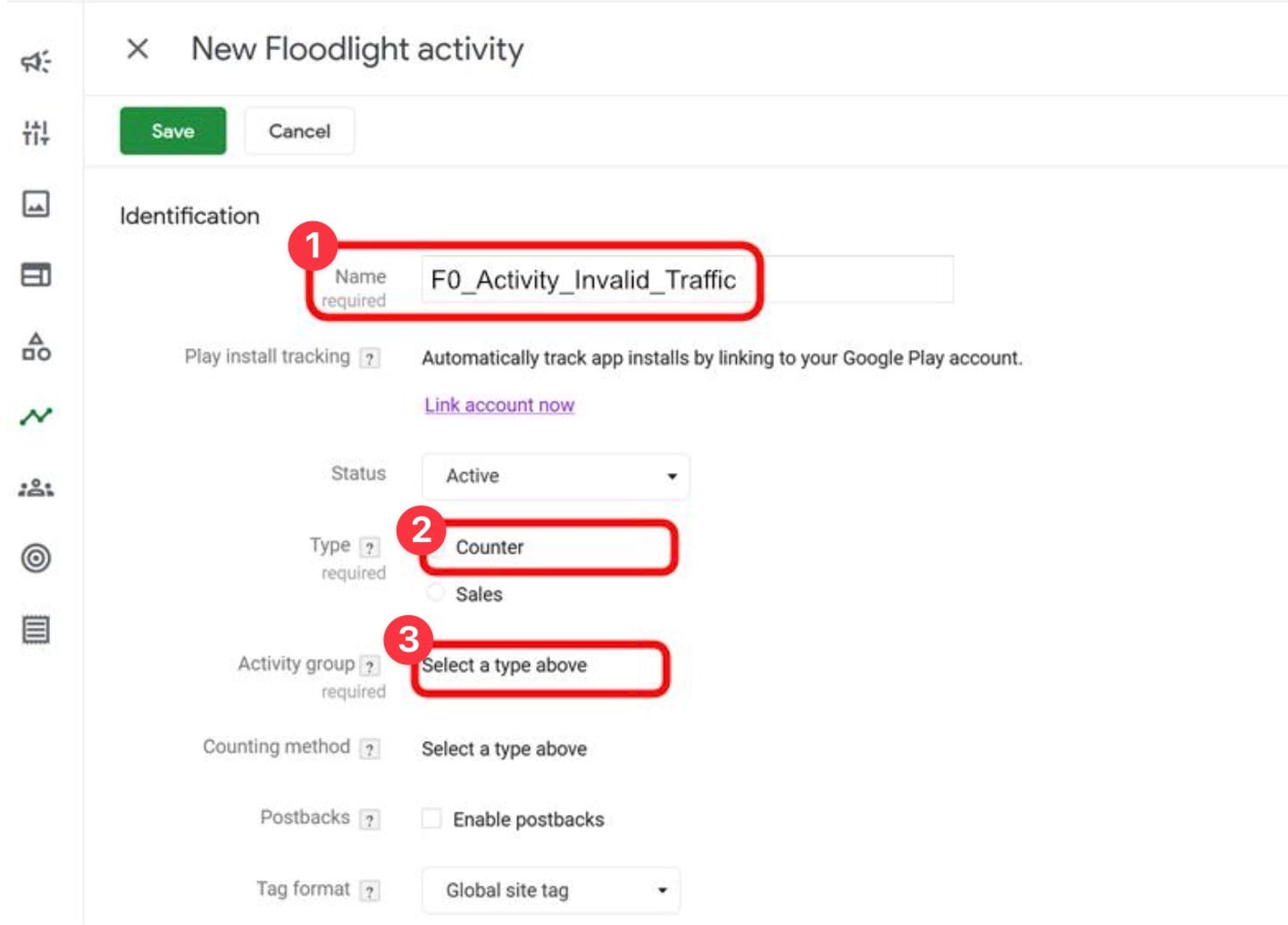
    • Name your new Floodlight activity (F0_Activity_Invalid_Traffic (1))
    • Select Counter (2) as the type
    • Click on Activity group (3)

    CM360 new Floodlight activity form with name, Counter type, and Activity group fields

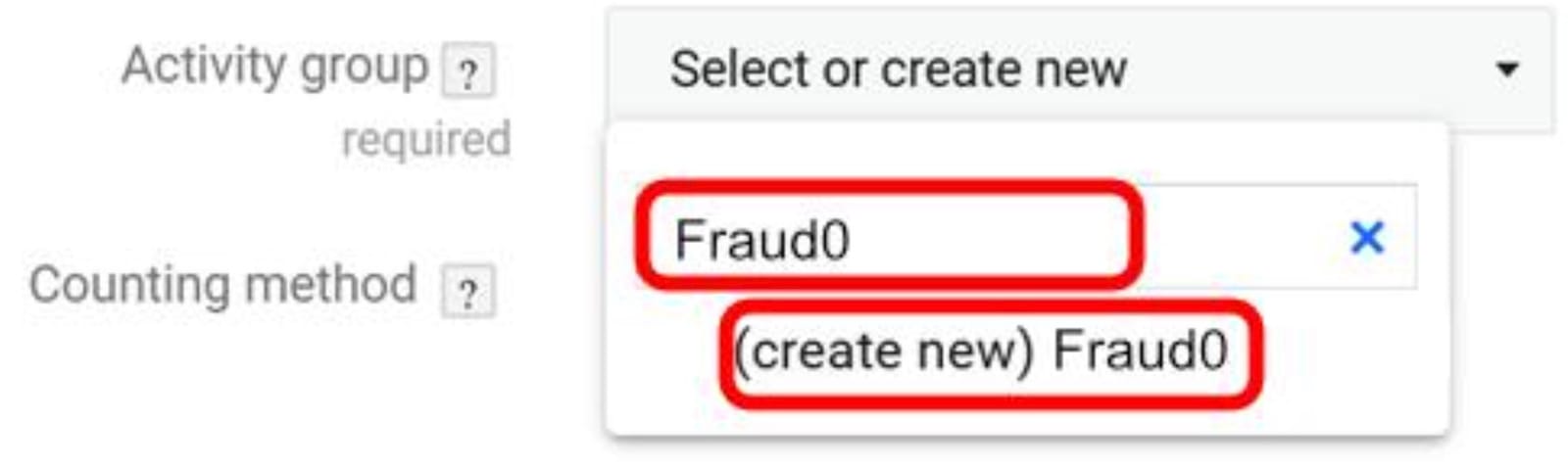
    • Select one if you have already set up an activity group for fraud tracking, otherwise choose a unique name for the new group e.g. Fraud0 and click on create new

    CM360 activity group selection with create new option

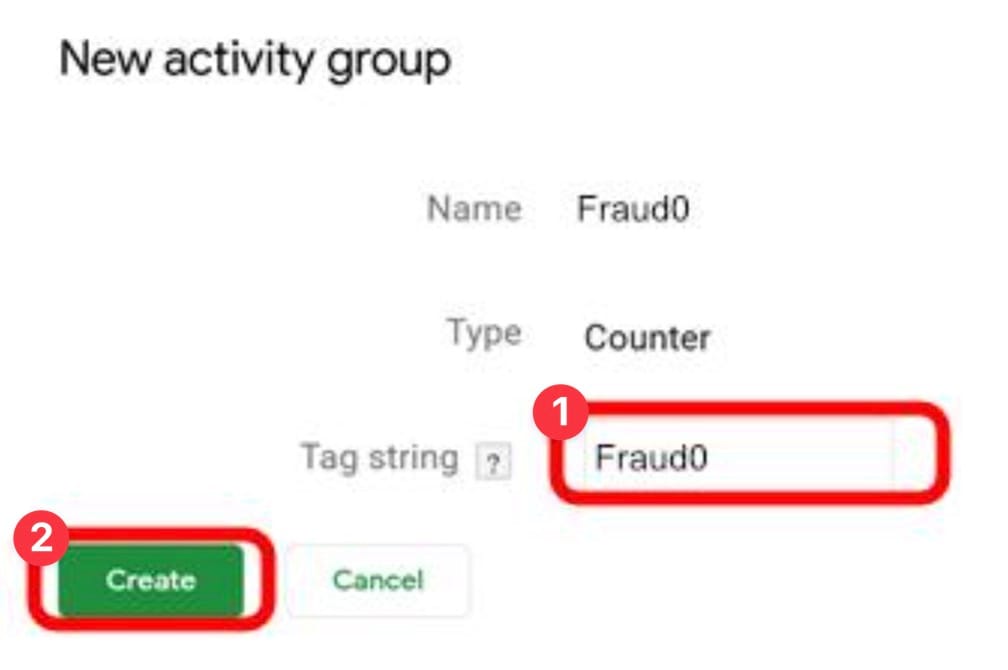
    • Enter a group Tag string (1), which the Floodlight servers use to identify the activity group, e.g. Fraud0
    • Click on Create (2)

    CM360 new activity group form with Tag string field

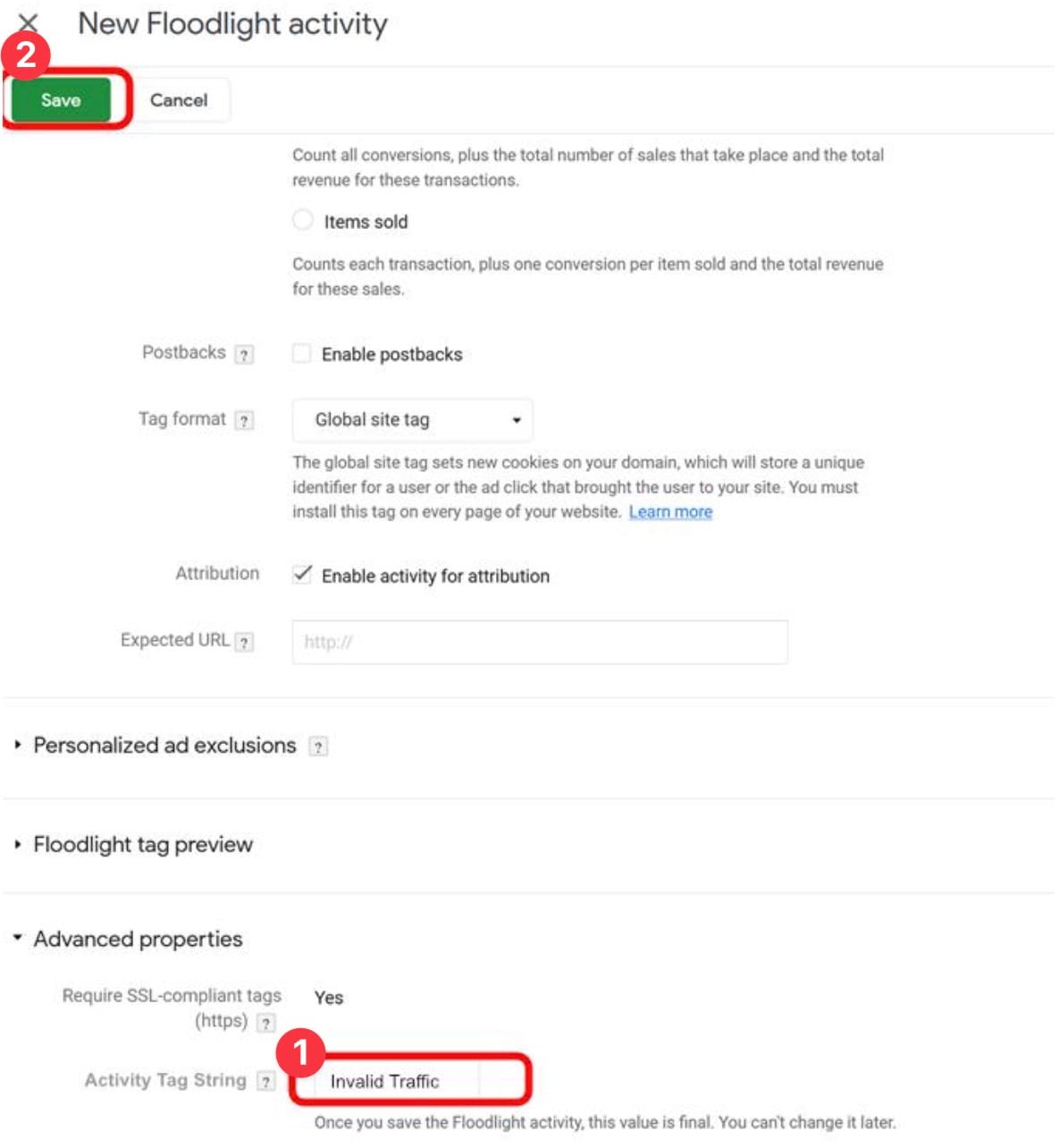
    • Define an Activity Tag String (1) under the Advanced properties section and click on Save (2)
    • Campaign Manager 360 adds the Floodlight activity group to the table and you can now build an audience based on the activity.

    CM360 Floodlight activity saved with Activity Tag String under Advanced properties

  3. Create an Audience in DV 360 and Campaign Manager 360 (Step 3/4)

    Create an Audience in DV 360

    After creating the new Floodlight activity, you can now create an audience based on Activities in Campaign Manager or DV 360. The process is very similar in both tools.

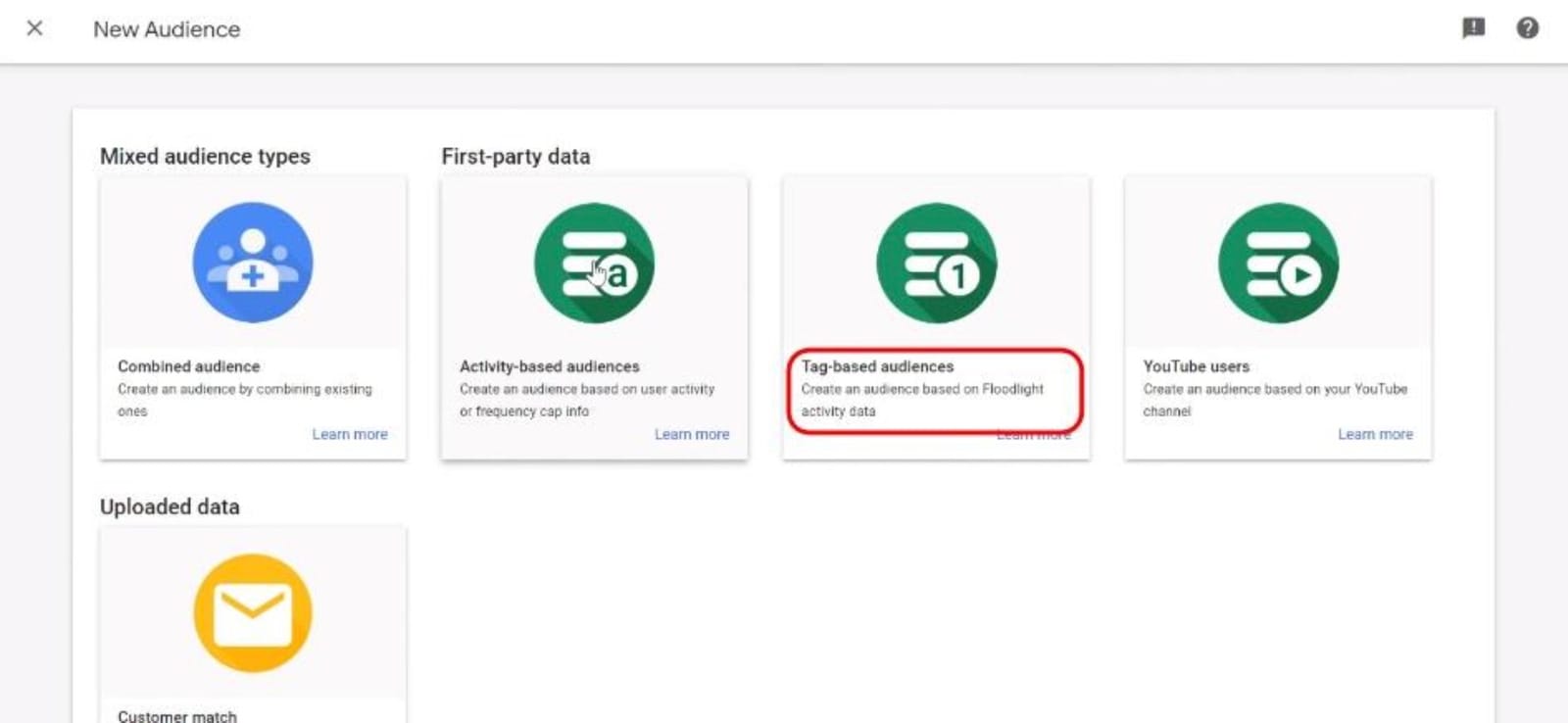
    • Login to your DV 360 account
    • Click on All Audiences (1) → New audience (2)

    DV360 All Audiences screen with New audience button

    • Select Tag-based audience on the following screen

    DV360 audience type selection with Tag-based audience option

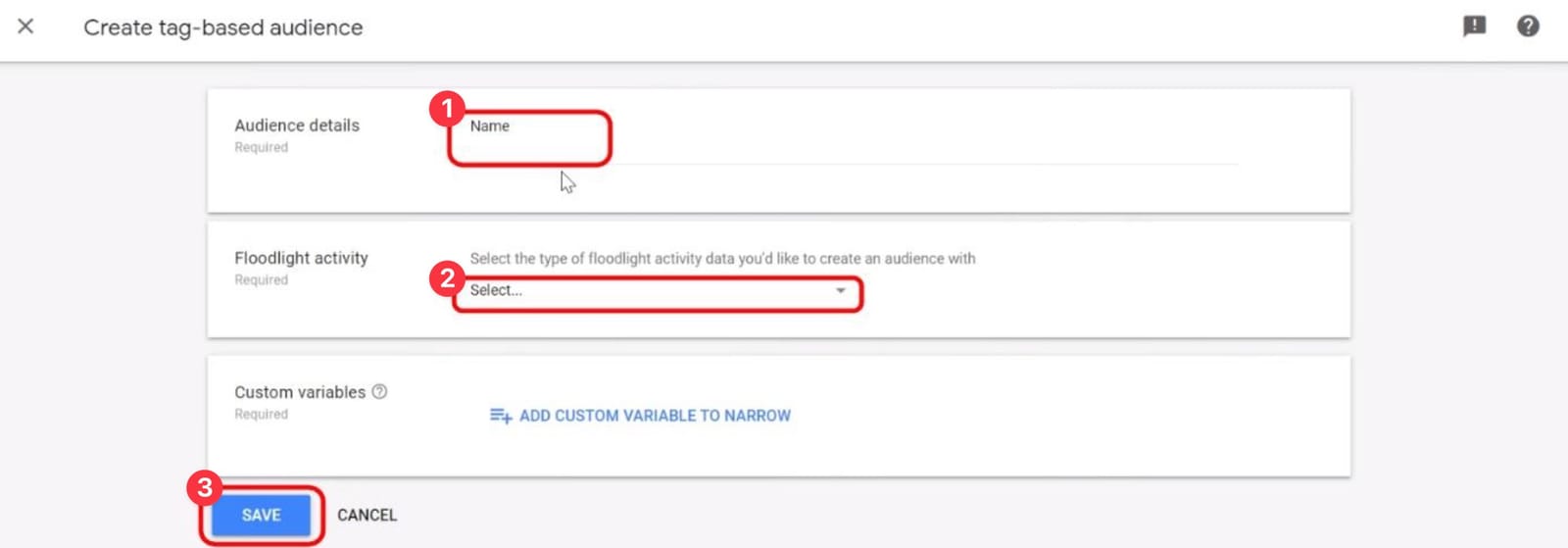
    • Type in the Audience Name (F0_Negative Audience (1)) and select the Floodlight activity (2) you set up in the previous chapter
    • Click “Save”

    DV360 new audience form with F0_Negative Audience name and Floodlight activity selected

    Create an Audience in Campaign Manager
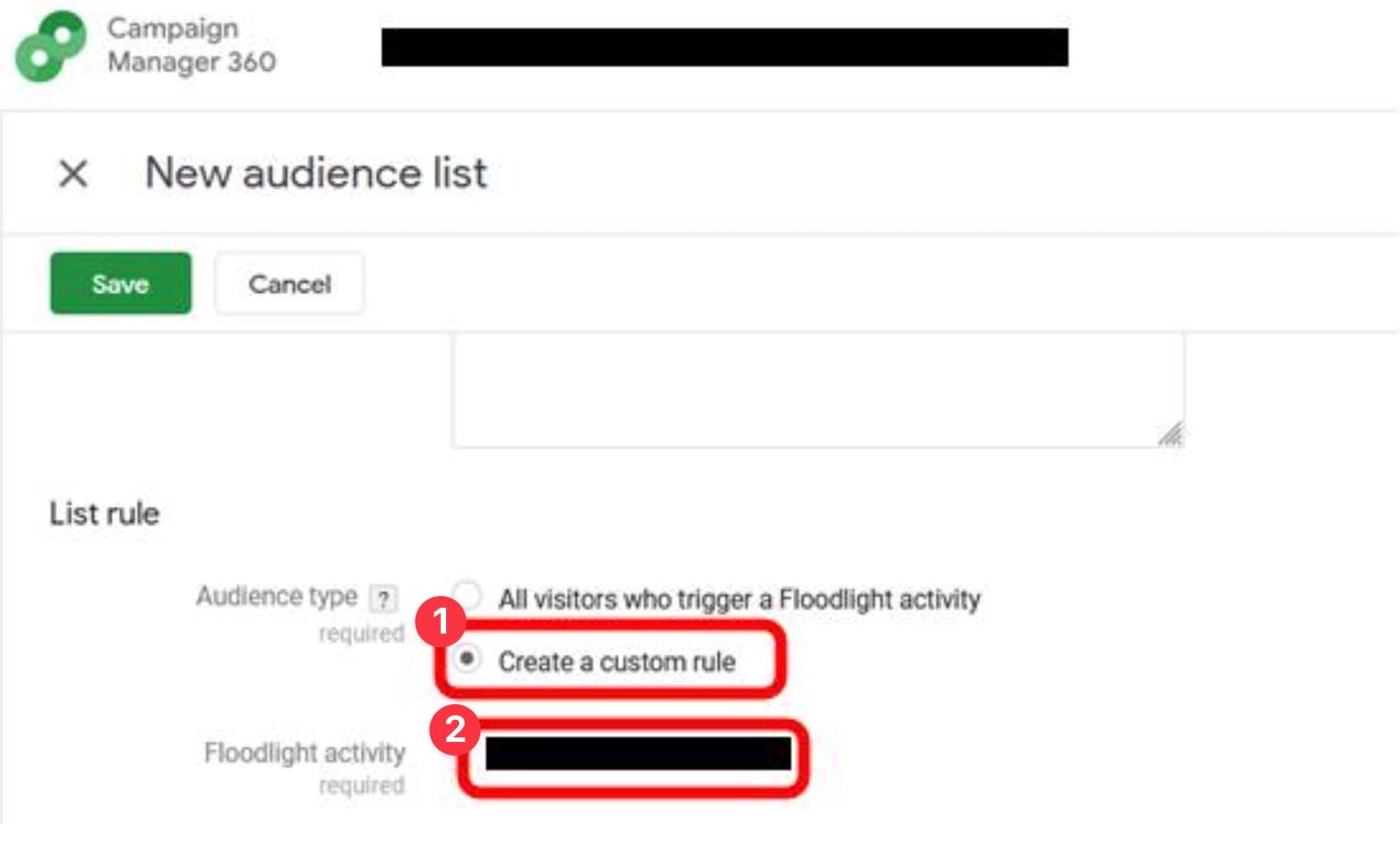
    • Click on Audiences in the main navigation and create a New audience list
    • Select Create a custom rule (1) under Audience Type and select the Floodlight activity (2) you set up in the previous chapter
    • Click “Save”

    CM360 new audience list with custom rule and Floodlight activity selected

  4. Exclude fraud0 Audience from your Display & Video 360 Campaigns (Step 4/4)
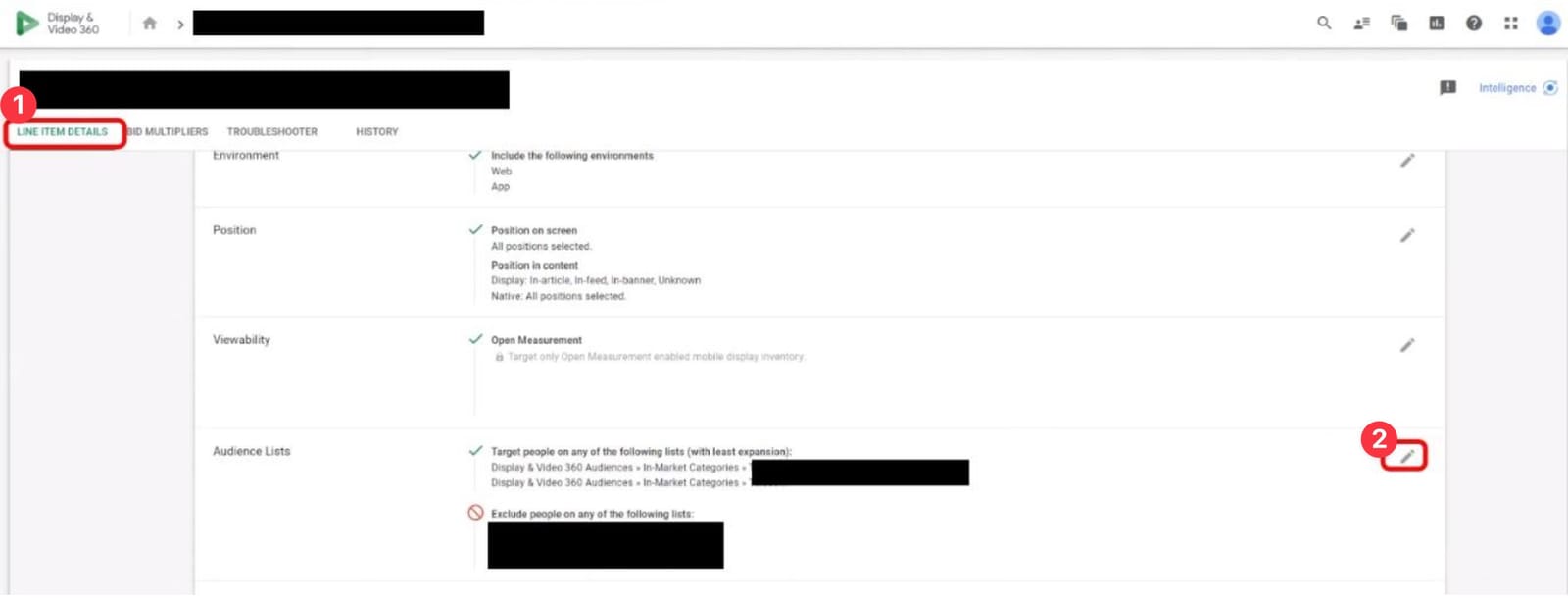
    • Navigate to the Line Items (1) you want to exclude fraud0 Audience
    • Click on the highlighted Edit Button (2)

    DV360 Line Items list with Edit button highlighted

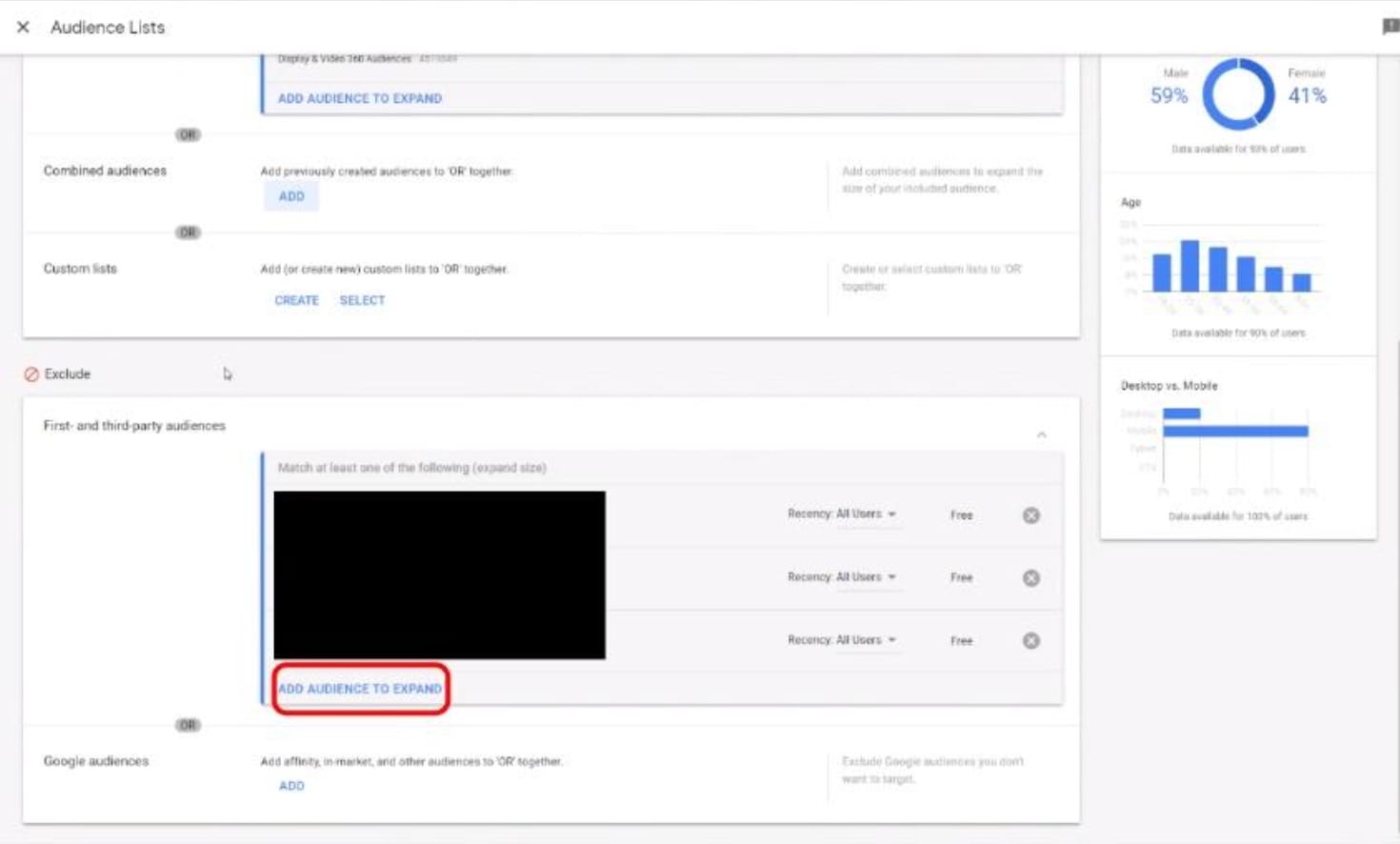
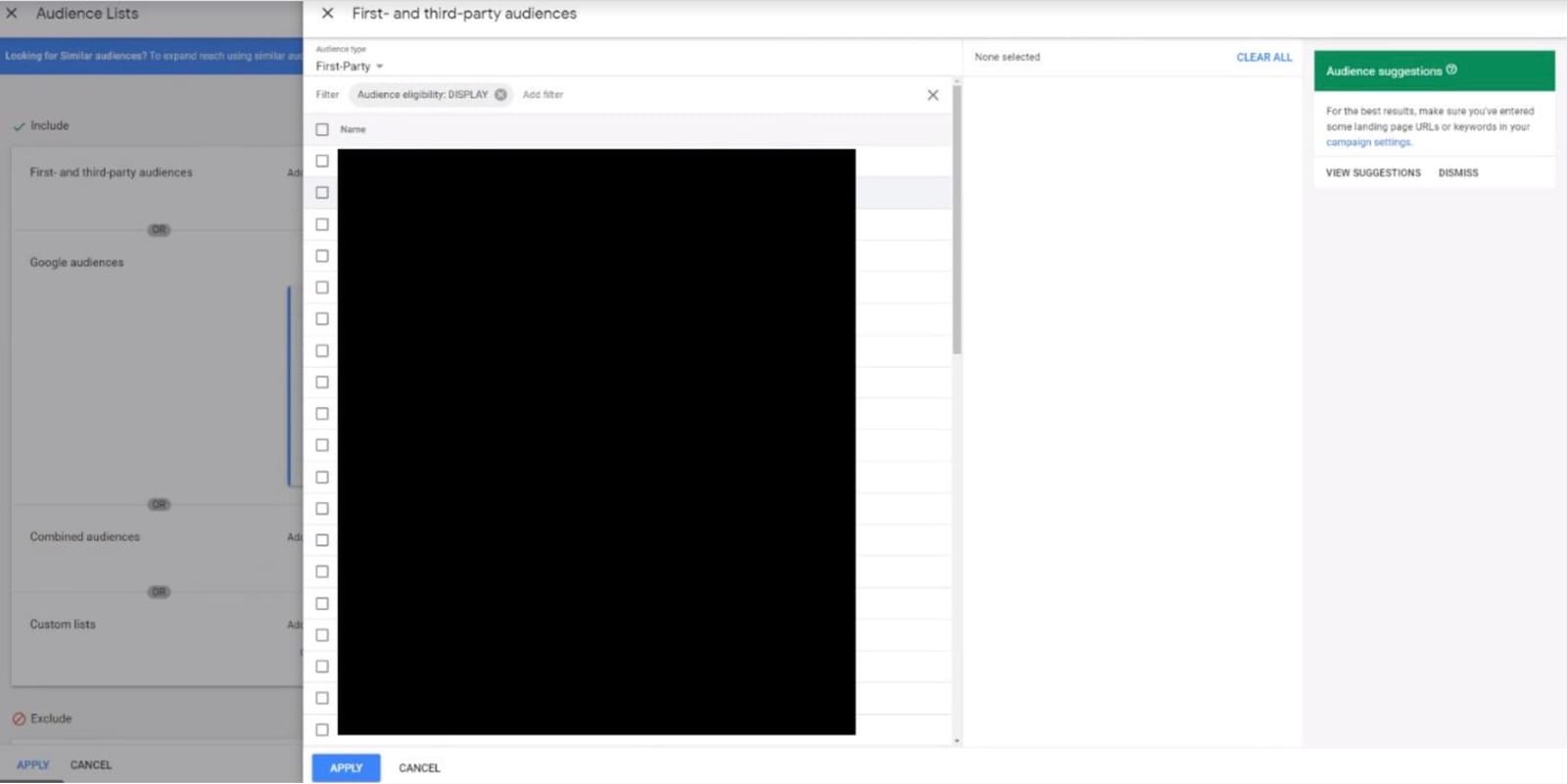
    • In the Exclude Section, click on Add Audience to Expand from your First Party Audiences.

    DV360 Line Item editor Exclude section with Add Audience option expanded

    • Here, you can select the F0_Negative Audienc and apply it as a negative Audience to your Line Item
    • Repeat the step for all Line Items
    • Click Apply

    DV360 First Party Audiences with F0_Negative Audience selected for exclusion


Imprint Privacy Policy Terms & Conditions DPA