Skip to content

Criteo

This guide helps you to connect fraud0 with your Criteo account.

Follow these steps:

  1. Contact your Criteo Account Manager (Step 1/3)
  2. Implement Tag (Step 2/3)
  3. Add an Exclusion for your already existing Criteo Tag (Step 3/3)

  1. Contact your Criteo Account Manager (Step 1/3)

    Please request a Tag for Audience Exclusion from your Criteo account manager (the exclusion should be set globally for all campaigns).

    Here is an example of what the tag could look like:

    Example Tag
    <script type="text/javascript">
    window.criteo_q = window.criteo_q || [];
    window.criteo_q.push(
    { event: "setAccount", account: xxx },
    { event: "viewItem", item: "#ProductID#", userinfos:"frauduser" }
    );
    </script>
  2. Implement Tag in Google Tag Manager (Step 2/3)

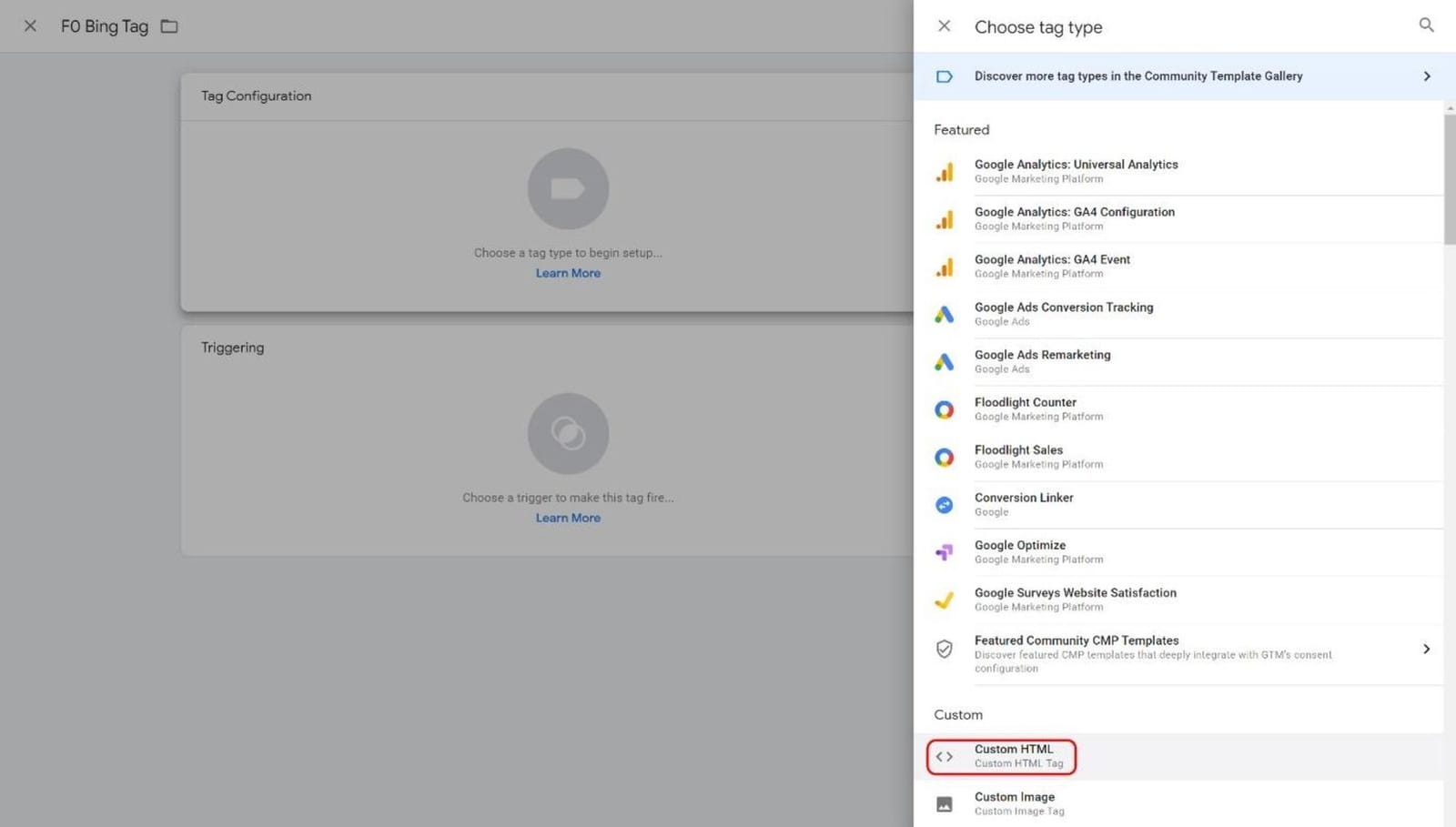
    • Within the Tag Configuration section select Custom HTML. The Custom HTML Template will open next.

    GTM Tag Configuration with Custom HTML template selected

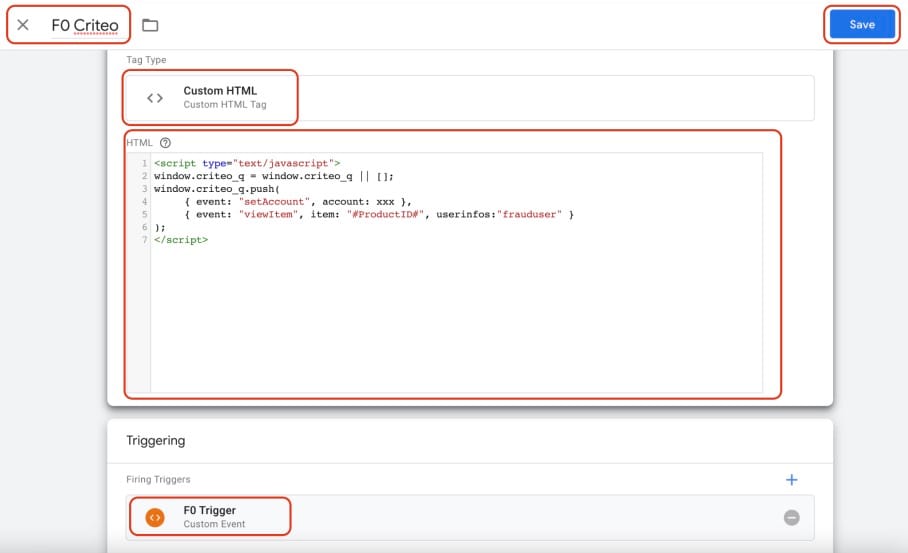
    • Give your tag a name (F0 Criteo) and paste your tracking code from the Microsoft UET tag into the HTML field. You will get the tracking code in the audience creation process described below.
    • In the Triggering section you need to assign the F0 Trigger you have created before.
    • Click “Save”

    GTM Custom HTML tag configured with F0 Criteo name, Criteo tracking code, and F0 Trigger assigned


    Learn more:

  3. Add an Exclusion for your already existing Criteo Tag (Step 3/3)

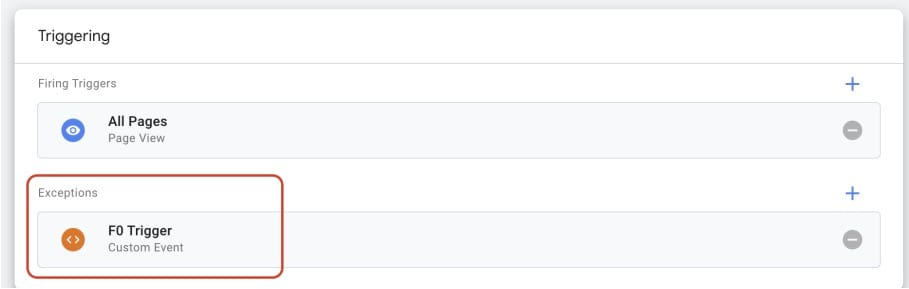
    • For your already existing Criteo Tag in Google Tag Manager, please add an exclusion for the fraud0 trigger – otherwise the exclusion will not work.

    GTM existing Criteo tag with fraud0 trigger added as an exclusion


    • After 7 days, please double-check with your Criteo account manager whether events for Audience Exclusion are collected.


Imprint Privacy Policy Terms & Conditions DPA