
Skip to content

Passing Placement Information via Google Ads to fraud0

Set up Google Ads Placement Information

This guide explains how to pass placement information from Google Ads to fraud0 using the ValueTrack parameter {placement}. You can then analyze for example valid versus invalid traffic based on the website where the ad click occurred.


Display Campaigns: Keyword-based and Placement-based campaigns targeting the Display Network. The {placement} parameter is populated when the ad is shown on a content website.

Video Campaigns: The parameter is available for ads that appear on YouTube or partner sites where placements can be identified.

Shopping Campaigns: The {placement} parameter is supported for shopping ads when placement data is applicable.

Hotel Campaigns: The parameter is available as specified in the dedicated help section for hotel campaigns.

Performance Max (PMAX) Campaigns: When using PMAX campaigns, the {placement} parameter is passed for clicks originating from display placements.

According to the current Google Ads documentation, Performance Max campaigns do support the {placement} parameter when a tracking template is used. However, note that if you’re relying solely on final URL tracking without a tracking template, the {placement} parameter might not be populated. This means that for PMAX campaigns configured with a tracking template, you should receive placement information, whereas with final URL tracking, you may not see this parameter.

Demand Gen Campaigns: The parameter is supported for these campaigns, ensuring placement information is transmitted if applicable.

Search Campaigns: For pure Search campaigns that do not extend to the Display Network, the {placement} parameter will not be populated.
  1. Implementing the Tracking Template in Google Ads

    • Login to your Google Ads Account

    • The {placement} value tracking can be set up at various levels (partly depending on the campaign type):

      • account level
      • campaign level
      • ad group level
      • ads level
      • sitelink level
      • keywords level
      • dynamic ad targets level

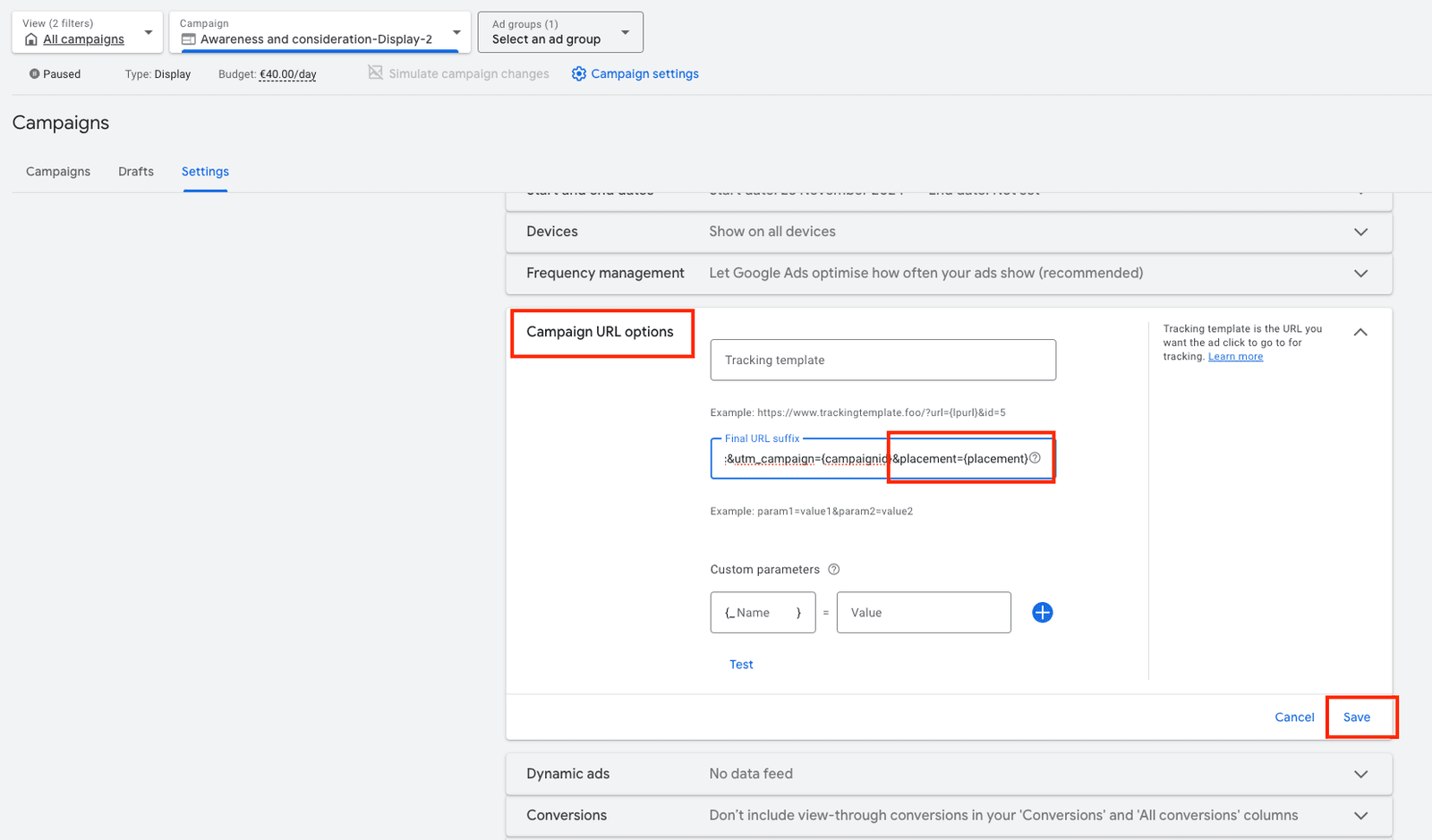
    We will continue with campaign level, as this will give overall high value in analytics and leasves you also the possibility to include/ exclude certain campaigns. Account level is also possible. However, the basic procedure is always similar.

    • Click the Campaigns icon
    • Click the Campaigns drop down in the section menu → Click Campaigns
    • Click the Settings tab at the top and select “Campaign Settings”

    Follow the general Google Ads instructions for Value Track parameters and integrate the {placement} parameter into your tracking templates to forward the placement data to fraud0.


    Step1 Passing Placement Info to Google Ads

    Here are two examples:

    Simple Template Example
    {lpurl}?utm_source=google&utm_medium=display%20cpc&utm_campaign={campaignid}&placement={placement}
    Full Template Example
    {lpurl}?utm_source=google&utm_medium=display&utm_campaign={campaignid}&utm_content={adgroupid}&utm_term={targetid}&device={device}&placement={placement}&creative={creative}&adposition={adposition}&network={network}

    • Click “Save”

    This configuration ensures that placement information is automatically appended to your URLs, enabling detailed performance analysis.

  2. Confirm the fraud0 API request

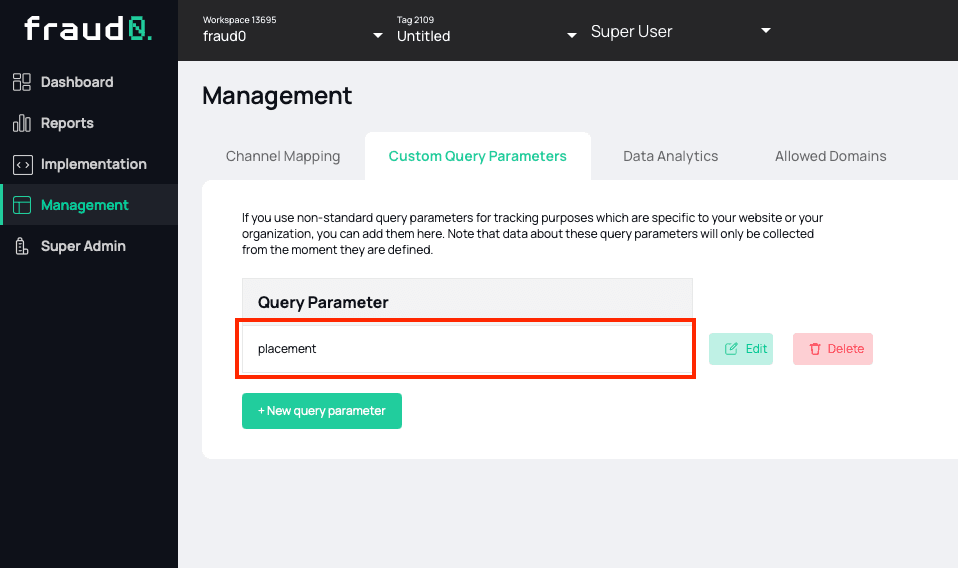
    • After setting up your tracking template in Google Ads, you must also configure fraud0 to properly capture the placement data
    • Navigate to the Management area in fraud0 → Select the Custom Query Parameters tab
    • Create a new parameter named “placement”

    This step is crucial for fraud0 to recognize and process the placement information received from Google Ads, enabling you to analyze traffic quality based on placement data.


    Step2 Passing Placement Info to Google Ads


Imprint Privacy Policy Terms & Conditions DPA