

- Go to your Google Tag Manager Workspace
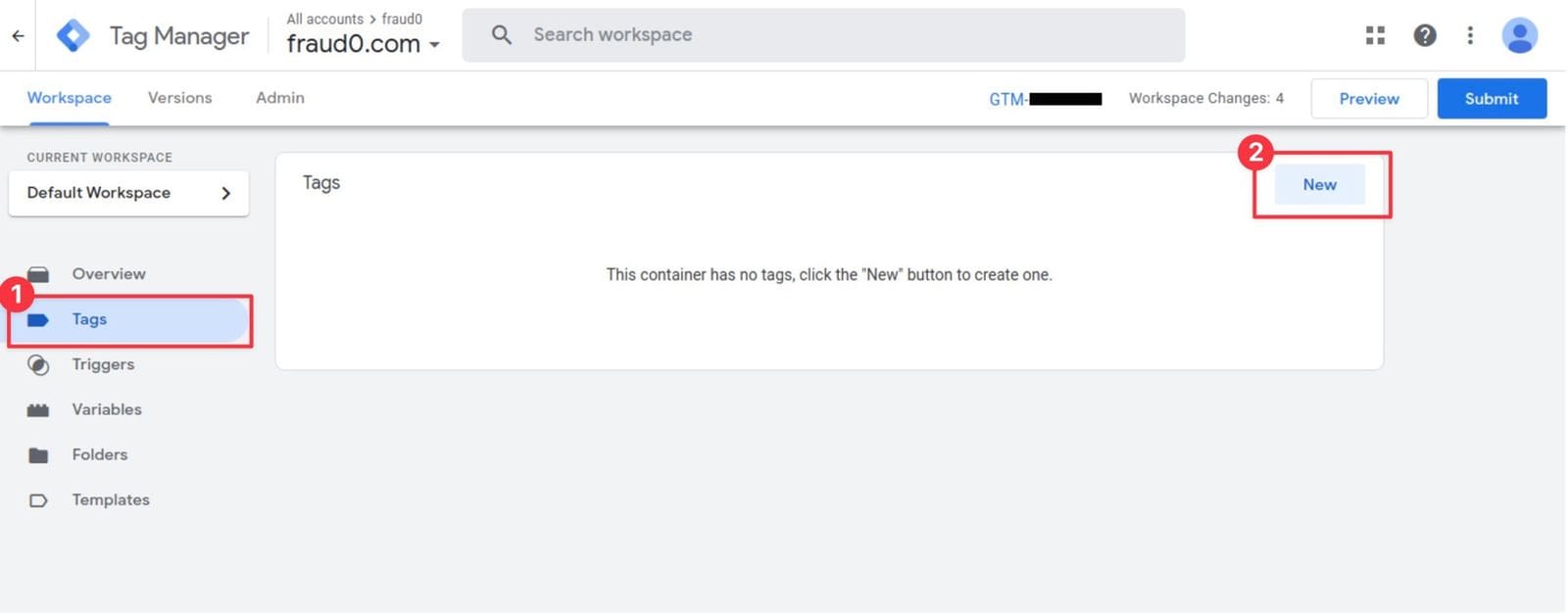
- Navigate to Tags (1) and click New (2) in the top-right corner
This guide helps you to connect fraud0 with your Google Analytics (GA4) account. This set up is optional. There are a total of 4 steps you need to take to display unwanted traffic in Google Analytics.
Follow these steps:
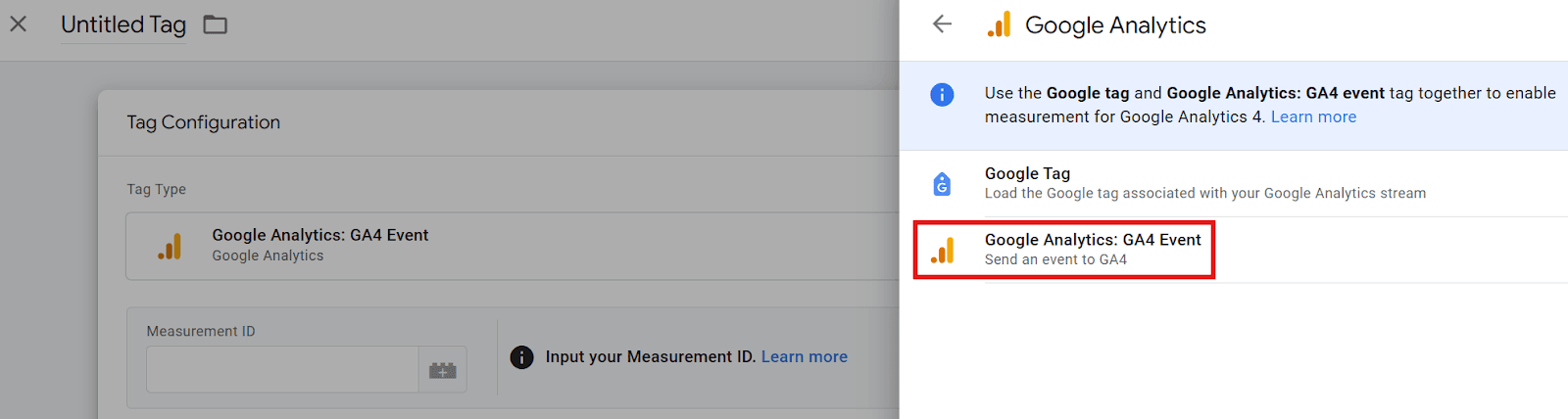
Implement Google Analytics (GA4) Tag in Google Tag Manager (Step 1/4)
DLV F0 variable below Value — select it via the variable picker (the building-block icon next to the field) so the field reads {{DLV F0}}. Do not type it as plain text.f0_bot_traffic on the fraud0 event, resolving to yes for invalid bot traffic and no for human traffic.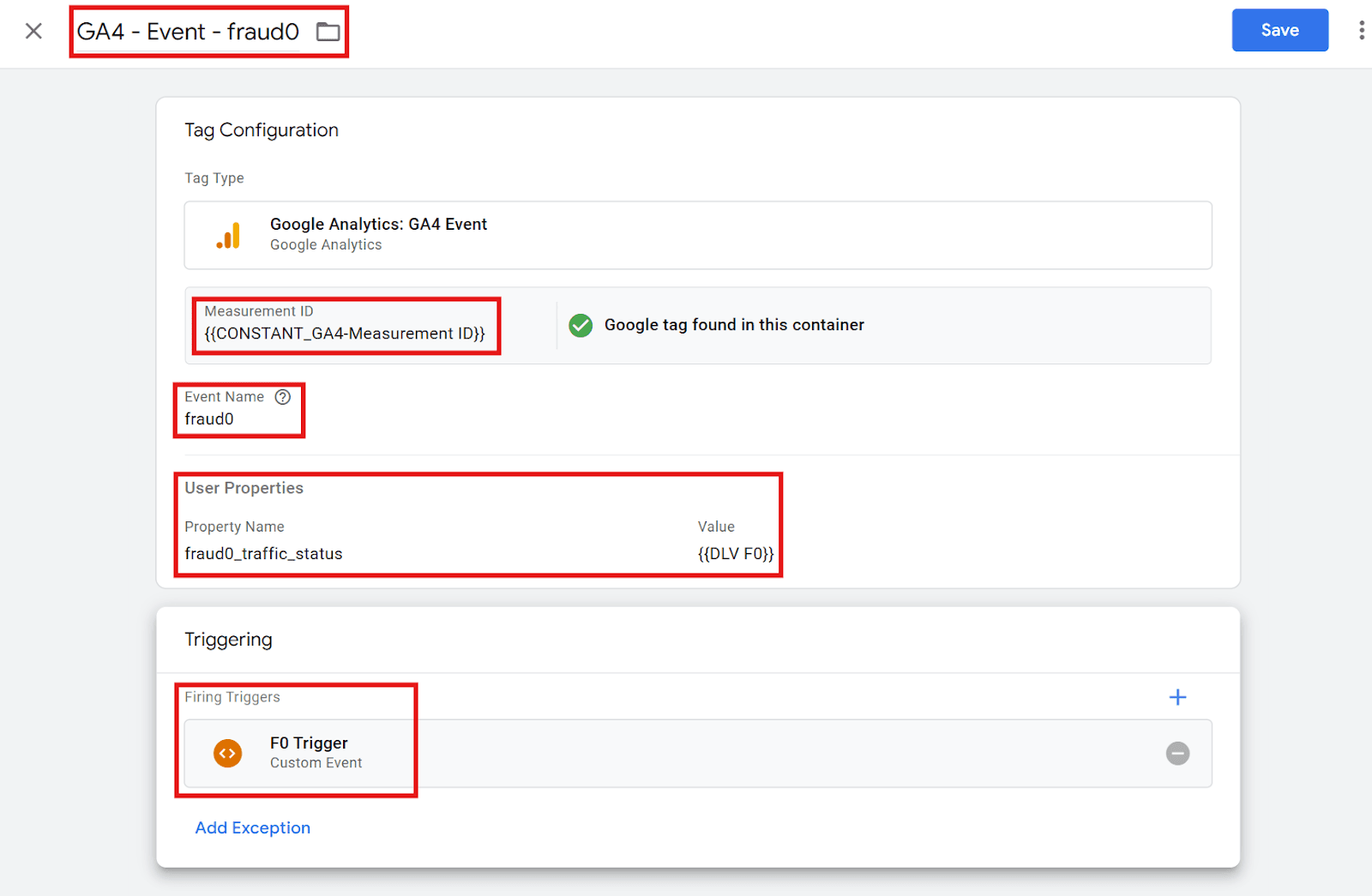
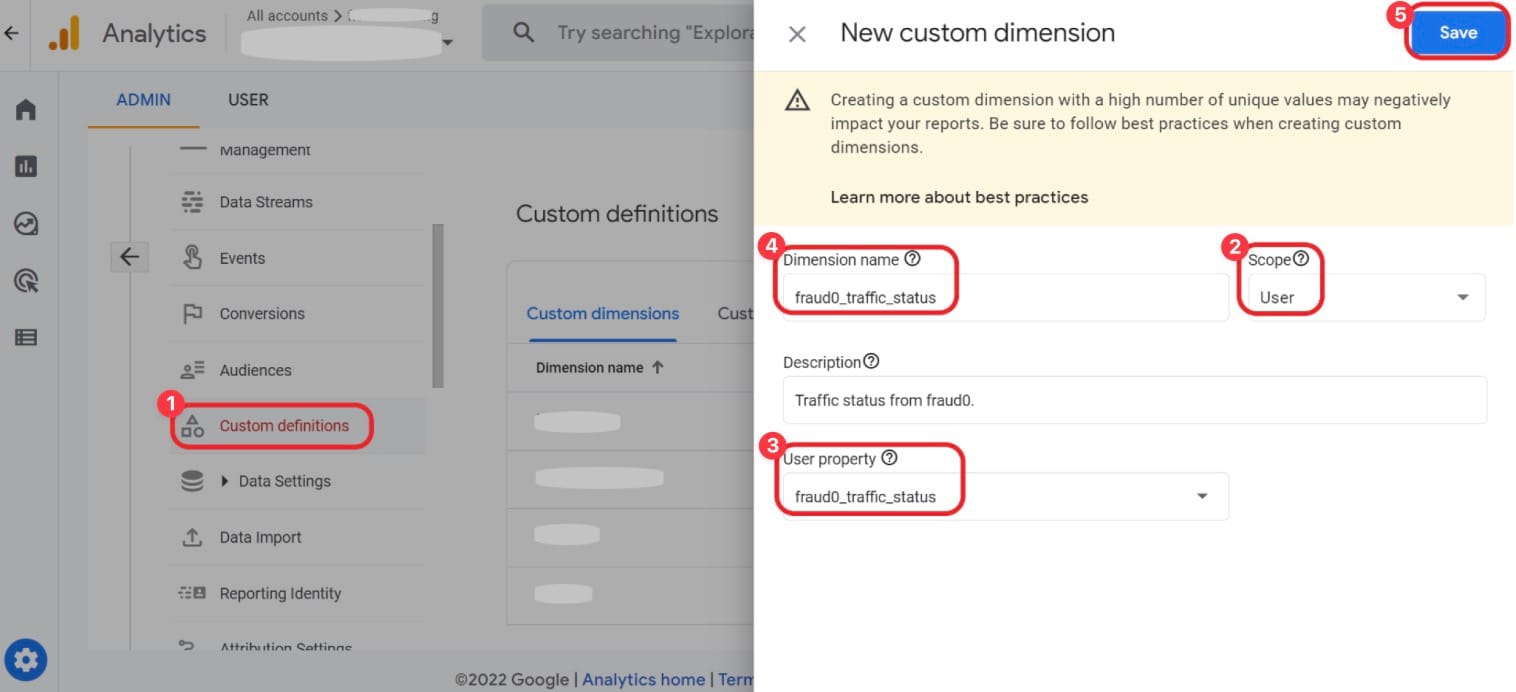
Create Custom Dimension in Google Analytics (GA4) (Step 2/4)
Check the custom event in Google Analytics (GA4) (Step 3/4)
To validate the fraud0-event in Google Analytics (GA4), you need to trigger the custom event with the GA4-tag first and check if the event is properly sent to your property.
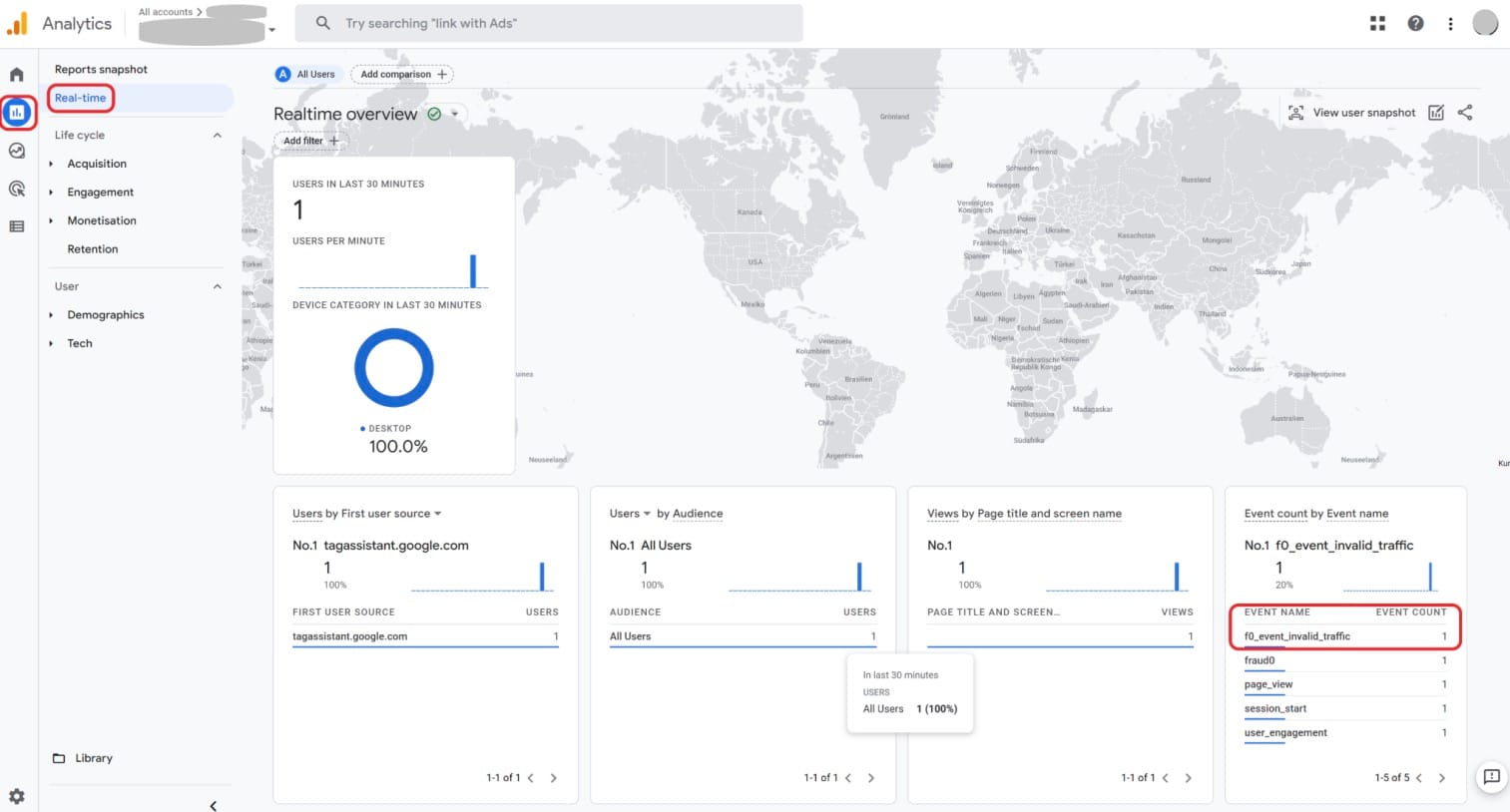
Create segment and audience for invalid traffic exclusion in Google Analytics (GA4) (Step 4/4)
In Google Analytics (GA4) you can create segments that can be used within Google Analytics (GA4) to filter reports, and you can create audiences. Segments can also be made usable as an audience. The setup of segments and audiences works very similar, there are just different entry points.
a) Create Segment
b) Create Audience
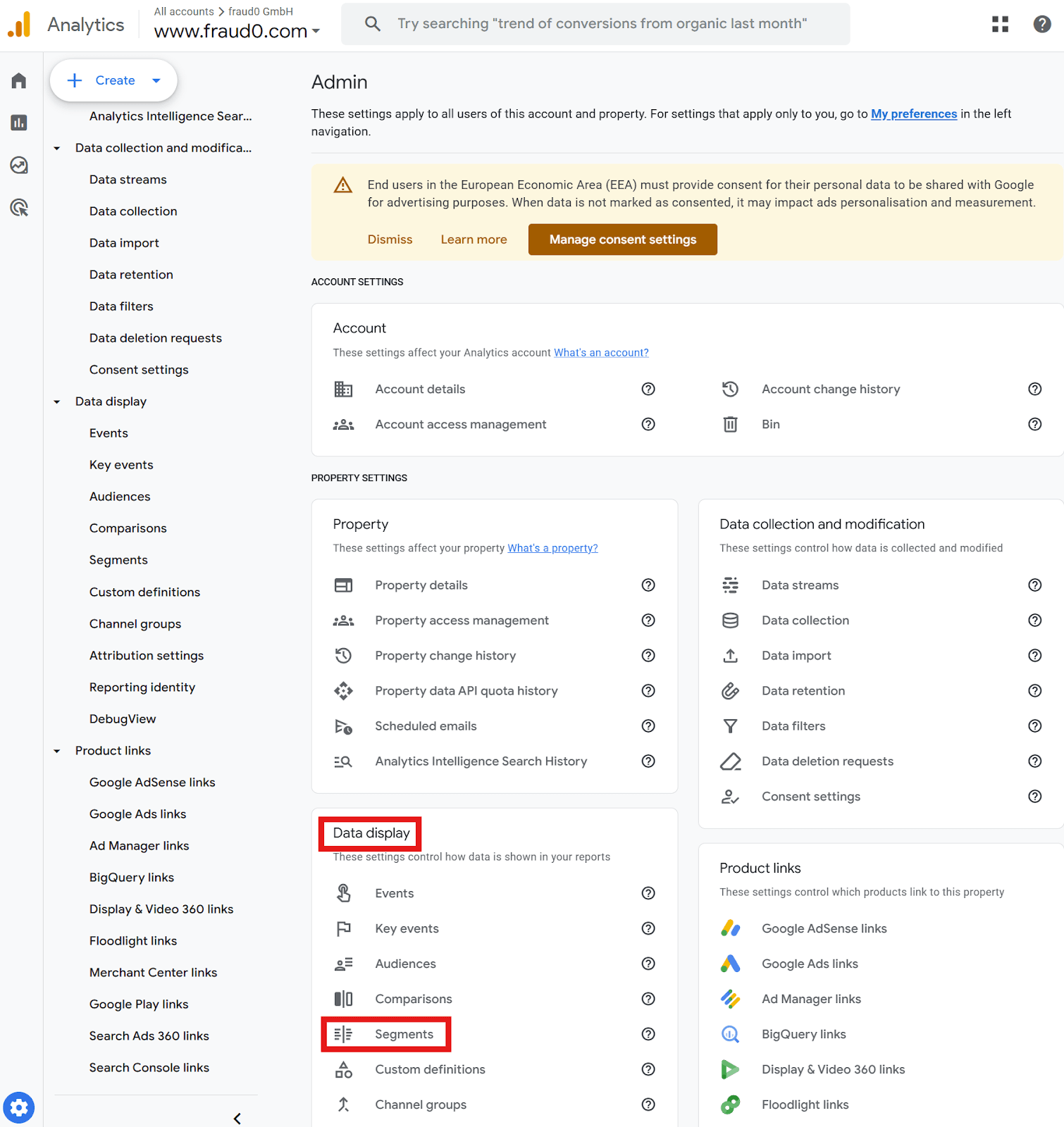
Follow these steps to create a segment in Google Analytics (GA4) for the visualization of invalid traffic in your reports.
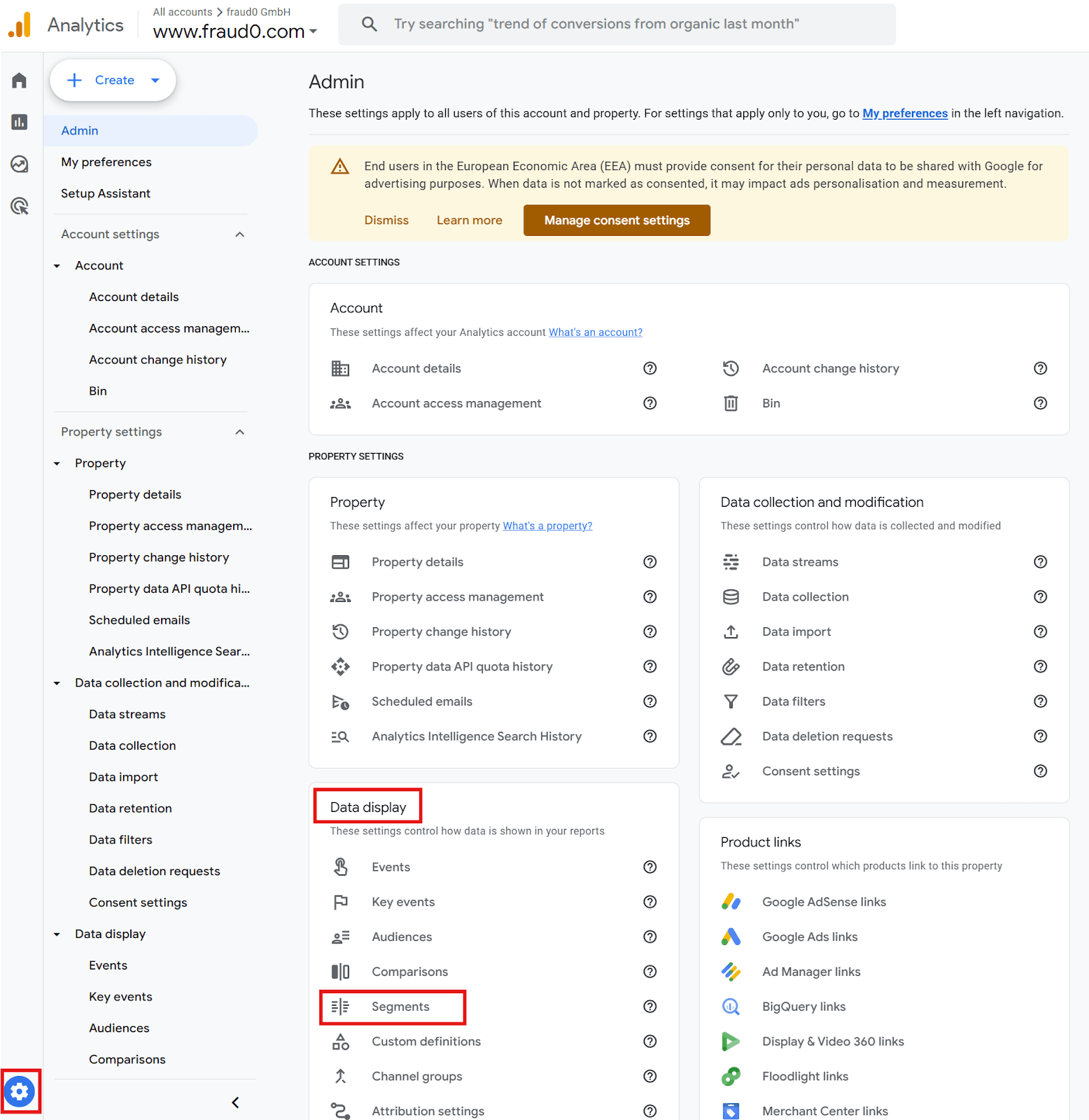
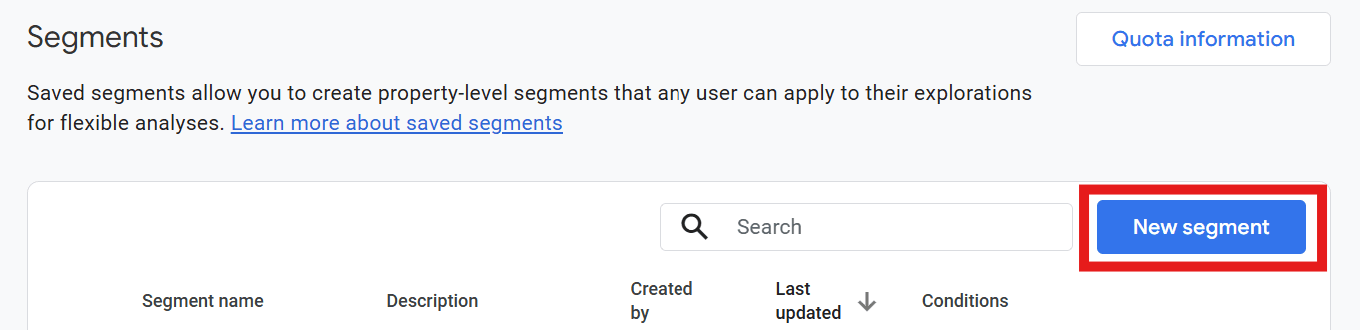
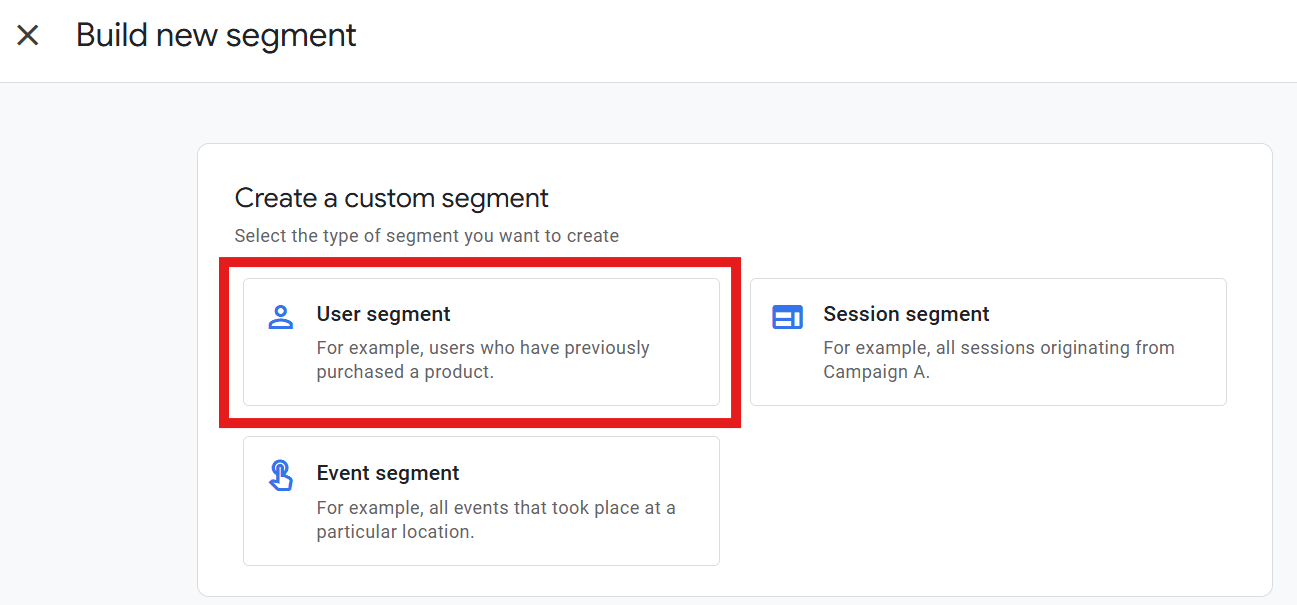
Now you can create the following segment: F0 segment for invalid traffic
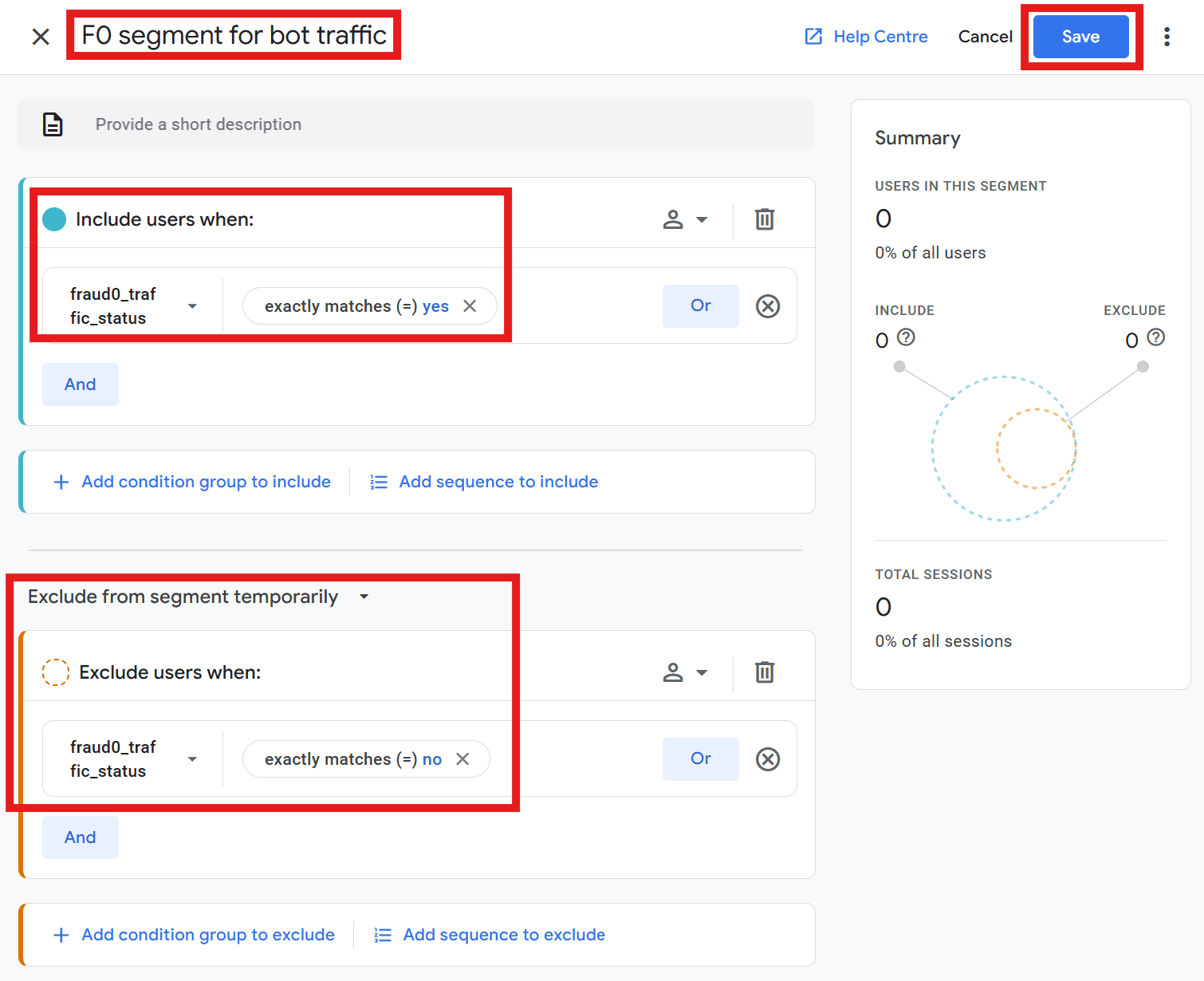
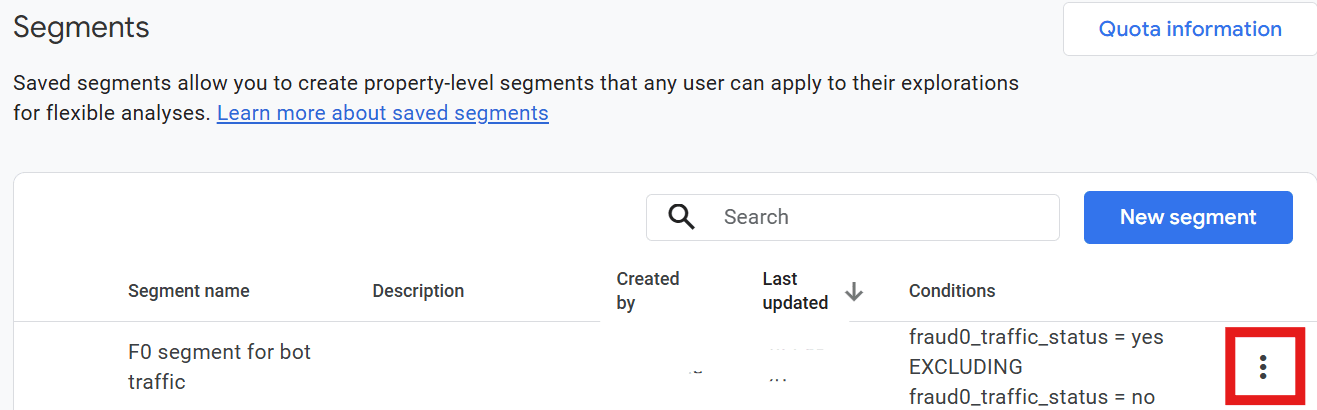
This new segment can now be used within the Exploration to filter the visualized data.
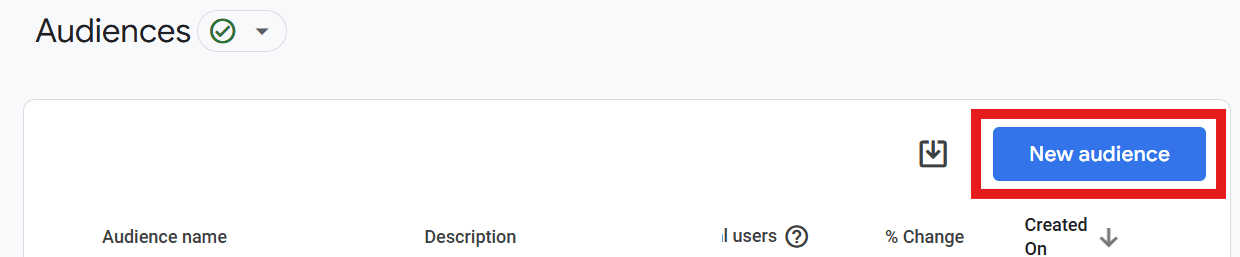
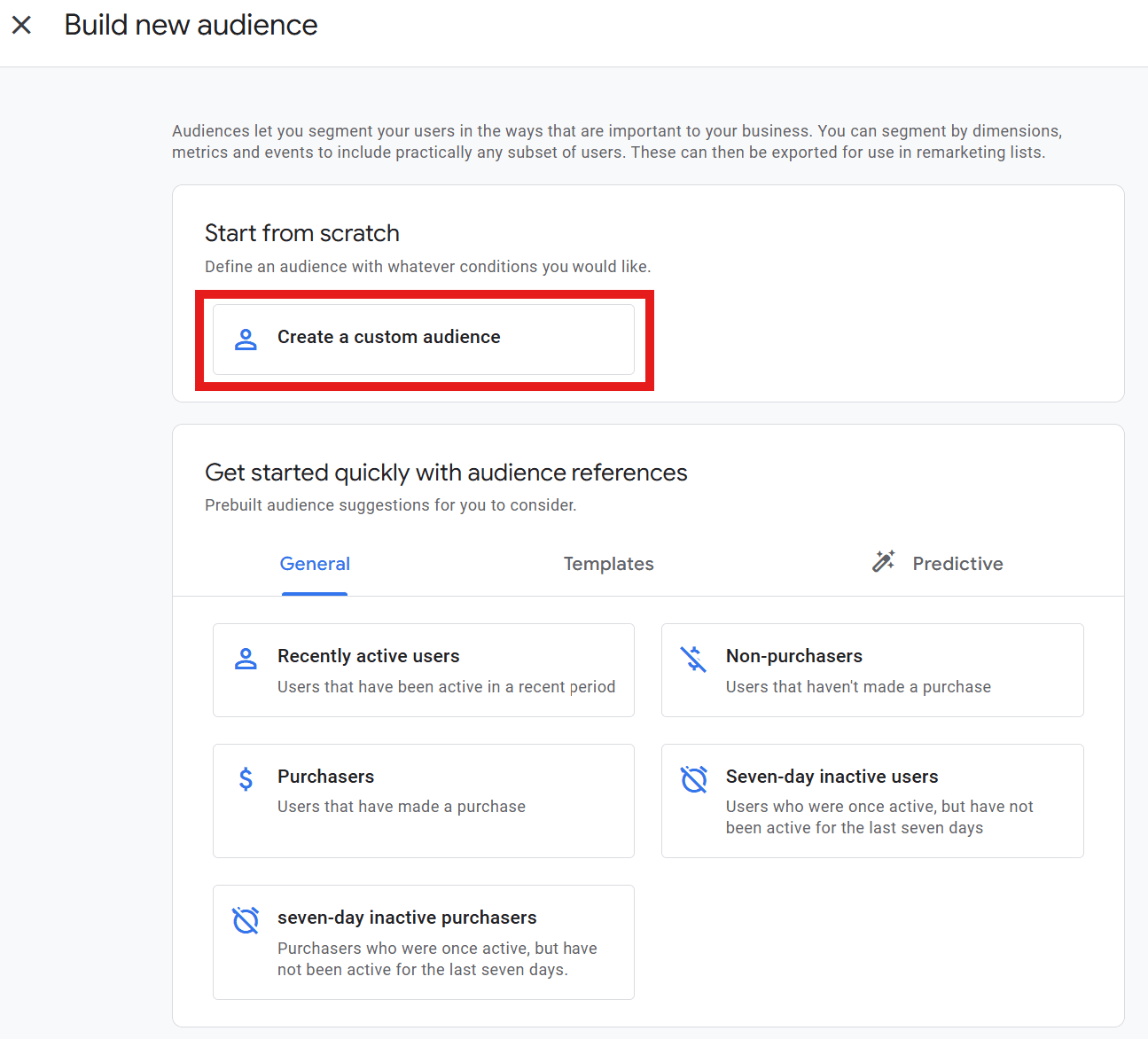
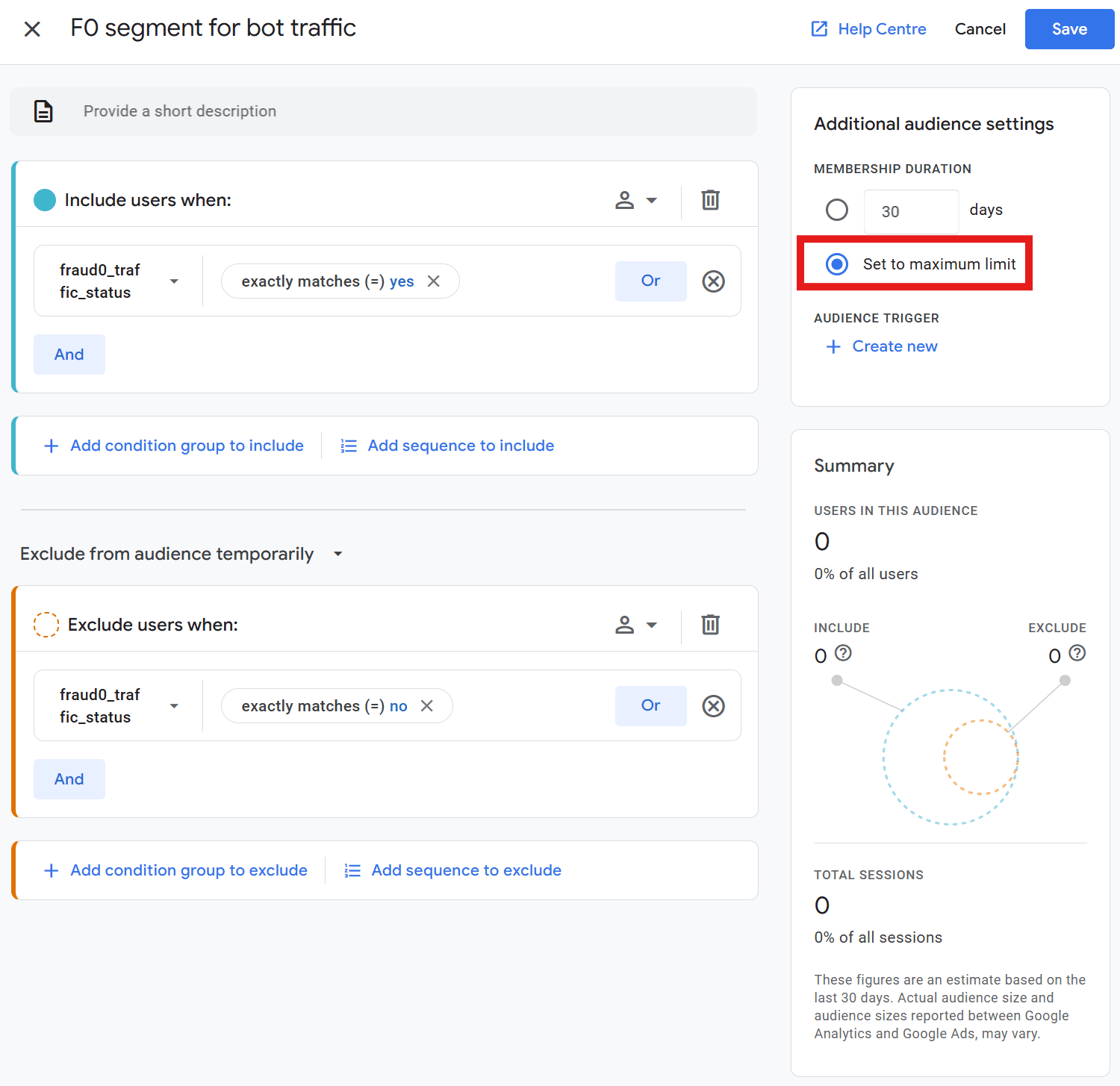
Another overlay opens and provides you with the possibility to create the following three audiences:
F0 Audience for invalid traffic
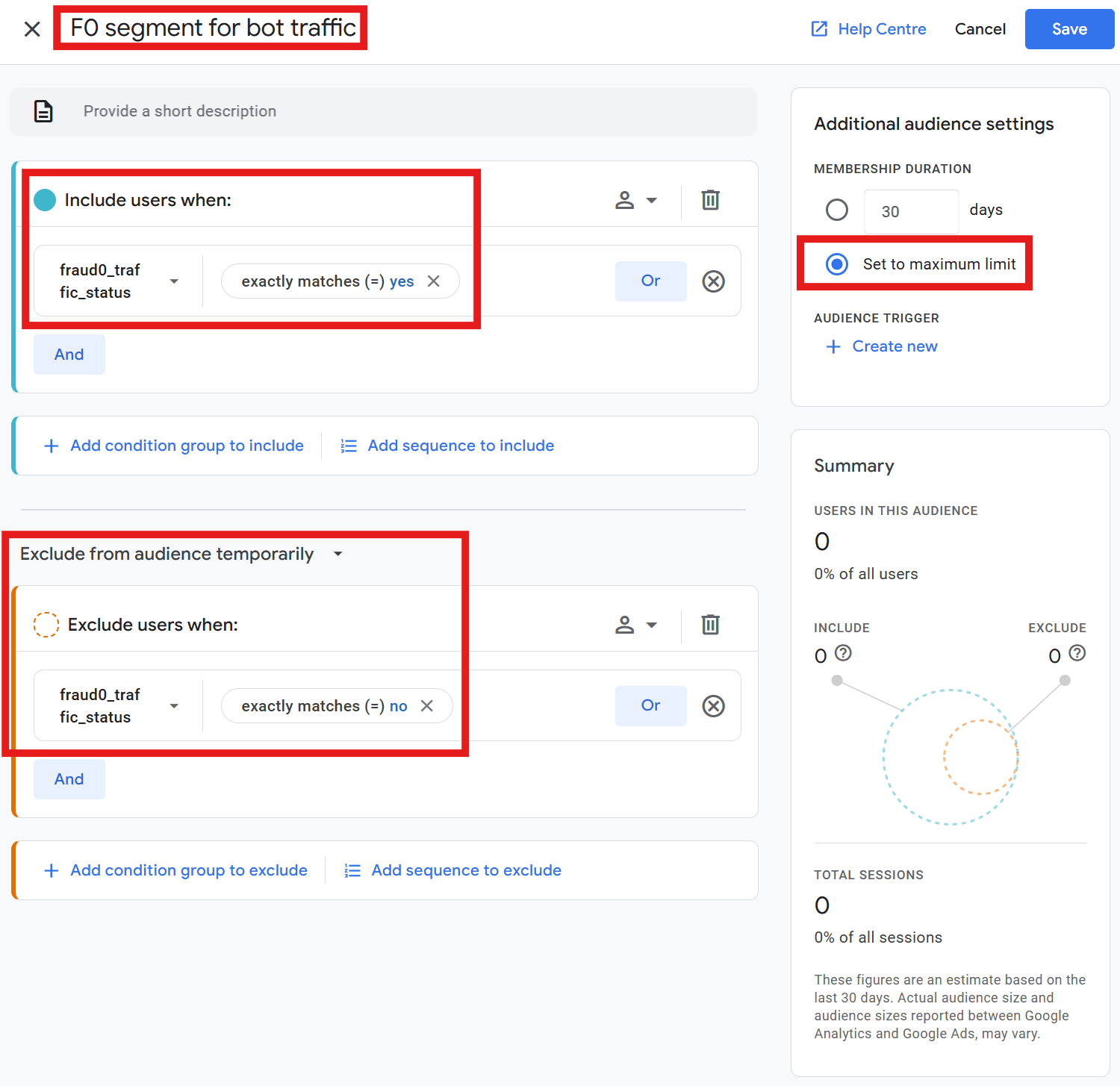
Currently, you cannot edit the settings of an audience in Google Analytics (GA4).
When you create a new audience, it can take 24 – 48 hours for the audience to accumulate new users (even after initial audience creation). In general, when a new user meets the audience criteria, it can take a day or two for that new user to be included in the audience.
When you create an audience, Google Analytics (GA4) adds any users who have met the audience criteria during the last 30 days (assuming you have at least 30 days of data).
As you define your audience, the Summary card updates with the number of users who have met your criteria during the last 30 days, so you have an idea of the potential audience size.
More info: https://support.google.com/analytics/answer/9267572?hl=en&ref_topic=9303474#zippy=%2Cin-this-article