Skip to content

Microsoft Advertising

This guide helps you to connect fraud0 with your Microsoft Advertising account. There are a total of 4 steps you need to take to protect your advertising budget in Microsoft Advertising.

Follow these steps:

  1. Implement Microsoft Advertising Tag (Step 1/4)
  2. Create new Audience (Step 2/4)
  3. Exclude fraud0 Audience (Step 3/4)
  4. Manually Block IP Addresses (Step 4/4)

  1. Implement Microsoft Advertising Tag in Google Tag Manager (Step 1/4)

    This step shows you how to implement a Fraud0 Microsoft Advertising Custom Event Tag via Google Tag Manager. This Tag is needed to create a new Microsoft Ads audience for the audience exclusion.

    • Go to your Google Tag Manager Workspace
    • Make sure that the UET Config tag (page view tag) is already in place (if not, you need to create it)
    • To create and define the fraud0 custom event tag navigate to Tags (1) and click New (2) in the top-right corner
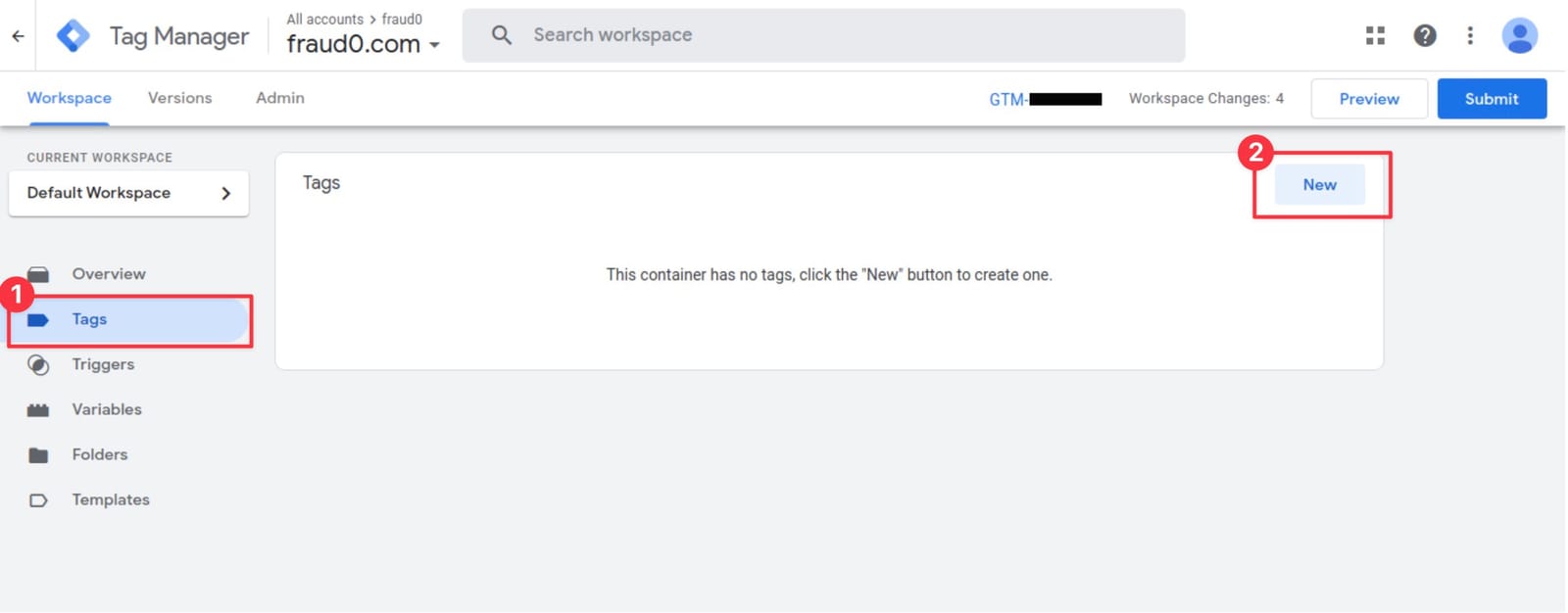
    Add MS-Advertising Step 1

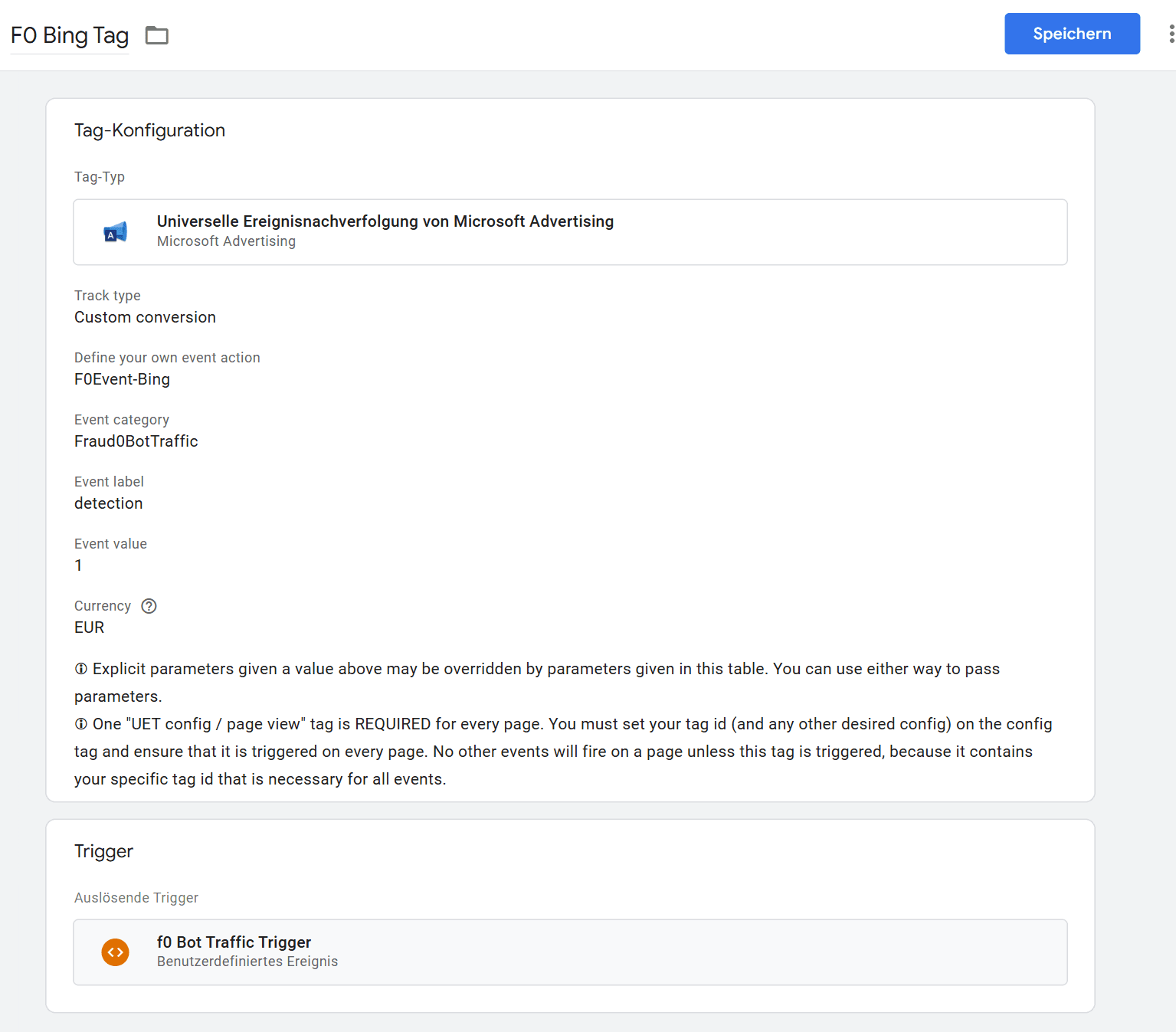
    • Within the Tag Configuration section search for “Microsoft” and select the Microsoft Advertising Universal Event Tracking tag. The tag template will open next.
    • Give your tag a name (F0 Bing Tag) and select under “Track type” ”Custom conversion” and type in the following values into the other fields:
      • Event action: F0Event-Bing
      • Event category: Fraud0Bot-Traffic
      • Event label: detection
      • Event value: 1
    • In the Triggering section you need to assign the F0 Bot Traffic Trigger you have created before
    • Finally it should look like this or similar:
    • Save the configuration

    Add MS-Advertising Step 2


    Learn more:

  2. Create New Audience in Microsoft Ads (Step 2/4)

    Follow these steps to create a new Microsoft Ads audience for the audience exclusion.

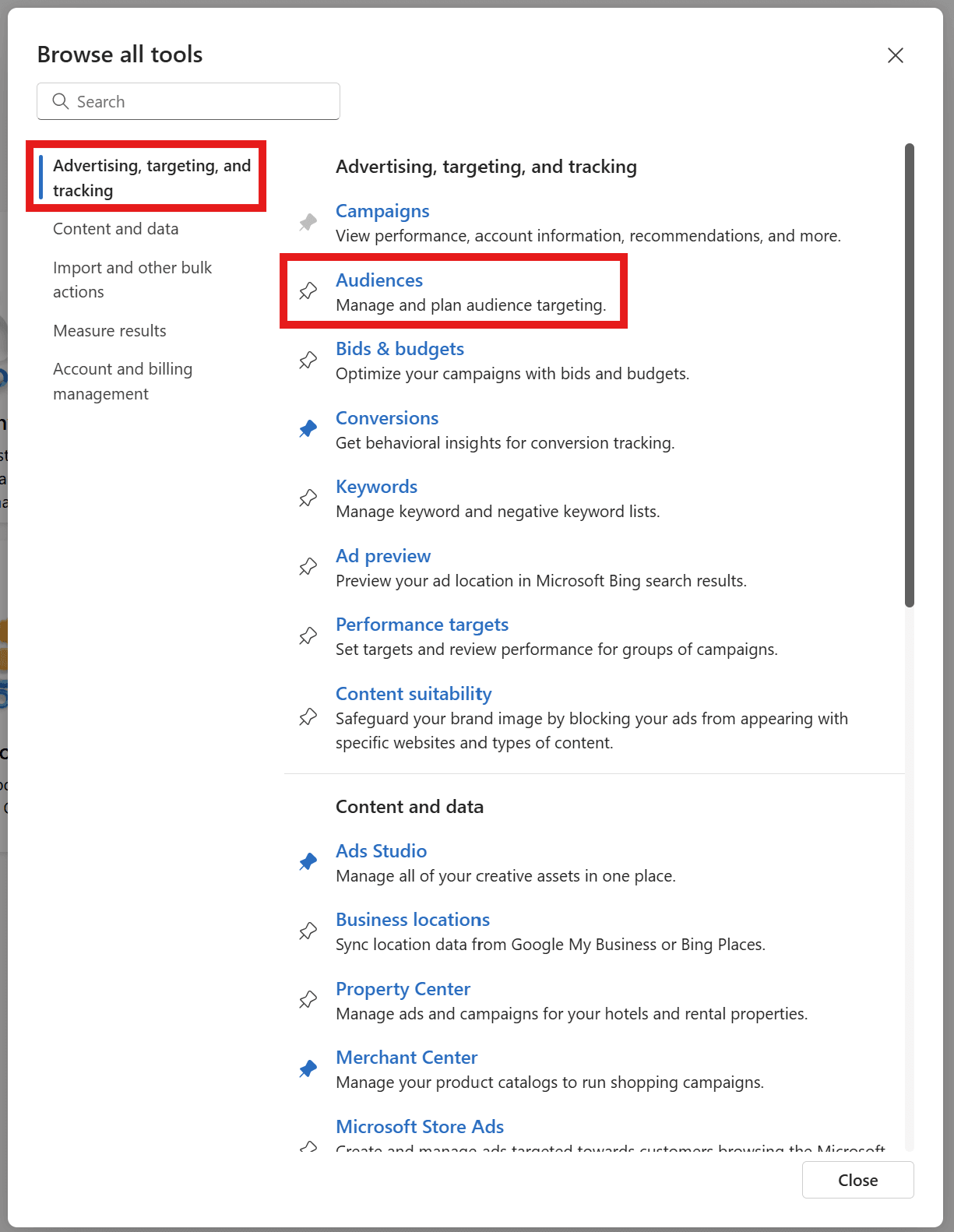
    • Log in to your Microsoft Ads account and click on Tools in the left side menu bar

    Add MS-Advertising Step 3

    • Then select Audiences below Advertising, targeting, and tracking

    Add MS-Advertising Step 4

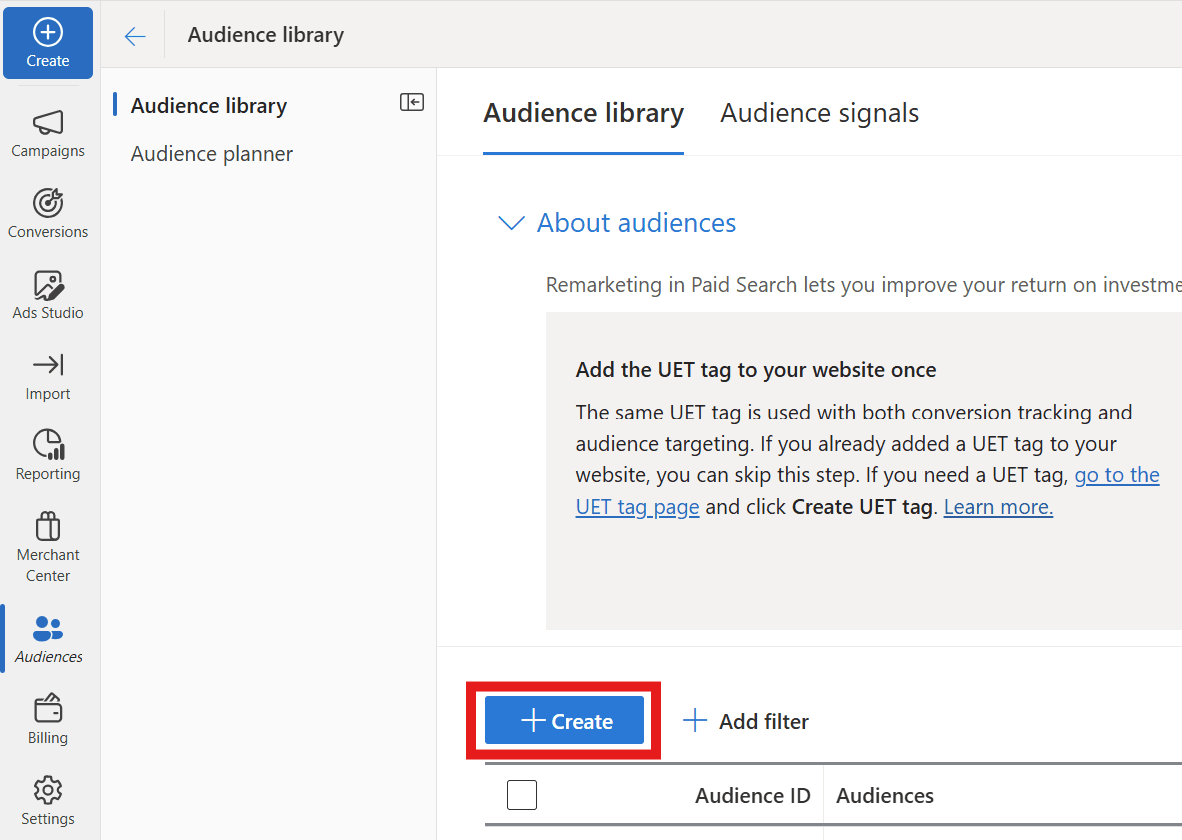
    • In the audience library click on the Create button

    Add MS-Advertising Step 5

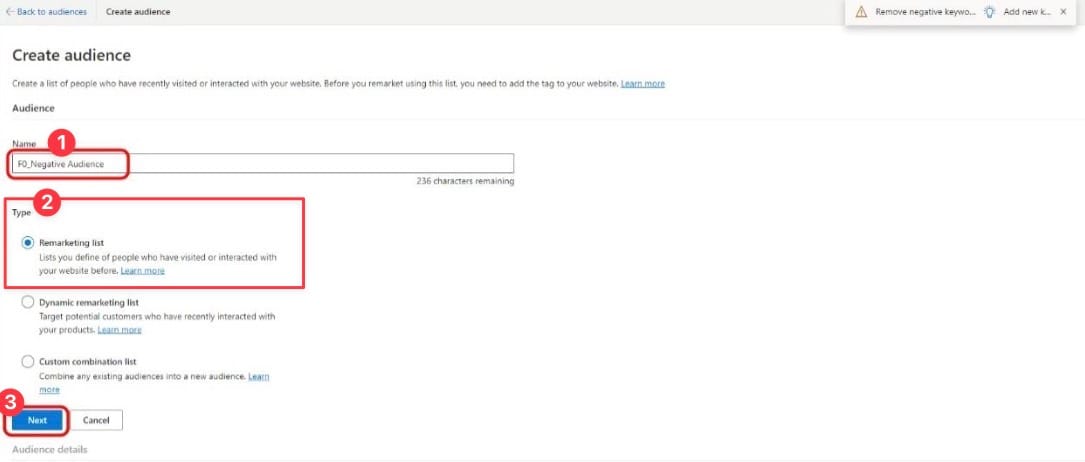
    • Name your Audience (F0_Negative Audience (1))
    • Select Remarkting list (2) in the Type section and click Next (3)

    Add MS-Advertising Step 6

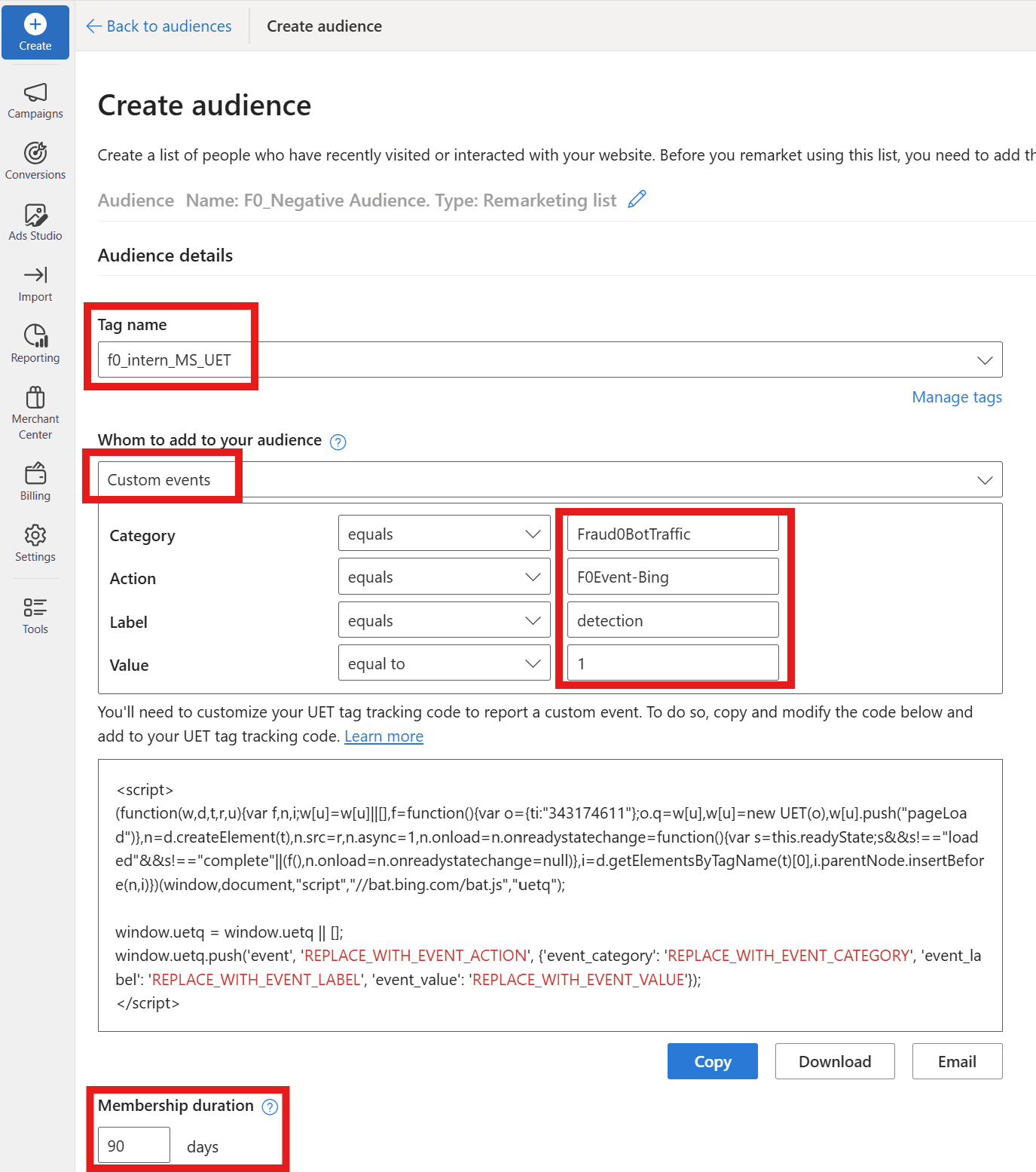
    • In the Audience details
      • Select your Microsoft Advertising Tag below Tag name (here: f0_intern_MS_UET)
      • Choose Custom events in the drop down menu below Whom to add to your audience
      • And add the values to Category (equals Fraud0BotTraffic), Action (equals F0Event_Bing), Label (detection), and Value (equals to 1)
      • Extend the Membership duration to 90 days
      • Save the Audience

    Add MS-Advertising Step 7

  3. Exclude fraud0 Audience from your Microsoft Campaigns (Step 3/4)

    Follow these steps to exclude the fraud0 Audience, you created in the previous step.

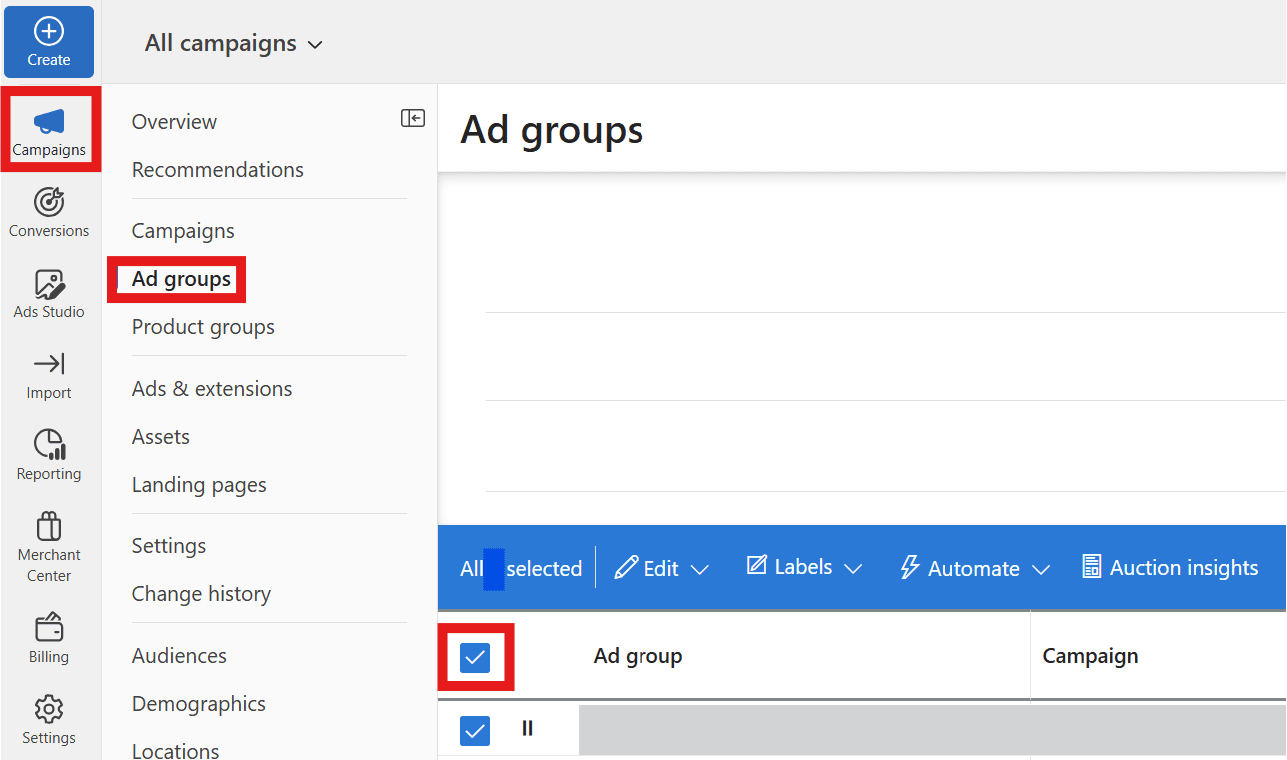
    • Click on Campaigns in the main menu on the left side and click on Ad Groups (one can only create ad group level associations for audience campaigns) in the 2nd level menu that opens after the first click. Then tick the checkbox to select all campaigns

    Add MS-Advertising Step 8

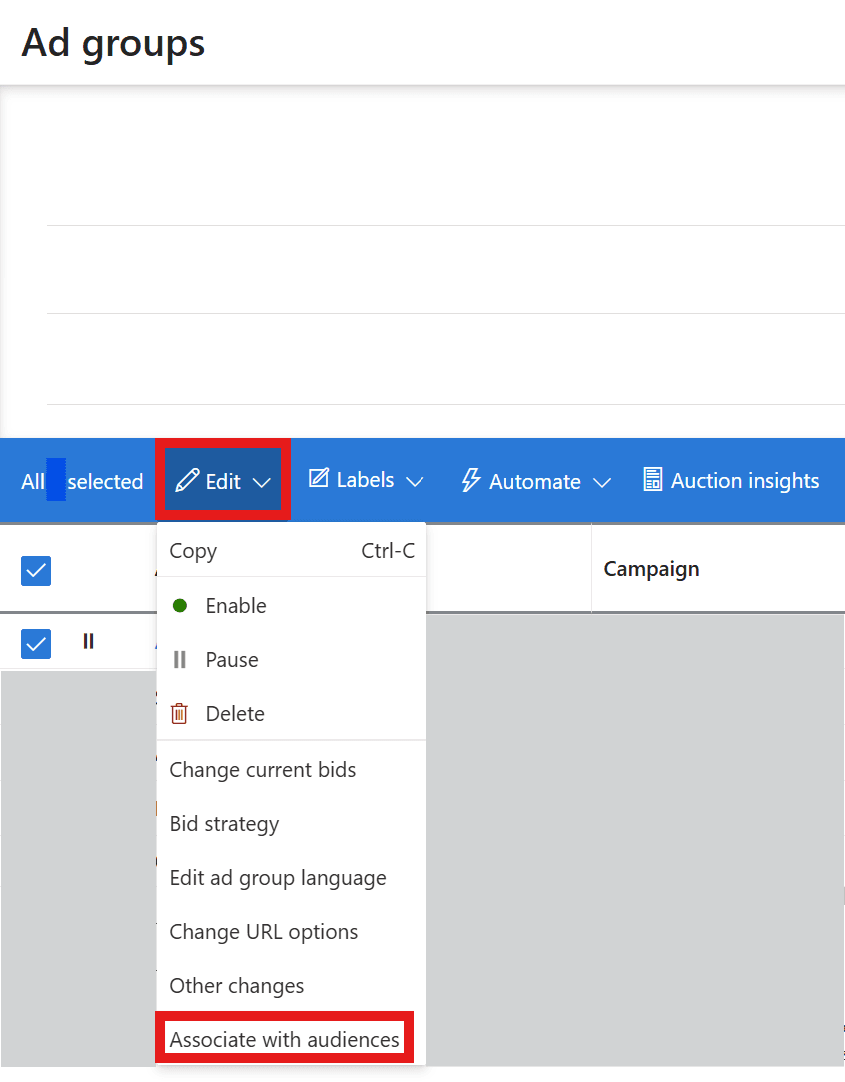
    • Click on Edit and Associate with audiences

    Add MS-Advertising Step 9

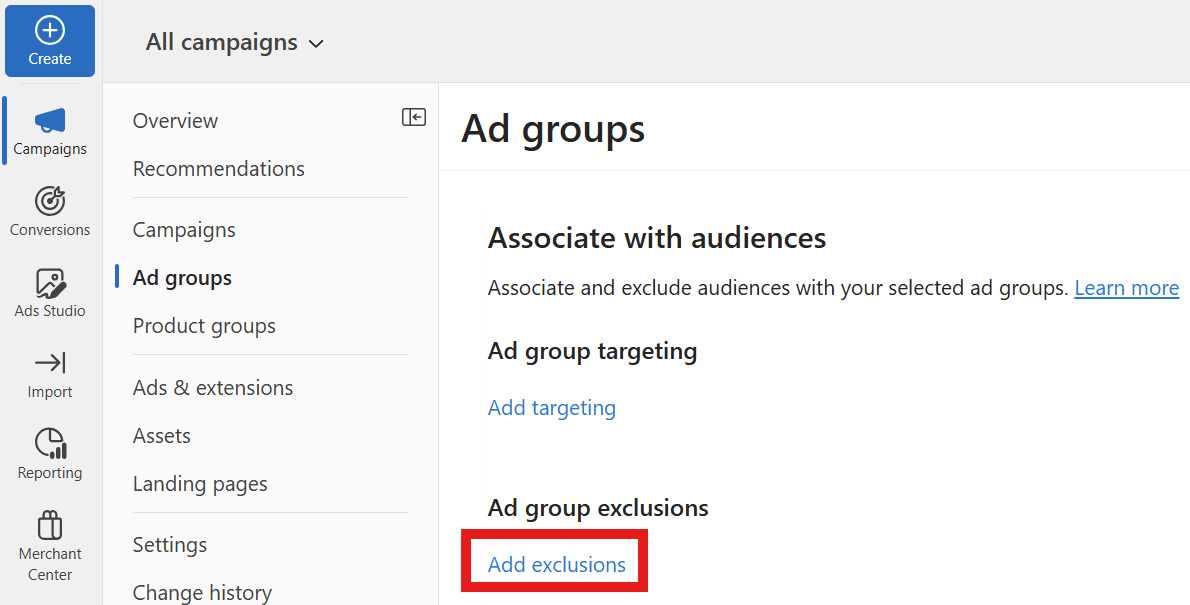
    • Click on Add exclusion

    Add MS-Advertising Step 10

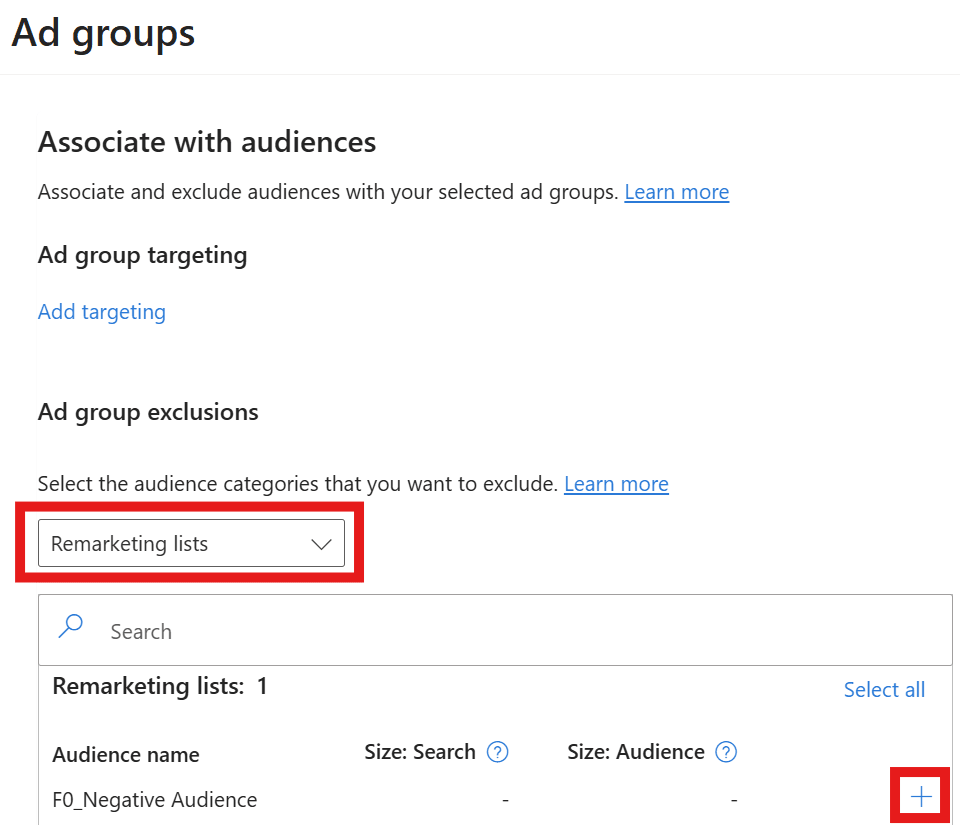
    • Then select Remarketing lists in the drop down menu and select or search for the F0_Negative Audience list you created in the previous step
    • Click on the + sign to add it to the list of selected audiences.
    • Click “Save”

    Add MS-Advertising Step 11


  4. Manually Block IP Addresses: Block Specific IP Addresses from Your Microsoft Ads (Step 4/4)

    If you’re running campaigns and want to ensure that specific IP addresses cannot see your ads, follow these simple steps to manually block them from your account.

    • Contact your Support Team Assistance: The IP addresses to be entered can be provided to you by your support team on request: support@fraud0.com

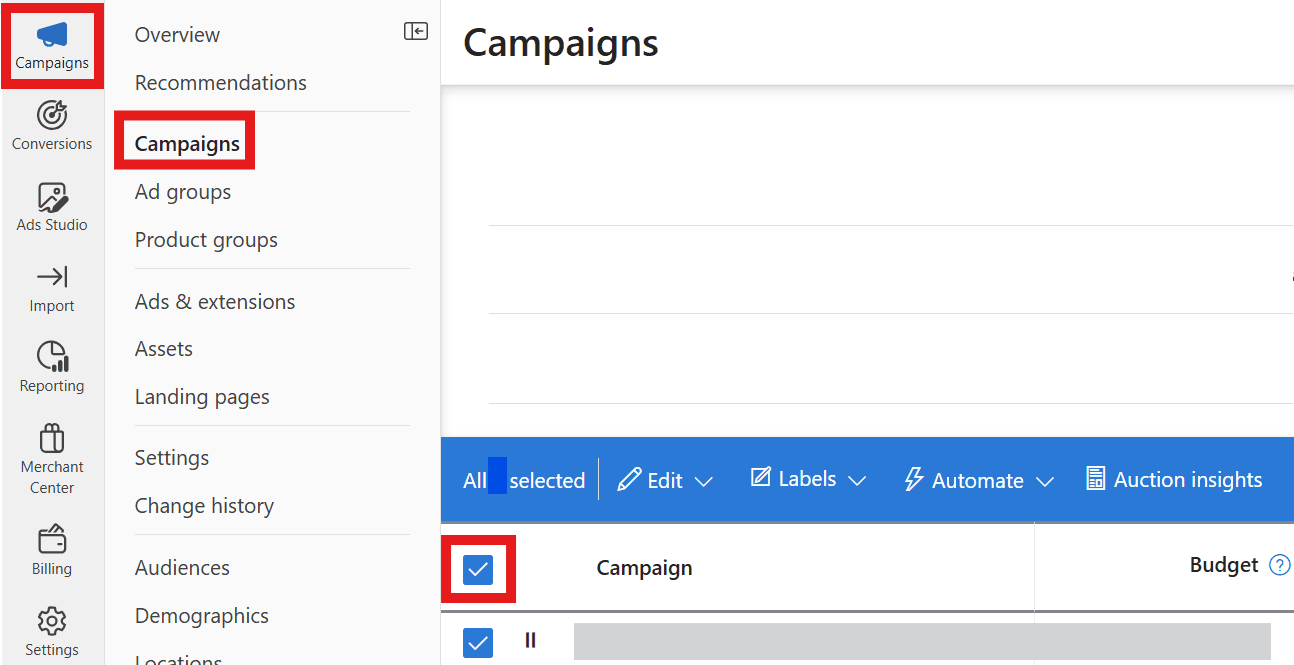
    • Navigate to Campaigns: From the navigation menu on the left, select Campaigns and choose the checkbox next to the campaign that you want to edit (or select all campaigns).

    Add MS-Advertising Step 12

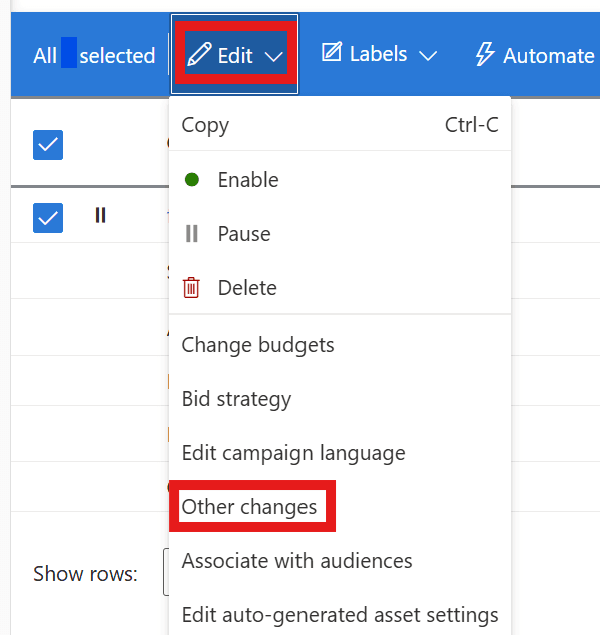
    • Select the Campaign: Click on Edit and select Other changes.

    Add MS-Advertising Step 13

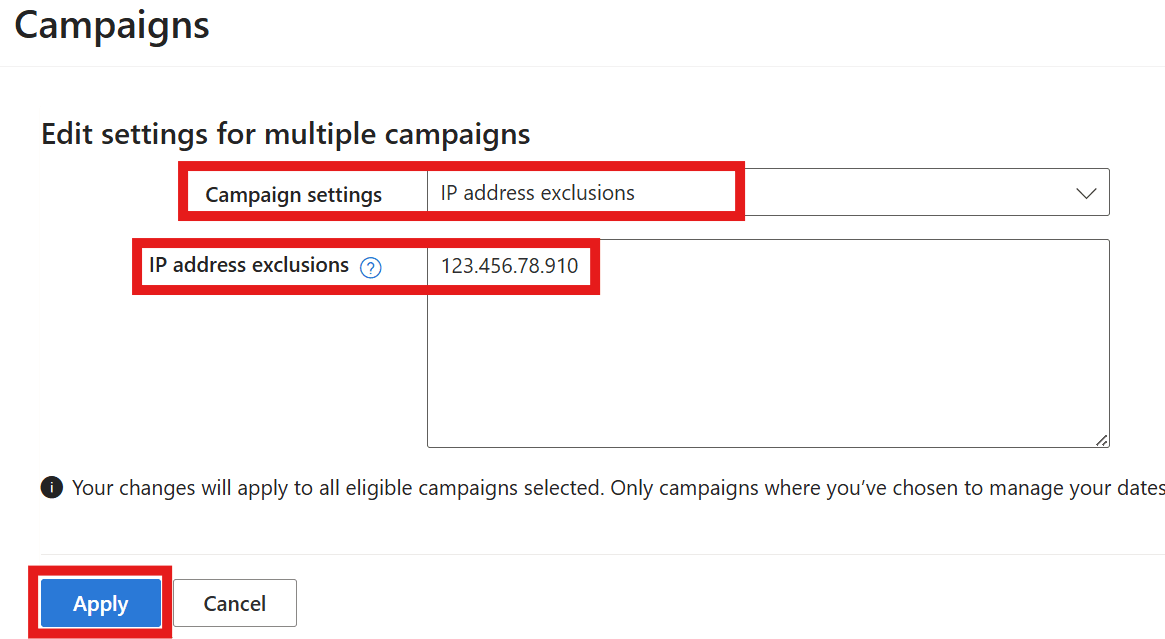
    • Open IP Address Exclusions: From the Campaign settings dropdown menu, select IP address exclusions.
      • Enter IP Addresses: In the text box, enter the IP addresses that you wish to block. You can enter one IP address per line. Alternatively, you can enter a range of addresses by using a wildcard character *.
      • Apply the Changes: After entering the IP addresses, click Apply to save the changes.

    Add MS-Advertising Step 14


Imprint Privacy Policy Terms & Conditions DPA