

DV360
To implement the fraud0 tracking code in DV360 follow the steps below.
Step 1: Log in to DV360
Section titled “Step 1: Log in to DV360”Go to https://displayvideo.google.com and sign in with your Google account.
Step 2: Navigate to the correct campaign and creative
Section titled “Step 2: Navigate to the correct campaign and creative”Use the left-hand menu to select the relevant Advertiser, then the Campaign or Insertion Order (IO), and finally the Line item.
Under that, click Creatives, then choose the creative where you want to add the tracking tag.
Step 3: Append HTML Tracking Tag
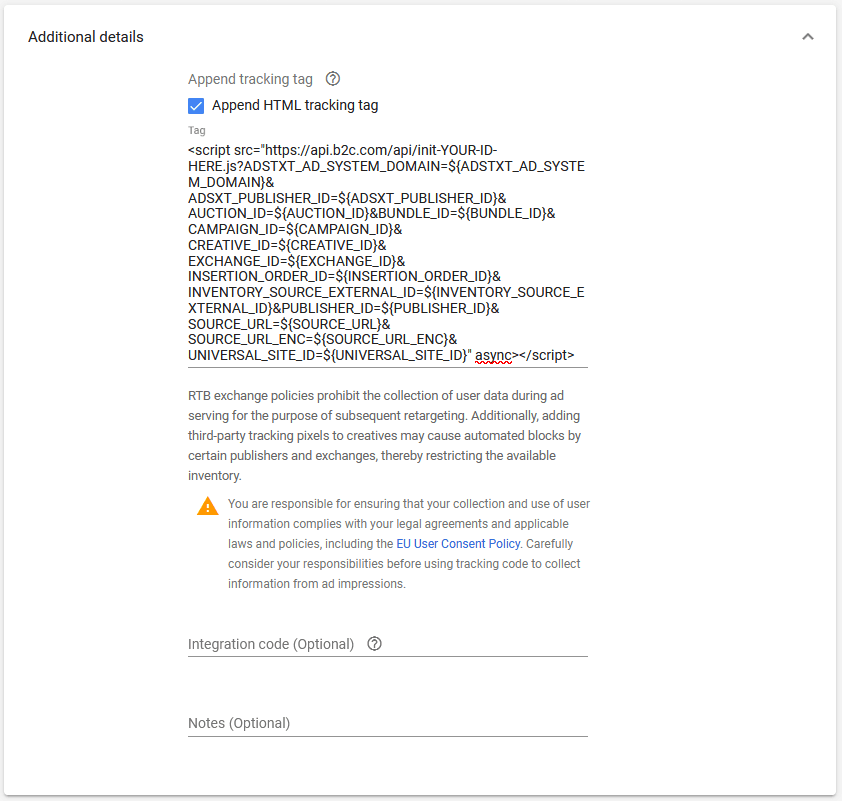
Section titled “Step 3: Append HTML Tracking Tag”Locate the Additional details section.
- Check Append HTML tracking tag.
- Paste your fraud0 tracking script into the Tag field.
- Leave
${...}macros intact — they auto-populate with dynamic values during ad serve.
Step 4: Save changes
Section titled “Step 4: Save changes”Click Save. The tag activates when the creative serves.
Note on DV360 macros
Section titled “Note on DV360 macros”This link goes to the official Google Display & Video 360 macros overview. It explains what macros are and where you can use them in DV360.
Macros supported by Display & Video 360
Need support?
Section titled “Need support?”Do you still have questions or require further details? Contact our support team for assistance.