This guide helps you to connect fraud0 with your Facebook Business Manager account. There are a total of 4 steps you need to take to protect your advertising budget on Facebook / Instagram.
Follow these steps:
Implement Facebook Business Manager Tag (Step 1/4)
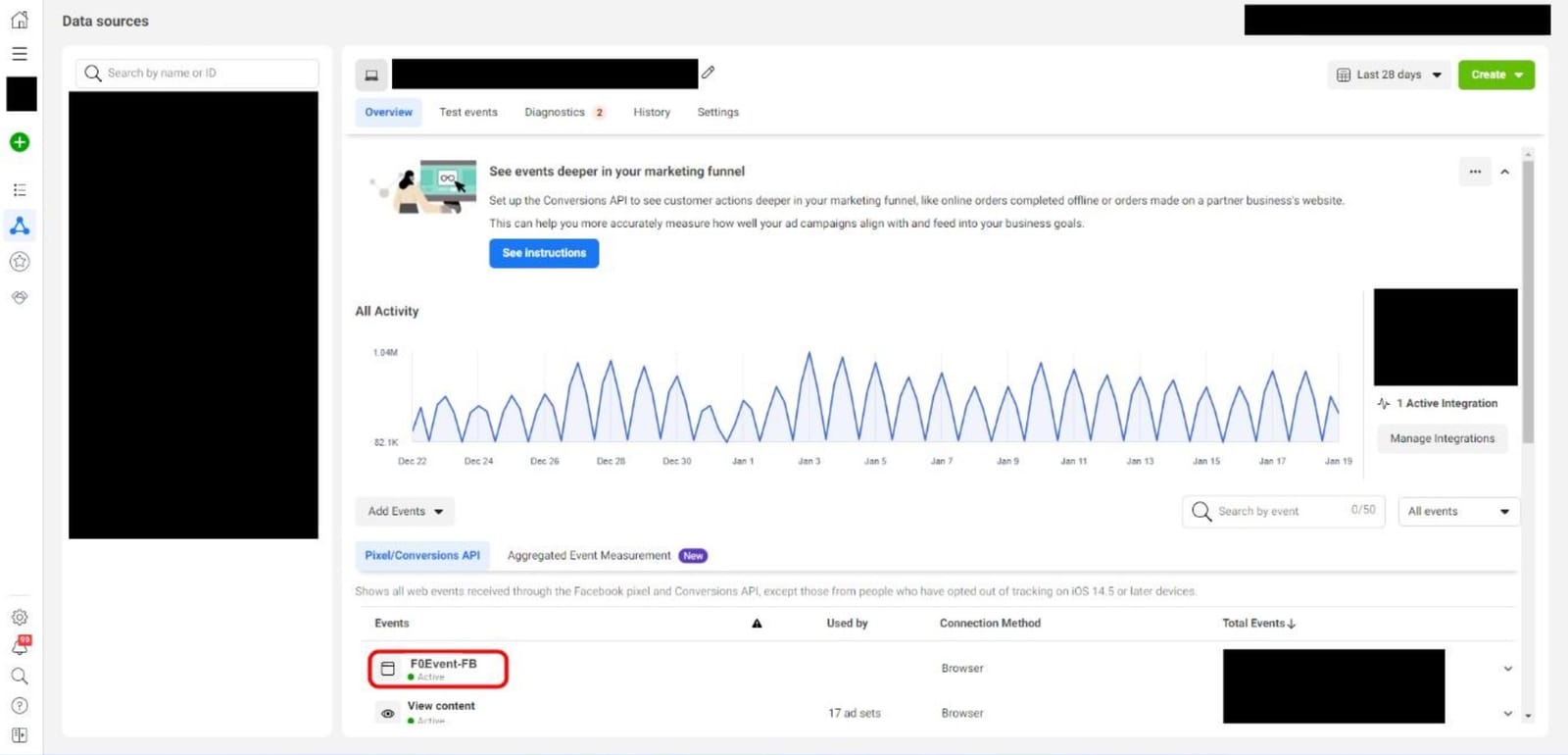
Check Custom Events (Step 2/4)
Create New Audience (Step 3/4)
Exclude fraud0 Audience (Step 4/4)
Implement Facebook Business Manager Tag in Google Tag Manager (Step 1/4)
This step shows you, how to implement the Facebook Pixel via Google Tag Manager.
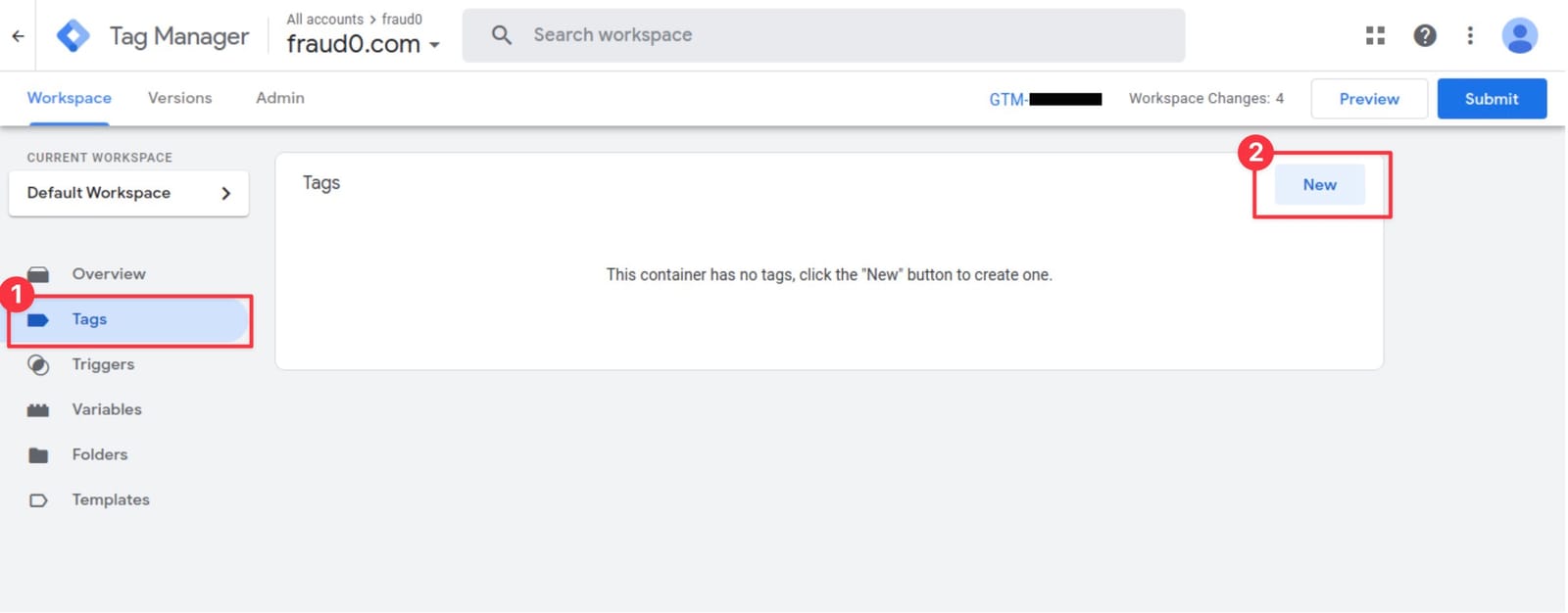
Navigate to Tags (1) and click New (2) in the top-right corner
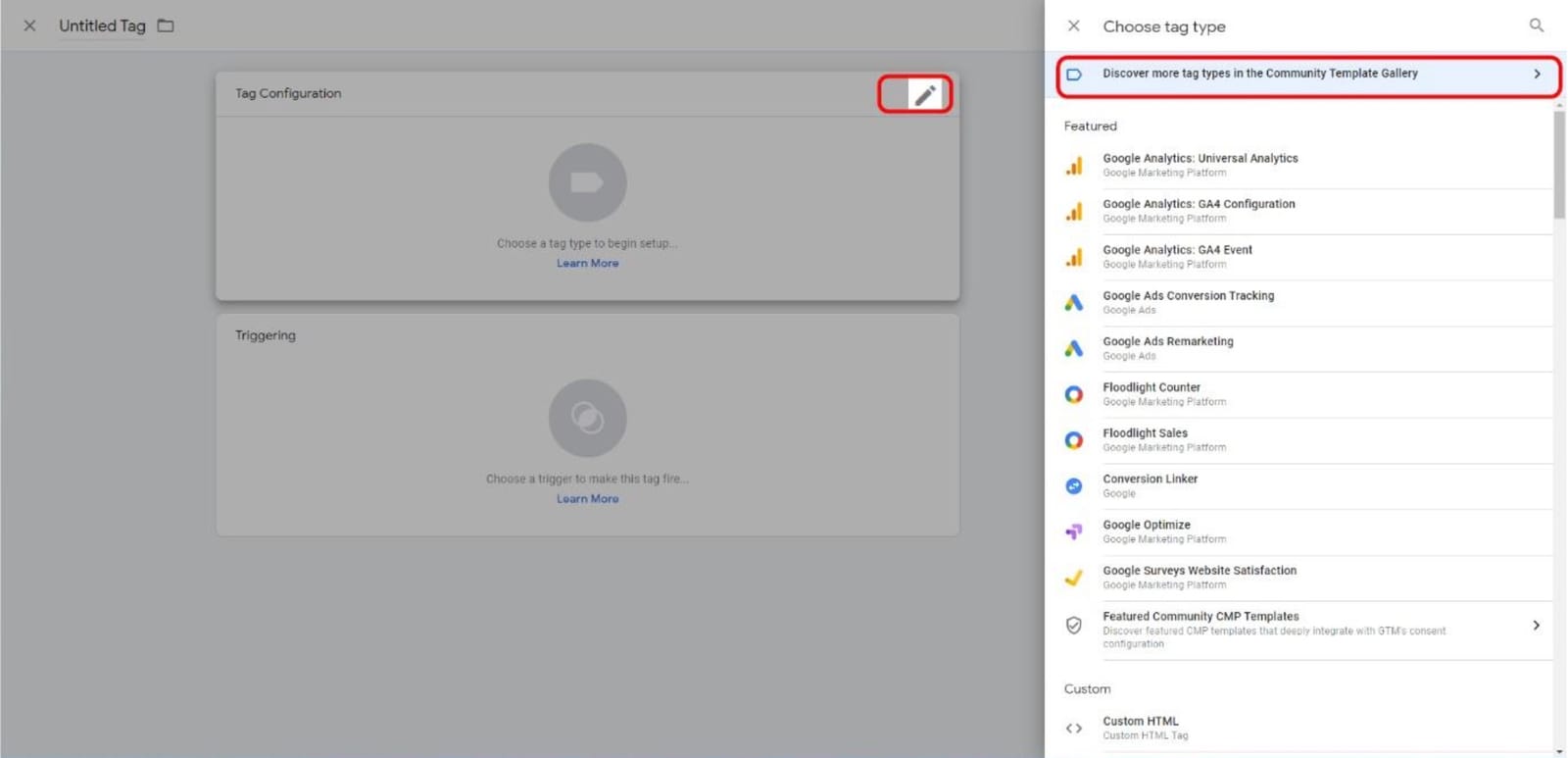
Within the Tag Configuration section select Discover more tag types in the Community Template Gallery.
Search for “Facebook”. In this implementation guide, we will use the Facebook Pixel by facebookarchive template. Click on it and the Facebook Pixel Template will open next.
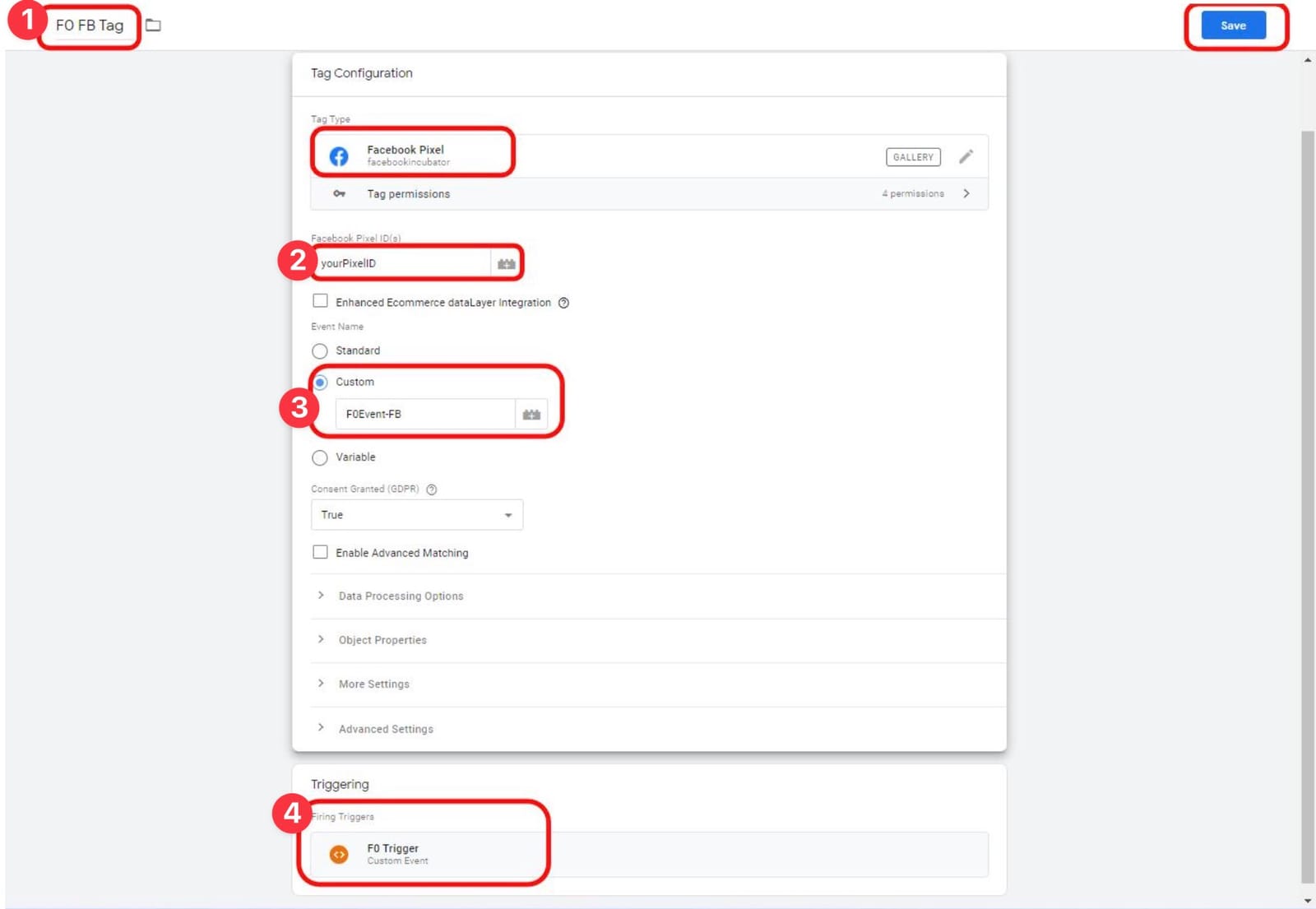
Give your Tag a name (F0 FB Tag (1)) and enter your Facebook Pixel ID (2)
Under Event Name → Custom define the custom event F0Event-FB (3). The event will show up in the Facebook Business Manager as soon as the tag was fired once together with the custom event.
In the Triggering section you need to assign the F0 Trigger (4) you have created before.
Check the Custom Event in Facebook Business Manager (Step 2/4)
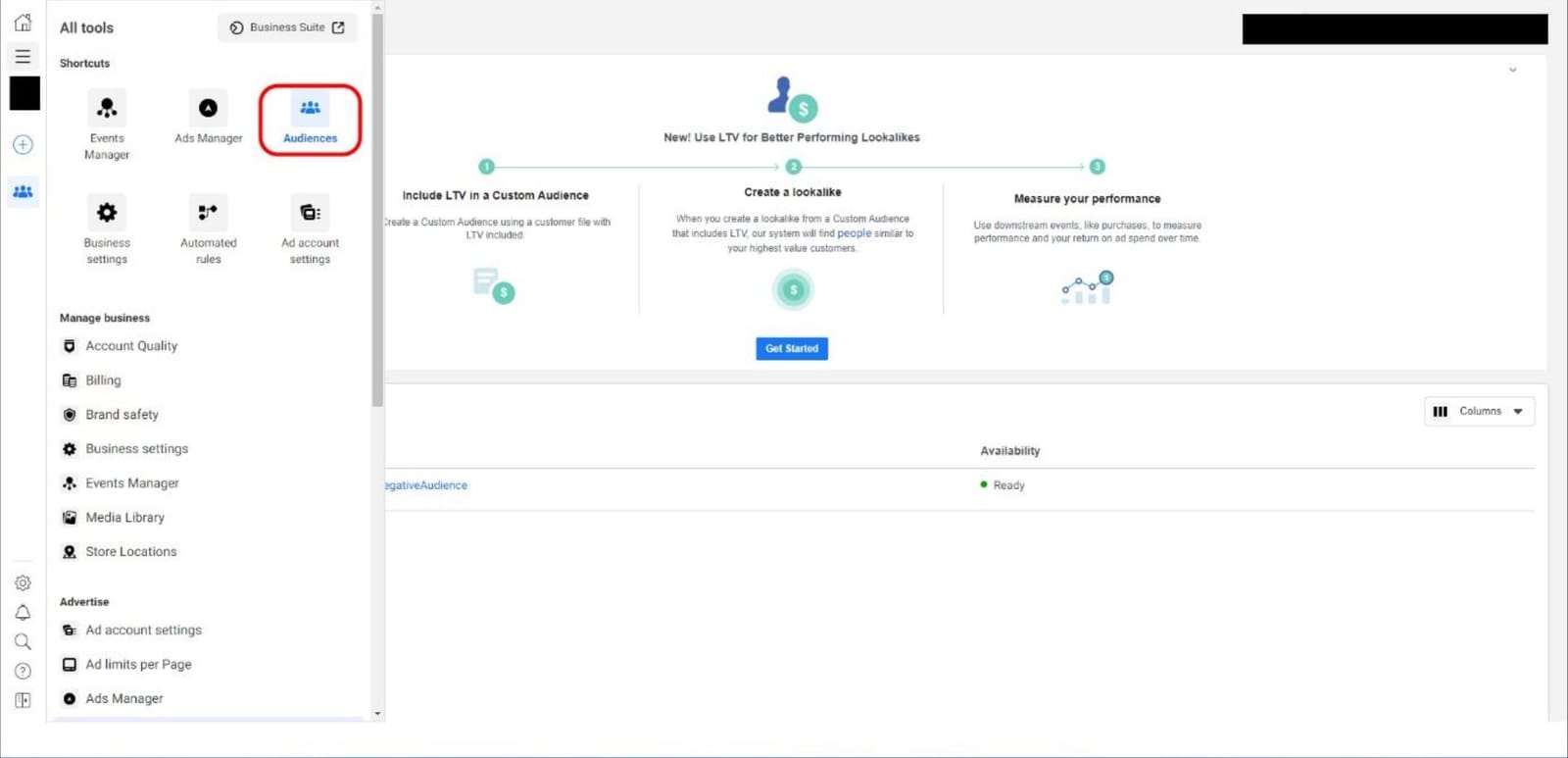
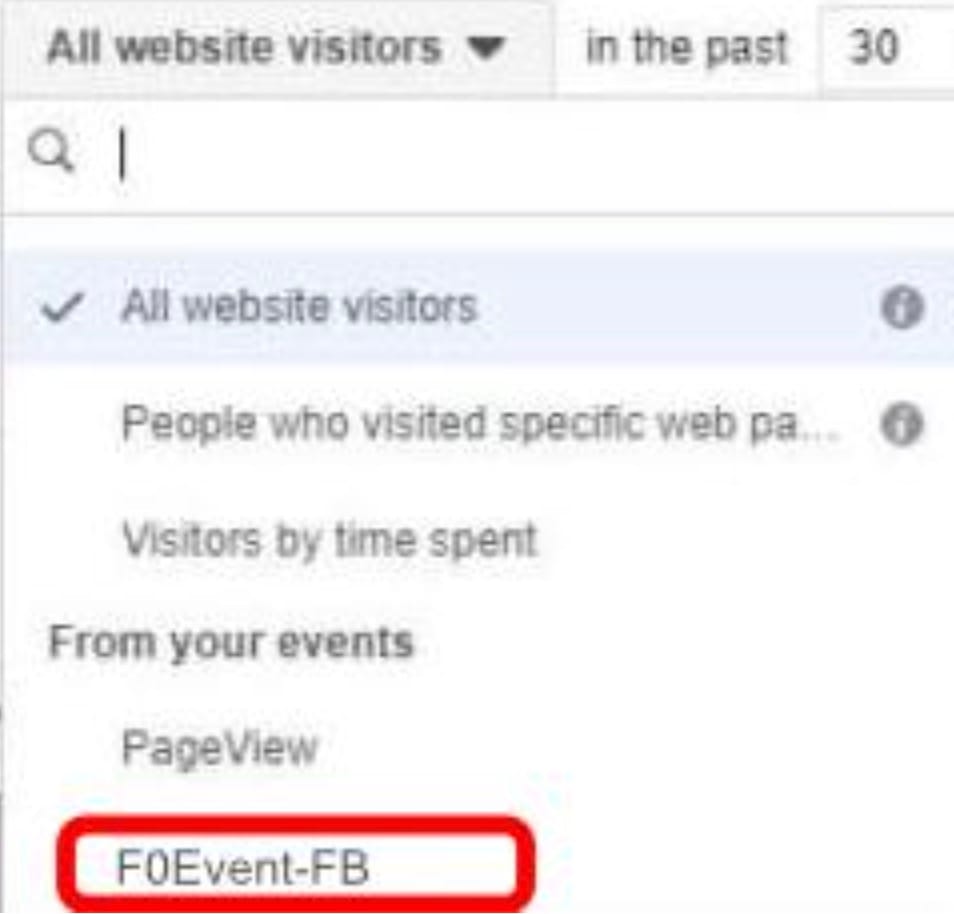
To create the fraud0 Audience in Facebook Business Manager, you need to trigger the custom event with the Facebook Tag first and check if the event is listed in your account.
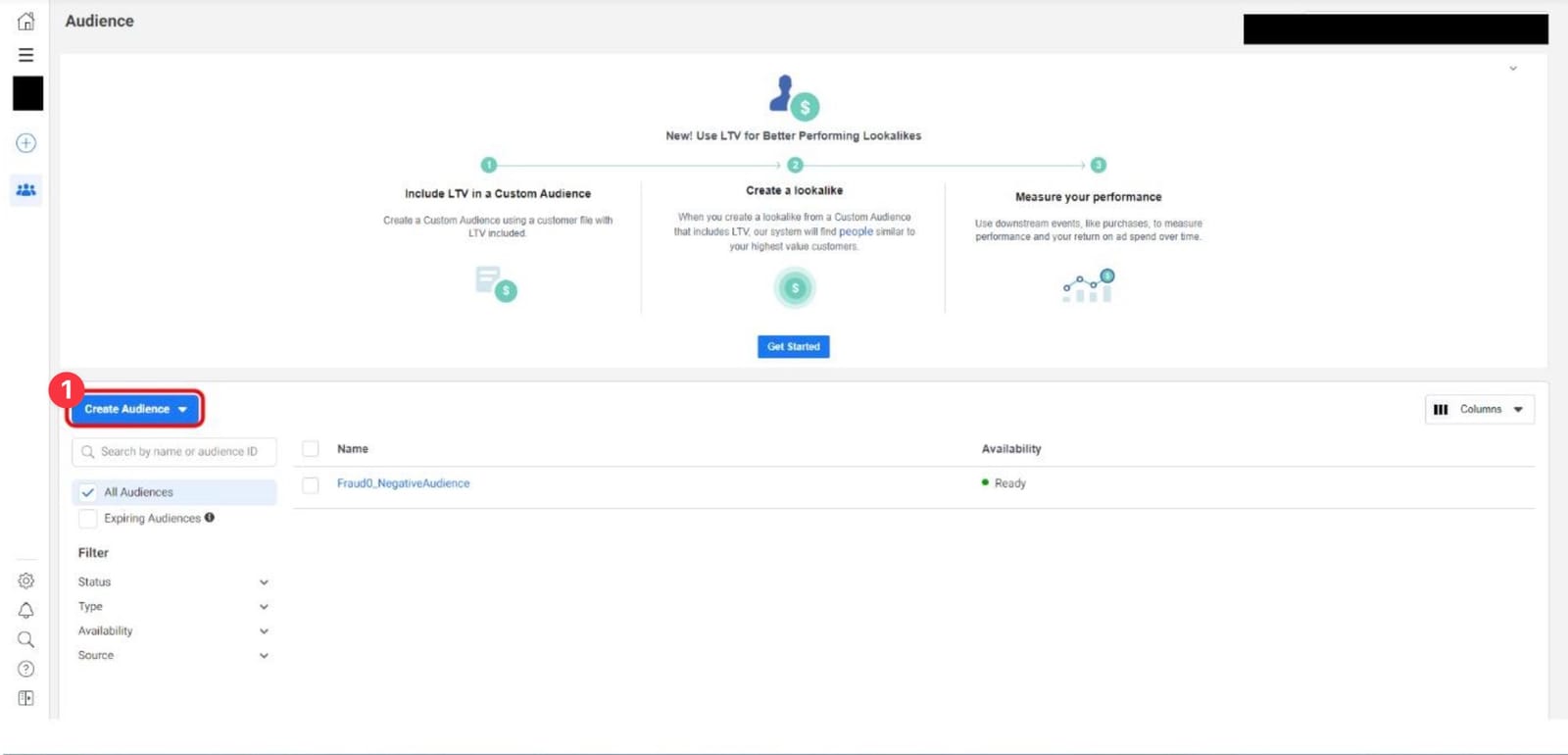
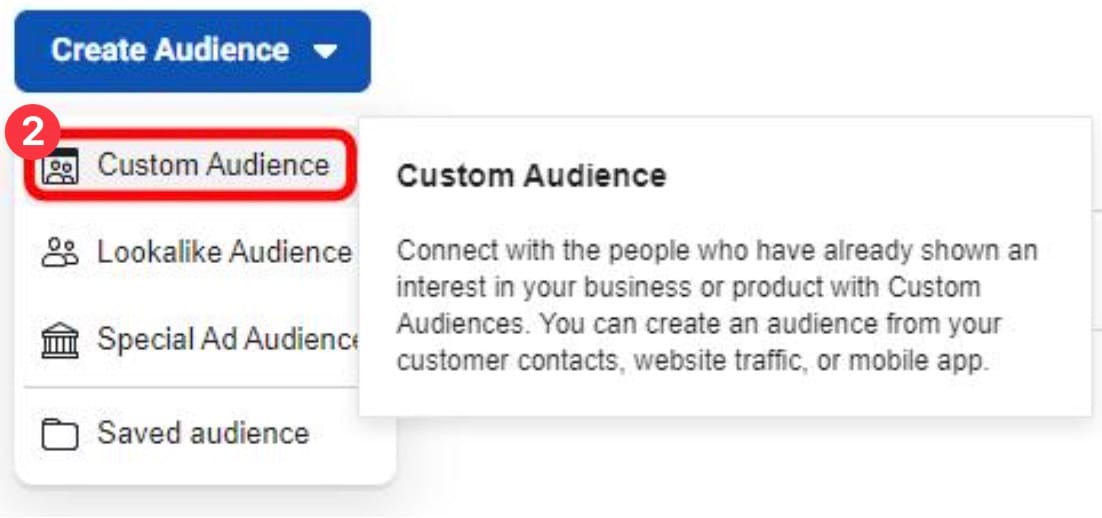
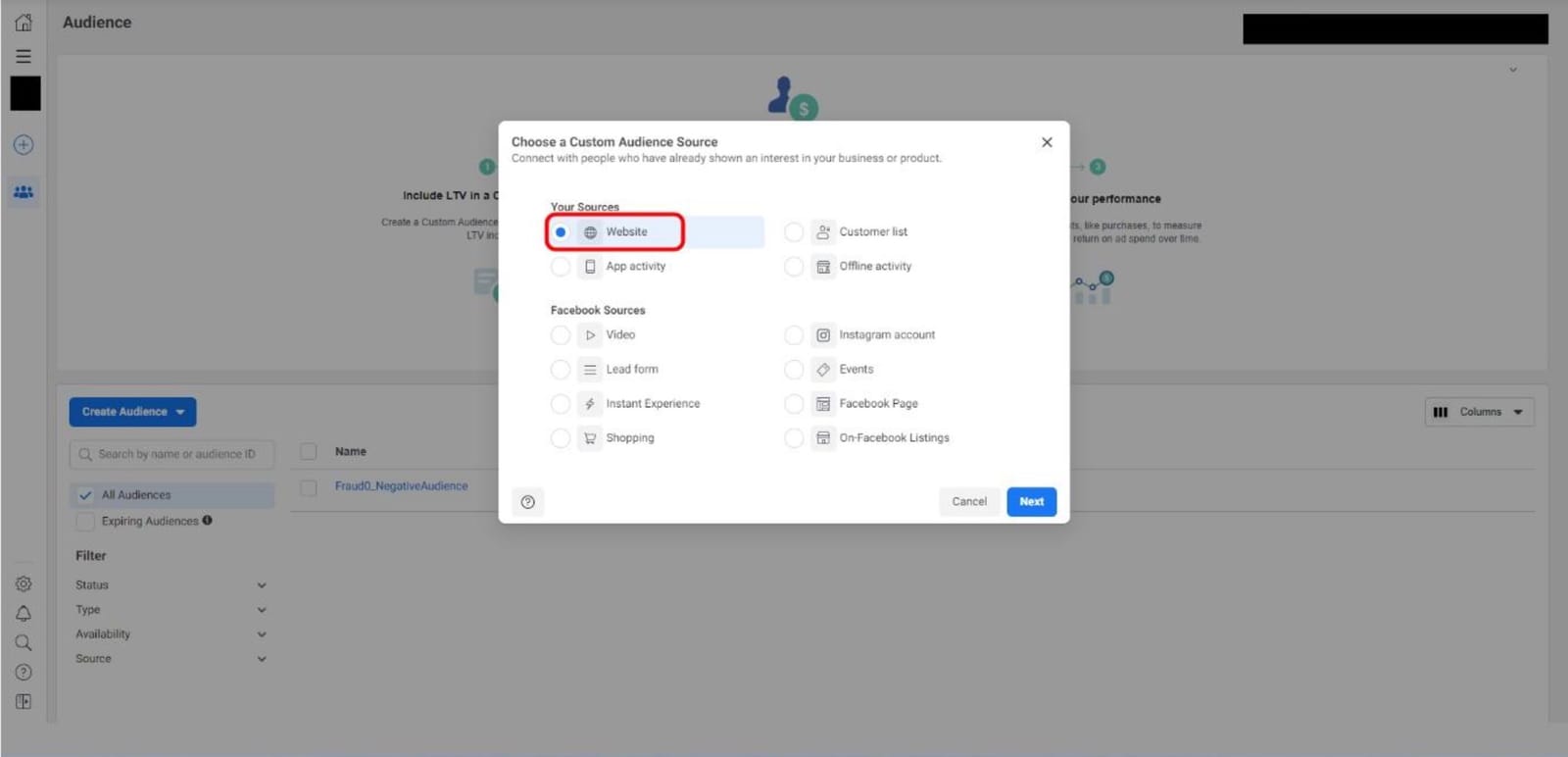
Click on Create Audience (1) and then on Custom Audience (2)
In the Your Sources section select Website as the custom audience source
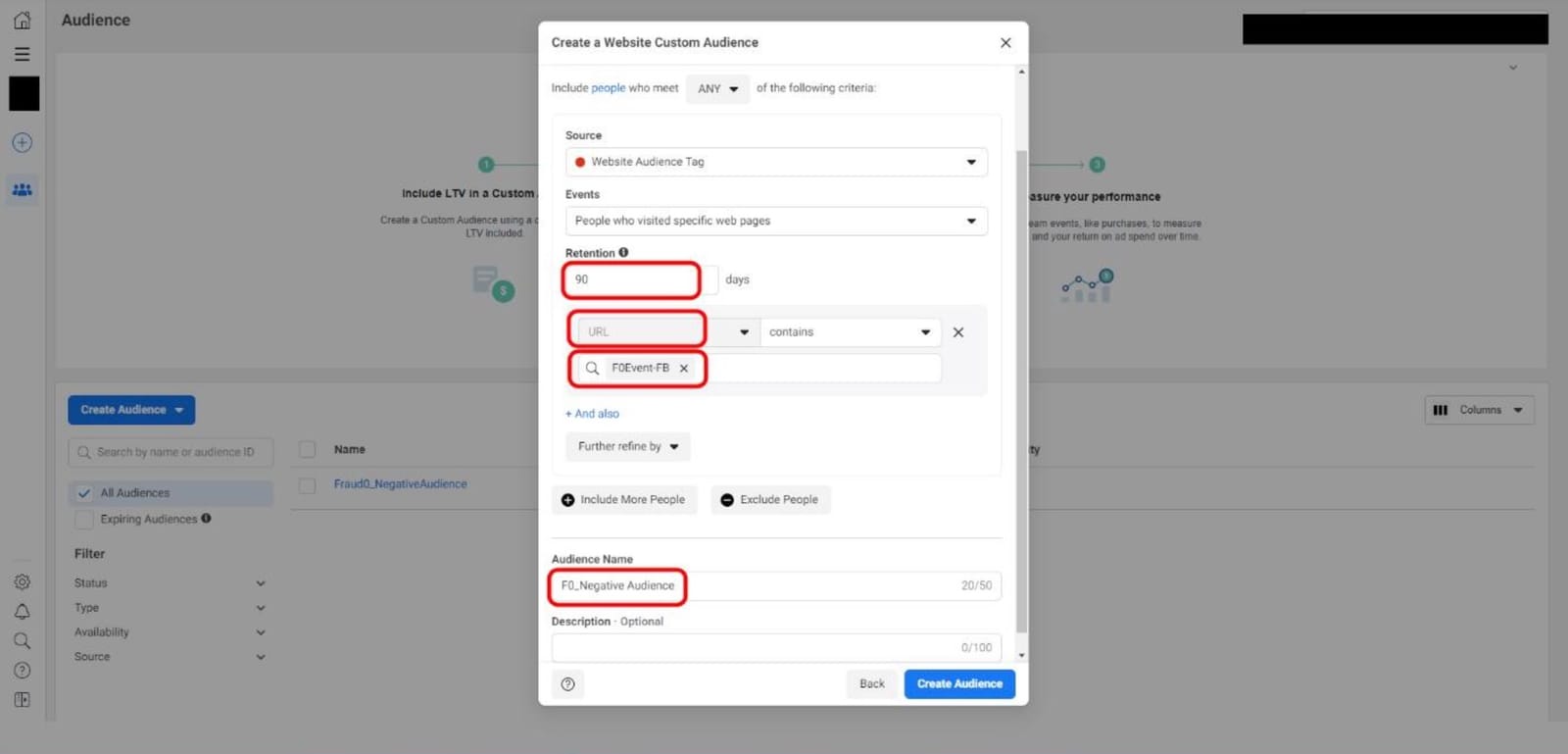
Select your website audience tag from the drop-down in the Source section and increase the retention to 90 days. This indicates how long the user or bot is being re- or de-targeted.
Give your Audience a descriptive name, e.g. F0_Negative Audience
Select your custom event (F0Event-FB) from the All website visitors drop-down
Click “Create Audience”
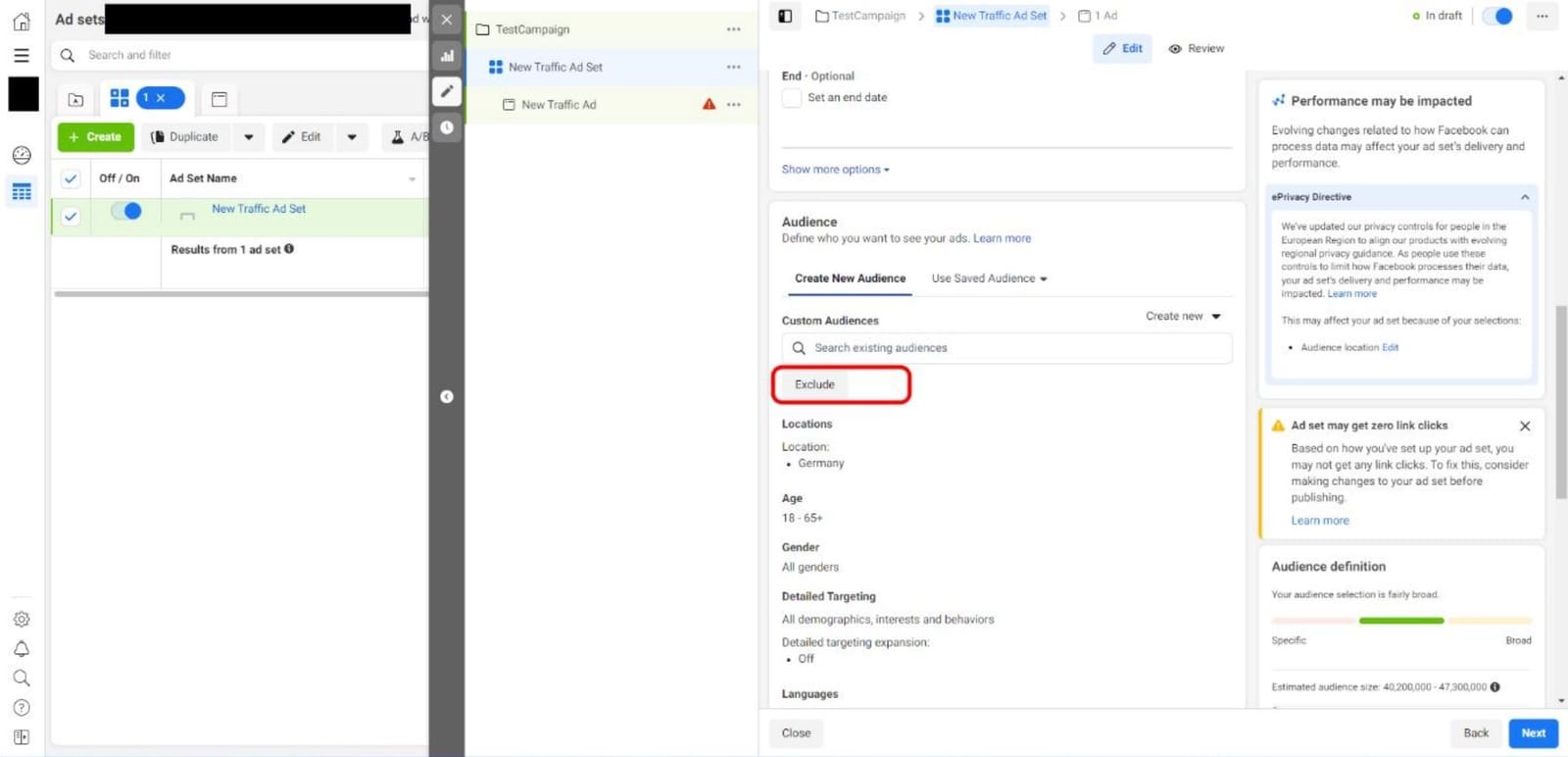
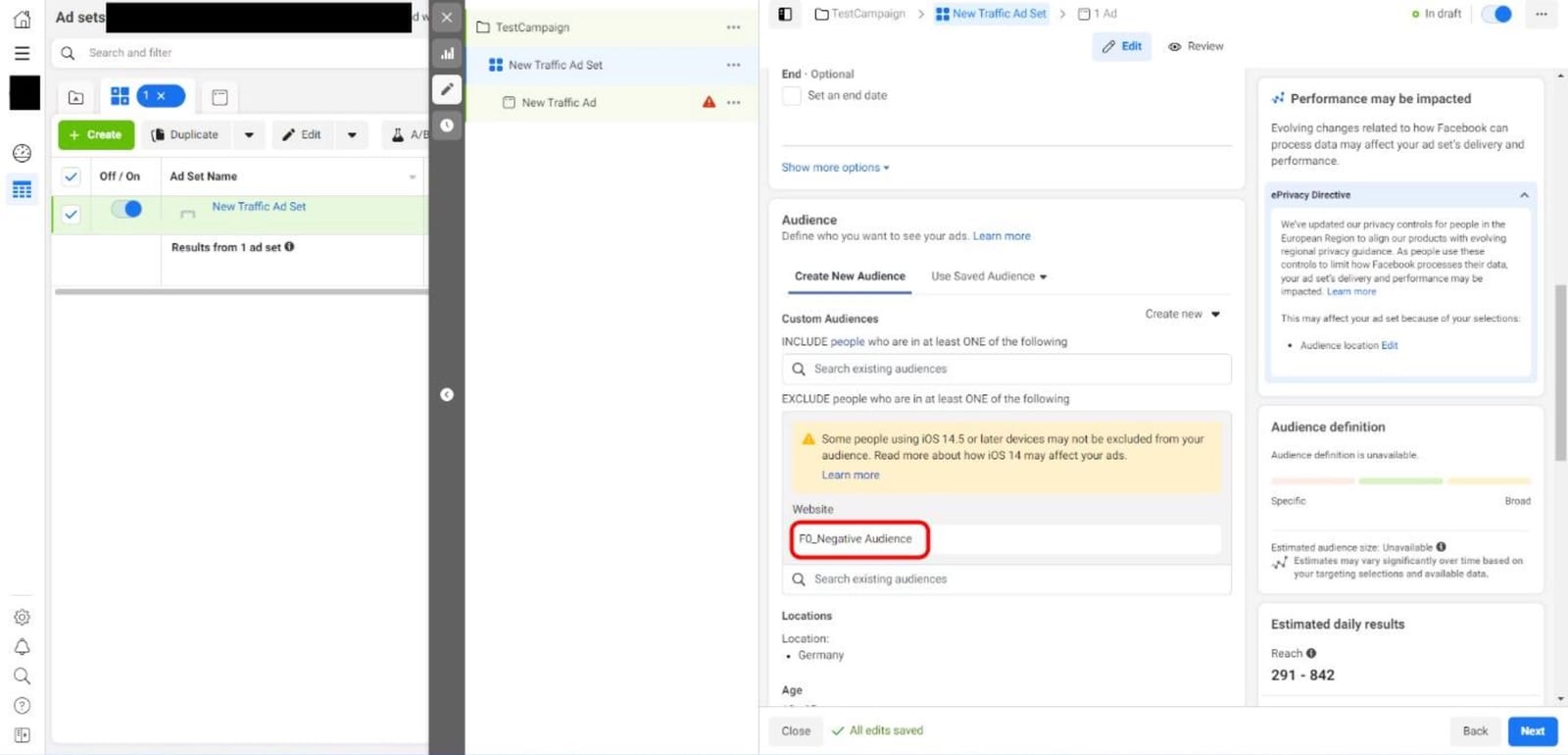
Exclude fraud0 Audience: Create fraud0 Audience from your Facebook Campaigns (Step 4/4)