Skip to content

Audience Exclusion

If you would like to use Audience Exclusions in Google Ads additionally to the IP blocking, this guide helps you to set up negative audiences based on the F0 trigger.

Follow these steps for Audience Exclusion:

  1. Implement Google Ads Tag (Step 1/4)
  2. Check the Custom Event (Step 2/4)
  3. Create a New Audience (Step 3/4)
  4. Exclude fraud0 Audience (Step 4/4)

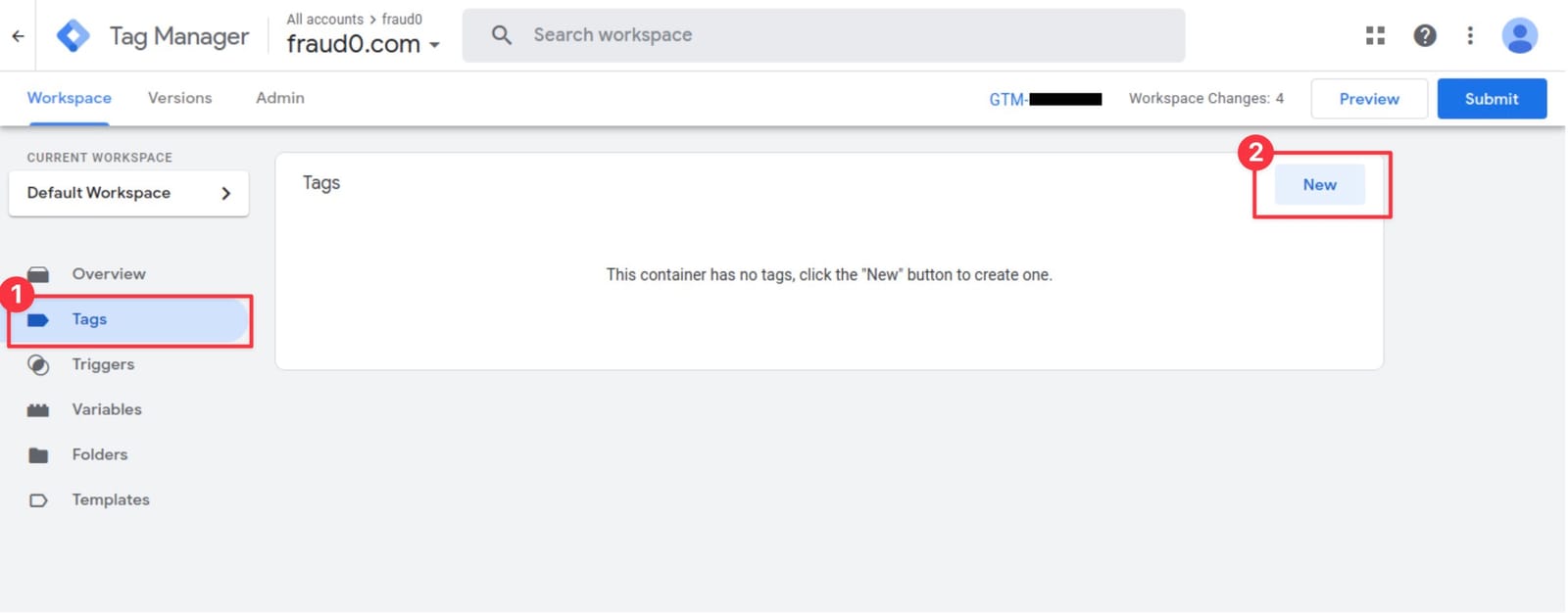
  1. Implement Google Ads Tag in Google Tag Manager (Step 1/4)

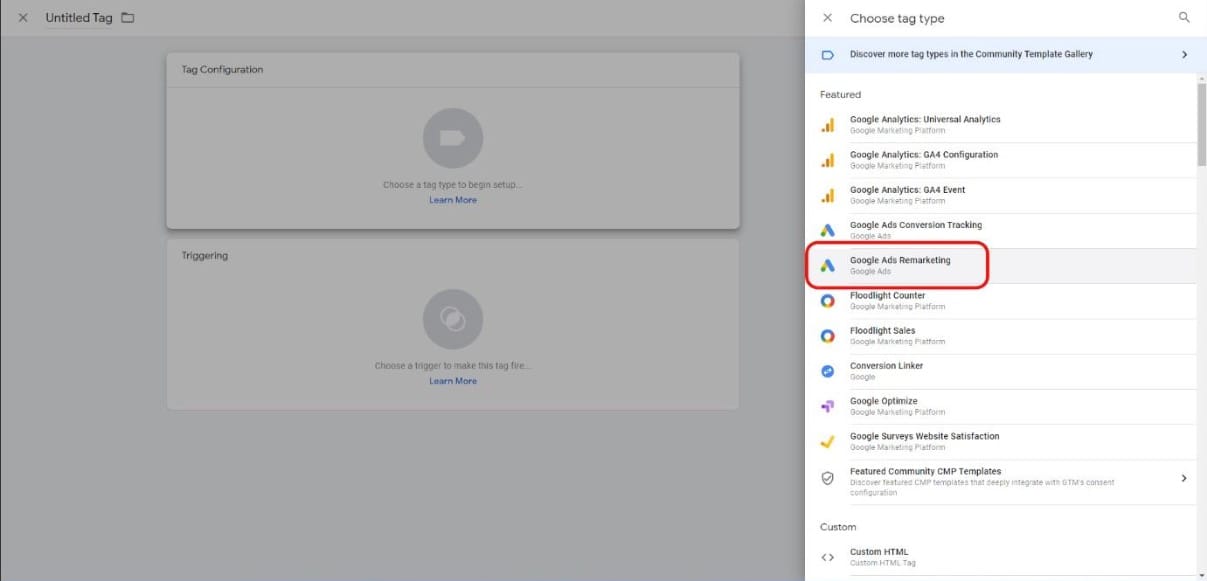
    • Within the Tag Configuration section select Google Ads Remarketing. The Google Ads Remarketing Template will open next.

    Step2 Audience Exclusion

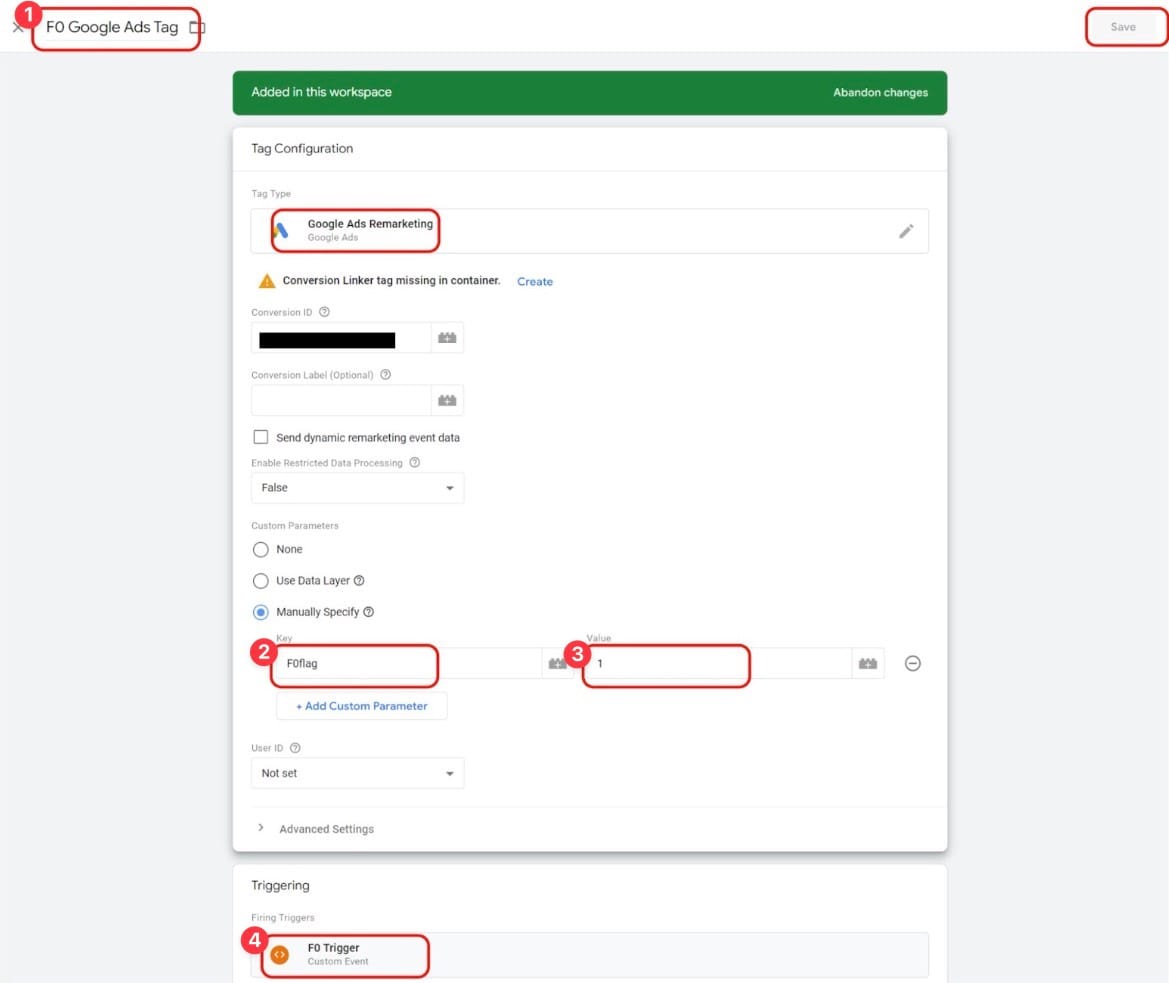
    • Give your tag a name (F0 Google Ads Tag (1)) and fill in your individual Conversion ID from your Google Ads account. More information about where you can find the conversion ID can be found here: https://support.google.com/tagmanager/answer/6106960
    • Click on Manually Specific (2) in the Custom Parameter Section and define a new key F0flag with the value 1 (3).
    • In the Triggering section you need to assign the F0 Trigger (4) you have created before.
    • Click “Save”

    Step3 Audience Exclusion

  2. Go to your Google Ads Account and check the Custom Event (Step 2/4)

    To create the fraud0 Audience in Google Ads, you need to trigger the custom event with the Google Ads Tag first and check if the event is listed in your account.

    • Login to your Google Ads Account
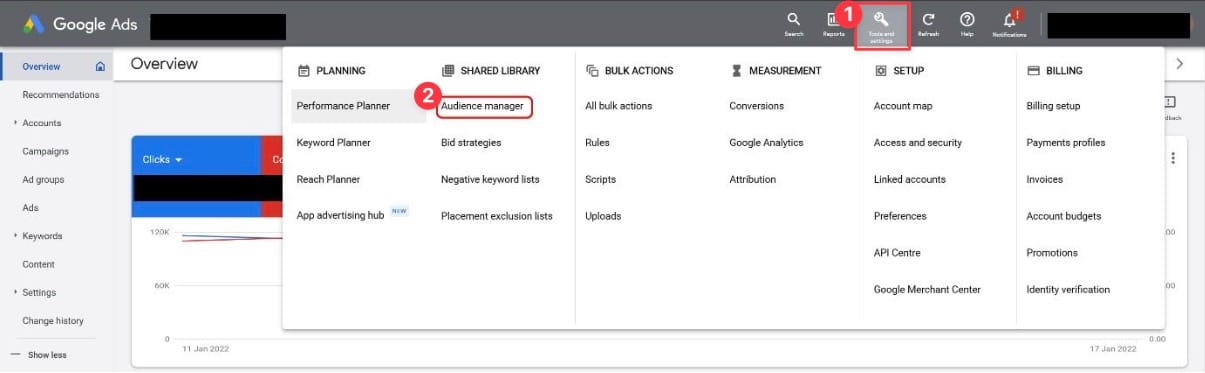
    • Navigate to Tools and Settings (1) → Audience Manager (2) in the main navigation bar

    Step4 Audience Exclusion

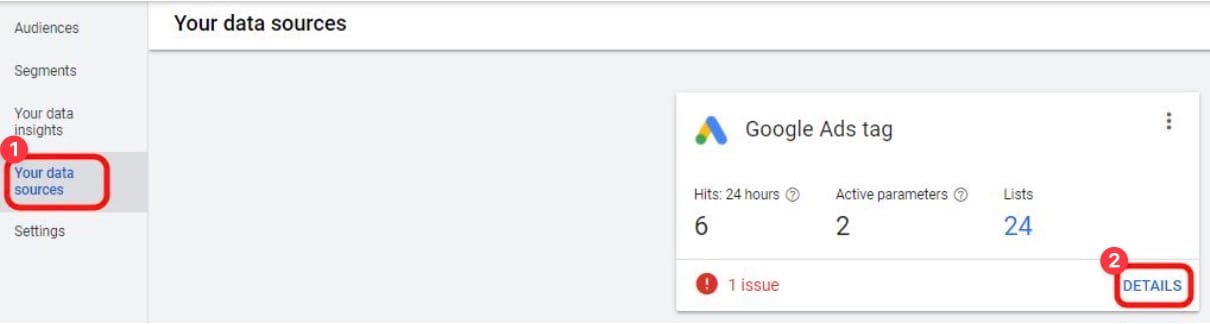
    • Click on Your data sources (1) and select your Google Ads tag you previously used for the Custom Event in GTM.
    • Click on Details (2)

    Step5 Audience Exclusion

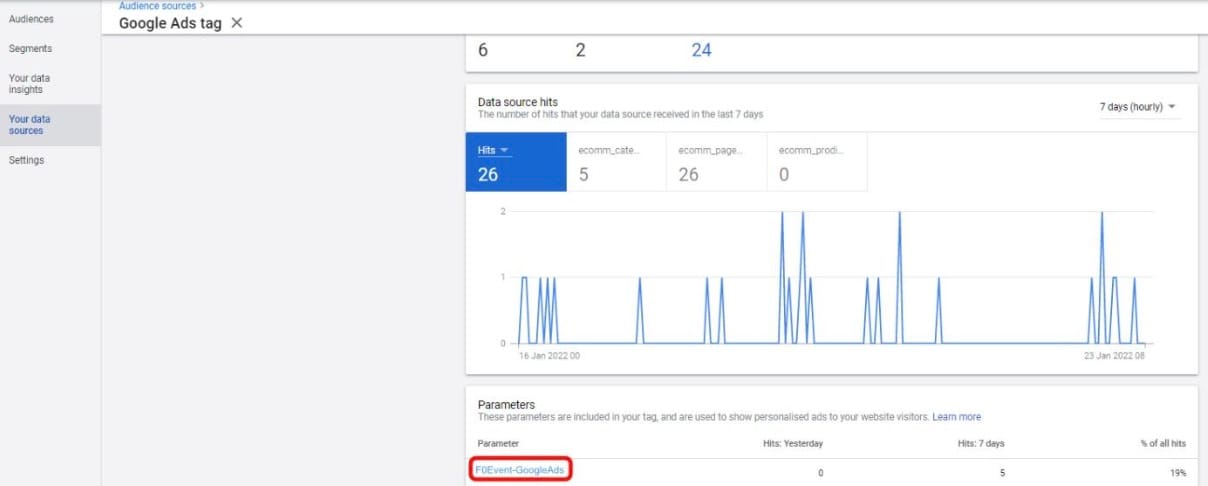
    • Under Parameters you should now see your Custom Event. This is only needed once to be fired up on your website to appear here.

    Step7 Audience Exclusion

  3. Go to Google Ads and create a New Audience (Step 3/4)

    Follow these steps to create a new Google Ads audience for the audience exclusion.

    • Login to your Google Ads Account
    • Navigate to Tools and Settings (1) → Audience Manager (2) in the main navigation bar

    Step8 Audience Exclusion

    Click on Segments (1) and then on the Add (2) button

    • Select Website Visitors from the drop-down

    Step9 Audience Exclusion

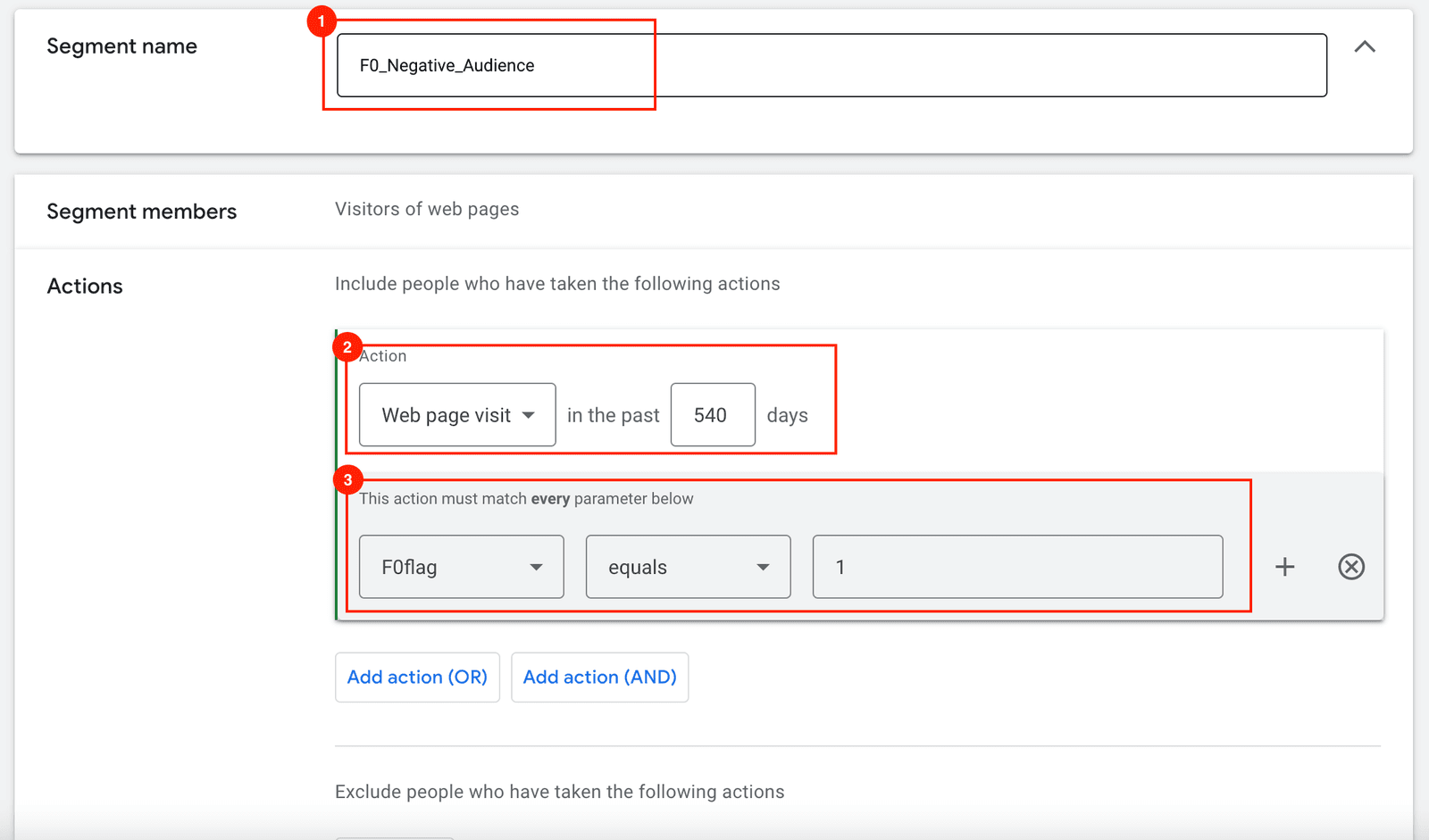
    • Name your audience (F0_Negative_Audience (1))
    • Within Actions click on Refine Action
    • Extend the Action “Web page visit” to the maximum value of 540 days (2)
    • Select the appropriate tag (F0 Google Ads Tag (2)) that you also used to fire the custom event in GTM together with your Google Ads Remarketing Tag
    • Select the F0flag (3) in the drop-down and set ist to equals 1
    • Click on Create Segment

    Step10 Audience Exclusion

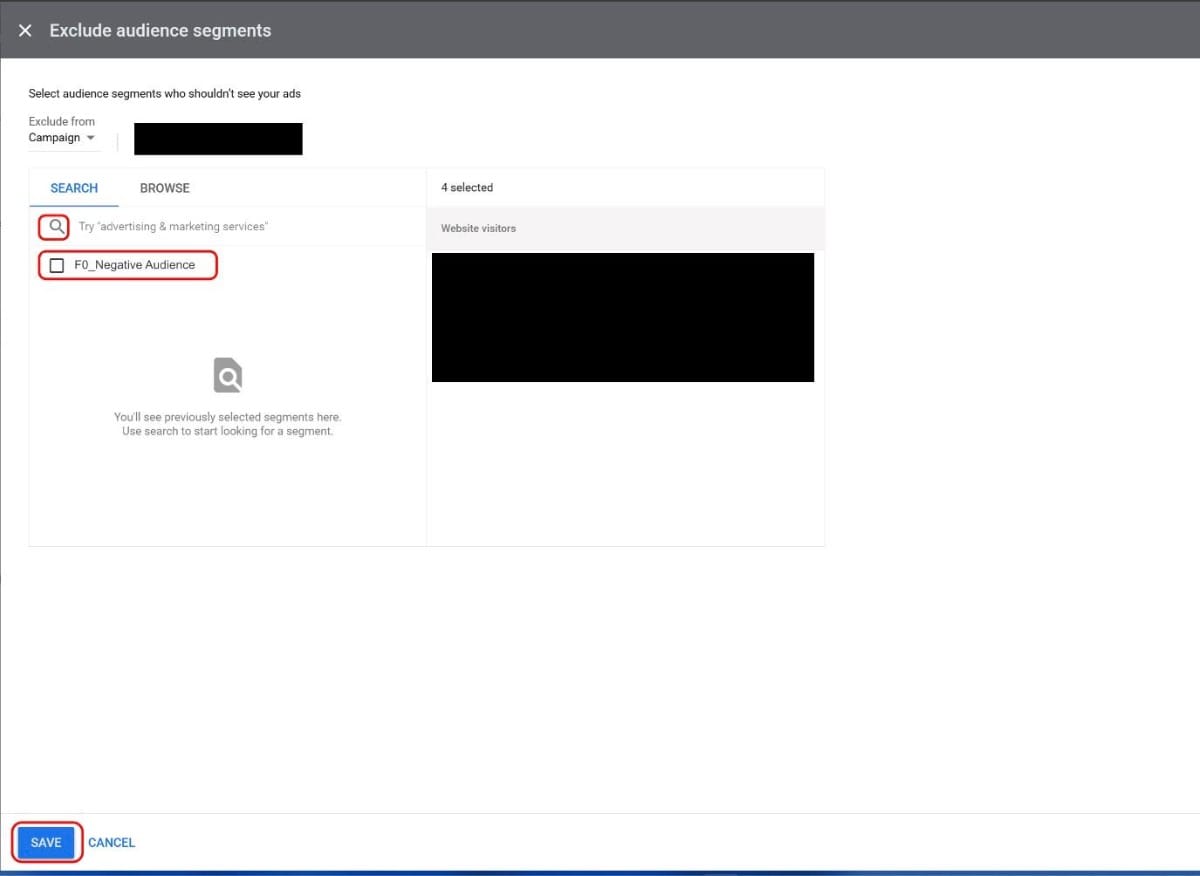
  4. Go to your Google Ads Account and exclude fraud0 Audience from your Google Ads Campaigns (Step 4/4)

    • Login to your Google Ads Account
    • Select the campaign you want to exclude the fraud0 audience from
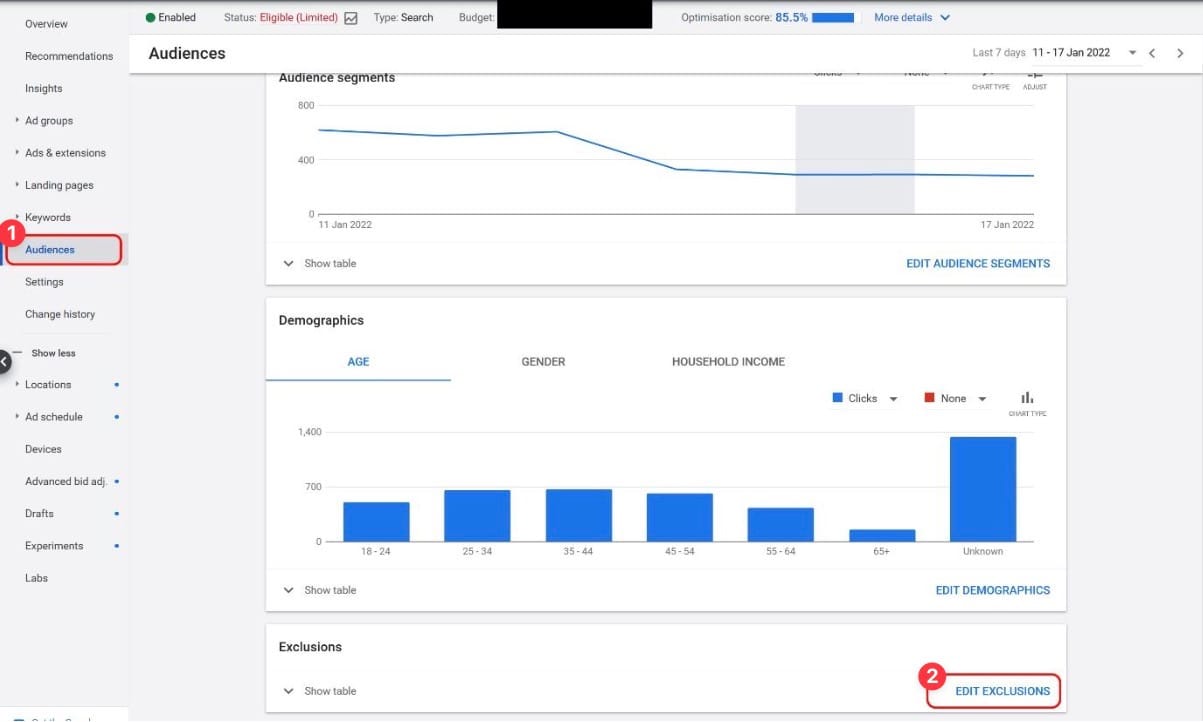
    • When you have selected the campaign, go to Audiences (1) → Edit Exclusions (2)

    Step11 Audience Exclusion

    • Search for the F0_Negative Audience and select it
    • Click “Save”

    Step11 Audience Exclusion


Imprint Privacy Policy Terms & Conditions DPA